![Optii Logo 3x (2)-3.png]](https://help.optiisolutions.com/hs-fs/hubfs/Optii%20Logo%203x%20(2)-3.png?height=40&name=Optii%20Logo%203x%20(2)-3.png)
The Breaks feature introduces customizable break management, real-time tracking, and system-enforced guardrails to streamline daily operations
-
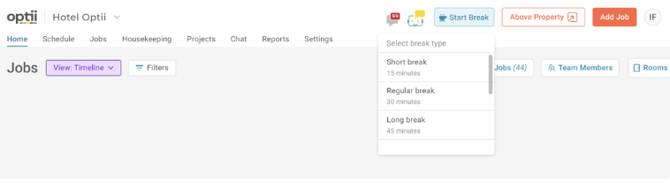
Customizable Break Types: Administrators can create multiple, uniquely named breaks (e.g., “Short Break”, “Lunch Break”) with durations ranging from 1 to 120 minutes.
- Omnipresent Accessibility: A dedicated Break icon is permanently visible at the top right of the screen (next to the Add Job button) across all modules, including My Jobs, Timeline, Job Details, and Reports.
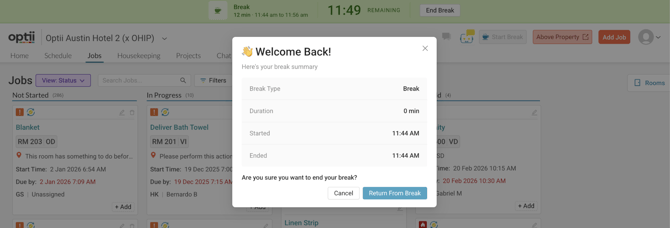
- Real-Time Status Visibility: * Live Banner: An active break triggers a top-of-screen banner showing the break type and a live elapsed timer.
- Timeline Indicators: Team member avatars on the Timeline display real-time statuses:
- 🔵🟢 Active Break: Icon is highlighted in blue with a green dot. Hovering reveals the Break Type, Start Time, and elapsed duration.
- ⚪ Completed Break: Icon returns to inactive. Hovering shows the Break Type, Start Time, End Time, and total duration.
- Chronological Tooltips: If a team member takes multiple breaks throughouta shift, they are neatly stacked in chronological order within a hoverable tooltip.
Configuration & System Behavior
How to Configure Breaks
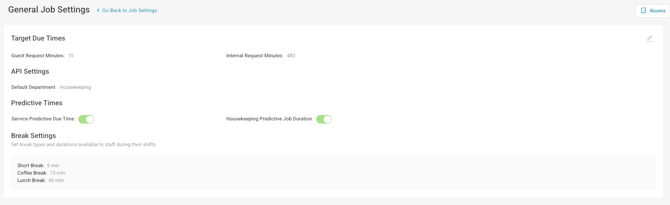
- Navigate to Settings → Job Settings → General Job Settings.
- Locate the new Breaks section.
-
Note: By default, no break types are configured. The section will display: “No break types have been configured.”
- Click to add new break types, defining custom names and specific durations.
System Safeguards & Workflow Rules
- One at a Time: Users can take multiple breaks per shift, but cannot run concurrent breaks.
- Ending a Break: Users simply tap "End Break" to clear the status, or the system will automatically complete the break when their shift ends.
- Job Constraints: To maintain data integrity, a user cannot start, complete, or put a housekeeping job on hold while a break is active.
❓ Frequently Asked Questions (FAQs)
General Usage
Q: Can I start a job while I am on a break? A: No. If you attempt to start a housekeeping job while on an active break, Optii will block the action and prompt: “You are currently on a break. Please end your break before starting a job.”
Q: Can I start a break while I am currently working on a job? A: No. You cannot start a break if a job is in progress. You must pause or complete the active job first. (Please note: While this is the intended workflow rule, it is currently not strictly enforced by the system for the initial release).
Q: Where can I see a history of all completed breaks on the Timeline? A: Currently, completed breaks cannot be viewed as historical blocks on the timeline. Only the active real-time indicator and the hoverable tooltip summary are available in this version.
⚠️ Known Limitations (MVP)
As we roll out the first phase of this feature, please keep the following temporary limitations in mind:
- No Break Notifications: Push or system notifications for breaks are descoped for the MVP and are planned for Phase 2.
- Dispatcher Assignment Blindspot: There are currently no restrictions or visual warnings preventing a manager from assigning a new job to a team member who is currently on a break.
- Timeline Scope: Breaks are exclusively visible for individual team members mapped on the timeline.
Upcoming in Phase 2
We are already working on expanding this feature! Future updates will include:
- Advanced Reporting: Dedicated metrics to track break compliance and total durations.
- Squad Breaks: Ability to manage and assign breaks for entire working squads simultaneously.
- Historical Timeline Blocks: Full visual rendering of past and completed breaks directly on the Timeline interface.
💡Tip: Feel free to share this valuable resource with your colleagues to explore Optii.