![Optii Logo 3x (2)-3.png]](https://help.optiisolutions.com/hs-fs/hubfs/Optii%20Logo%203x%20(2)-3.png?height=40&name=Optii%20Logo%203x%20(2)-3.png)
Optii Housekeeping is constantly evolving to provide you with the most efficient and effective tools for managing your housekeeping cleaning exception status.
The new cleaning exception statuses symbols and capabilities give you even more granular control over your room statuses, specifically for Do Not Disturb (DND), No Service Required (NSR), Clean Rooms, and Double Lock status.
These new statuses, combined with Optii's intuitive interface, empower your housekeeping team to prioritize tasks, optimize workflows, and ensure a seamless guest experience. Whether you're managing a small boutique hotel or a large resort, these enhancements will significantly improve your housekeeping operations.
Lesson Overview
-
Target Audience: Room Attendants, Supervisors, and Managers.
-
Lesson Duration: 4 Minutes (Video) + 5 Minute Read.
-
Format: Video Tutorial & Written Guide.
What You Will Learn
In this lesson, you will learn how to efficiently manage room cleaning exceptions using the Optii mobile app. By the end of this tutorial, you will be able to:
-
Locate the Exception Menu on any assigned job card.
-
Correctively report Do Not Disturb (DND), No Service Required (NSR), Double Lock Active, and Sleep Out statuses.
-
Understand how these statuses alert your management team and update your daily workflow.
🎥 Click below to access the Tutorial Video 👇
Written Tutorial: Managing Room Exceptions
Hello! Thank you for your continued partnership with Optii. Today, we’re exploring the Cleaning Exception Status Enhancement, a feature designed to give you total control over room management right from your mobile device.
Whether you are a Room Attendant, a Supervisor, or a Manager using the Optii mobile app, managing room status has never been easier. To get started, let’s look at how to report a cleaning exception status in Optii.
Accessing the Exception Menu
Once you are on your Optii mobile app, navigate to your 'My Assigned Jobs' list. Locate the room you would like to report and press the three-dot menu (...) in the top right corner of that job card.
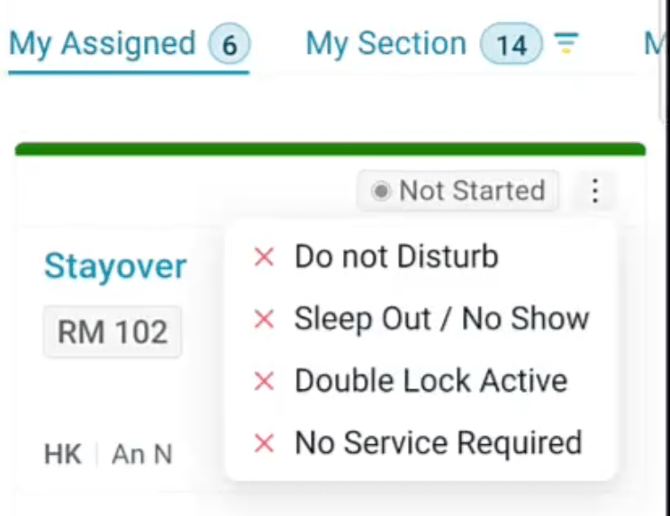
When you press the three-dot menu, you will see the following options:
-
Do Not Disturb: Use this when a guest has put a privacy sign outside the door.
-
Sleep Out / No Show: Use this when you want to report that a room is actually vacant and clean.
-
Double Lock Active: Use this when the room has been locked from the inside and you cannot access it.
-
No Service Required: Use this when a guest has requested that no cleaning be performed for the day.
Step-by-Step Examples
1. Reporting a Do Not Disturb (DND) In this example, we want to report a DND for Room 101 (a Stayover).
-
Press the three-dot menu on the Room 101 card.
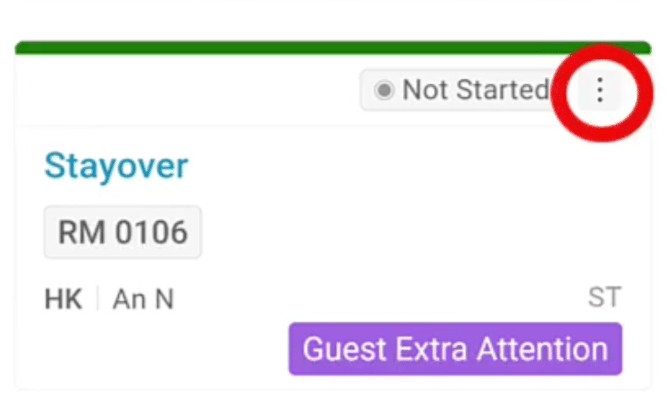
-
Select 'Do Not Disturb.' * You’ll receive an immediate success message, and a clear status symbol will appear at the top of the card to keep your day organized.
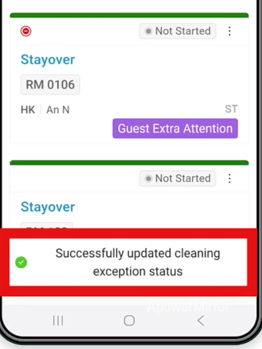
Please apply the same process if you would like to report No Service Required, Double Lock Active, or Sleep Out / No Show
Learn the Symbols for Cleaning Exception Room Statuses:
Optii now allows you to set the cleaning exception rooms based on the following crucial statuses:
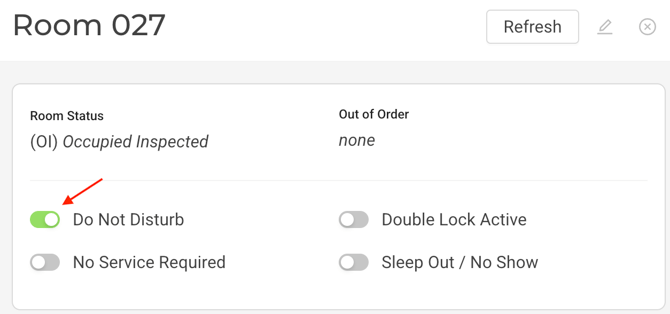
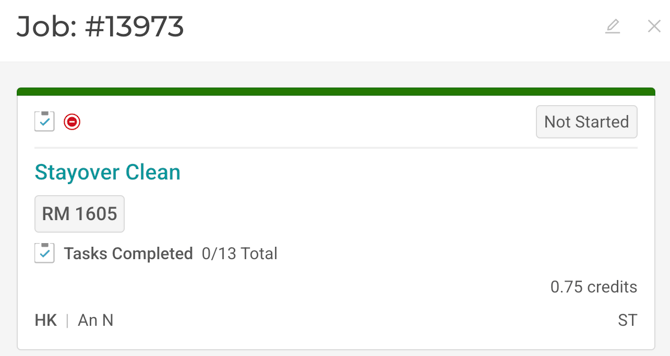
- Do Not Disturb (DND): Quickly identify rooms where guests have activated the DND. This allows your staff to respect guest privacy and avoid unnecessary disturbances. To set a room to DND status, tap the three-dot menu on the job card and select Do Not Disturb. The DND symbol will immediately appear, and the job would remain on the My Assigned Jobs list and would move to the end of the assignment for the assigned user. It would also remain visible on both the Timeline View and the Job Status View.

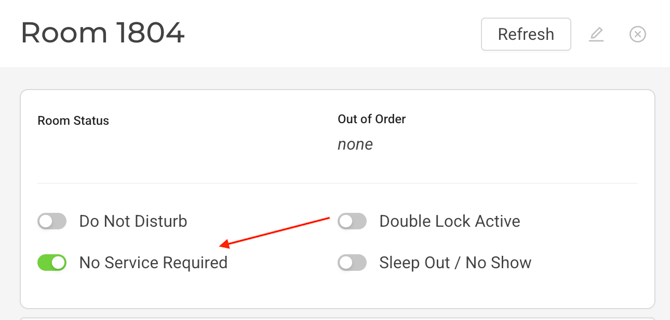
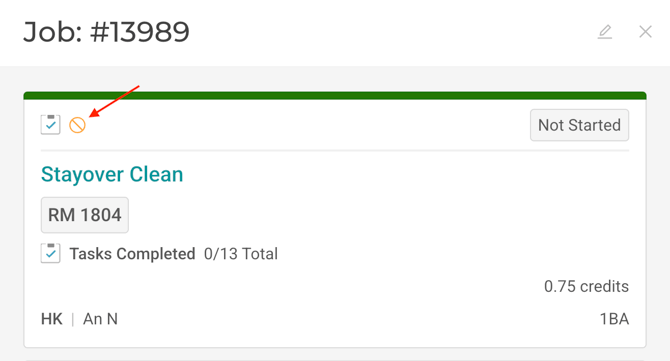
- No Service Required (NSR): Quickly identify rooms where guests have activated the NSR. This allows your staff to respect guest privacy and avoid unnecessary disturbances. To set a room to NSR status, tap the three-dot menu on the job card and select No Service Required. The NSR symbol will immediately appear, and the job would remain on the My Assigned Jobs list and would move to the end of the assignment for the assigned user. It would also remain visible on both the Timeline View and the Job Status View.

- Clean Rooms / Sleep Out No Show: Use this status when a room that was expected to be occupied appears vacant and clean, indicating the guest may have slept out or never checked in. The job will remain on the My Assigned Jobs list, move to the end of the assignment queue, and remain visible on both the Timeline View and the Job Status View.
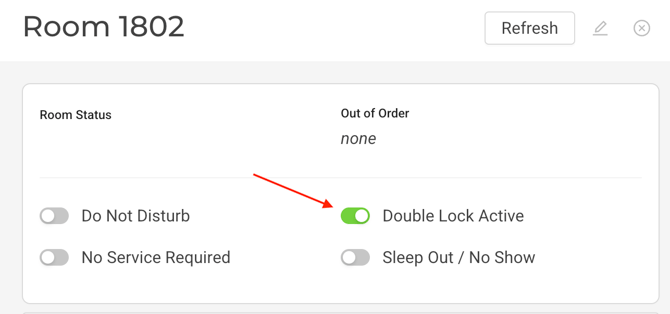
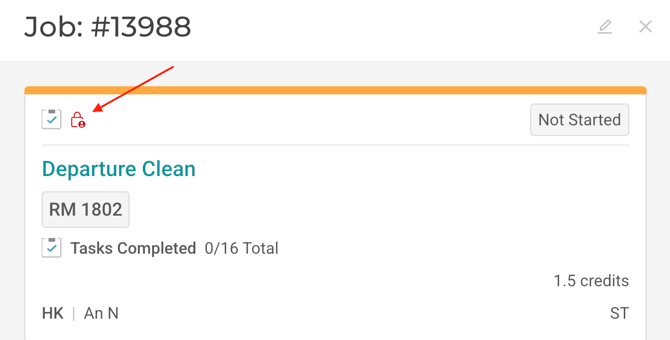
- Double Lock Active: Quickly identify rooms where guests have activated the DLA. This allows your staff to respect guest privacy and avoid unnecessary disturbances. To set a room to Double Lock Active status, tap the three-dot menu on the job card and select Double Lock Active. The DLA symbol will immediately appear, and the job would remain on the My Assigned Jobs list and would move to the end of the assignment for the assigned user. It would also remain visible on both the Timeline View and the Job Status View.

How Will These Enhancements Benefit Your Hotel?
These new cleaning statuses options offer a range of advantages:
- Improved Housekeeping Efficiency: Prioritize tasks based on room status, minimizing wasted time and effort. Your team can focus on rooms that need immediate attention, such as those that are "Vacant Dirty" with no cleaning exception statuses.
- Enhanced Guest Experience: Respect guest privacy by readily identifying DND, NSR rooms. Provide better service by quickly locating clean and available rooms for arriving guests.
- Streamlined Communication: Facilitate clear communication between housekeeping, front desk, and management. Everyone can access real-time room status information, ensuring seamless coordination.
- Optimized Resource Allocation: Make informed decisions about staffing and resource allocation based on room status and occupancy.
- Increased Security: Quickly verify the double lock status of rooms, enhancing security and peace of mind for both guests and staff.
- Data-Driven Insights: Track and analyze room status trends to identify areas for improvement in your housekeeping processes.
Would you like to learn more?
If you would like to learn more about Optii, please check out our Optii learning center today at help.optiisolutions.com
Have questions or need help?
Do you have any questions about Optii? Please contact your success manager today at help@optiisolutions.com