![Optii Logo 3x (2)-3.png]](https://help.optiisolutions.com/hs-fs/hubfs/Optii%20Logo%203x%20(2)-3.png?height=40&name=Optii%20Logo%203x%20(2)-3.png)
What Is This Report?
The Housekeeping Benchmark Report is a centralized performance report that consolidates all housekeeping activity for a selected date or date range. It gives Operations Managers, Housekeeping Managers, and Supervisors a single place to analyze staff efficiency, workload distribution, and inspection quality — without having to pull and combine multiple reports manually.
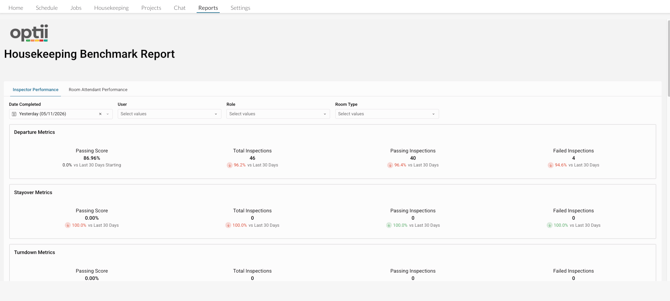
Name change: This report was previously called the Cleaning Benchmark Report. The correct name is now Housekeeping Benchmark Report. If a customer references the "Cleaning Benchmark Report," they are referring to the same report.
Who Can Access It?
The report is accessible to users whose role has been granted the Housekeeping Benchmark Report permission in Settings → Roles & Permissions. The property must also have Housekeeping enabled as a product in Optii.
Typical roles with access:
- Housekeeping Manager
- Housekeeping Coordinator
- Operations Manager
- Supervisor
- Director of Operations
Getting Started: Access & Navigation
Navigate to Reports → Housekeeping Benchmark Report.
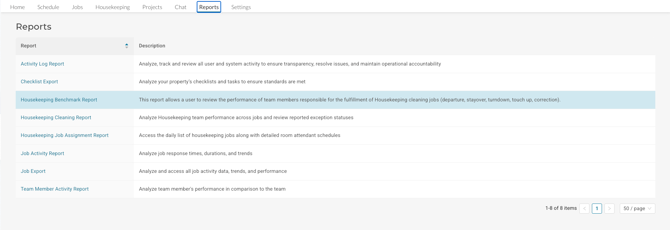
The report has two tabs, each operating independently with its own set of filters:
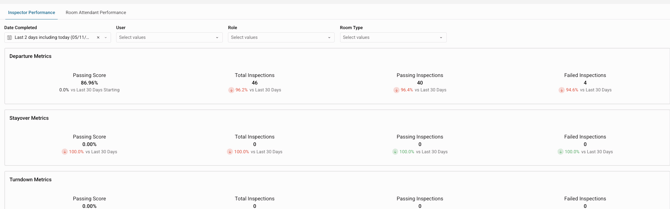
- Inspector's Performance (default tab) — focused on inspection activity and inspector efficiency
- Room Attendant Performance — focused on cleaning activity and room attendant efficiency
Critical data rule: This report reflects completed jobs only. Cancelled, deleted, or incomplete jobs are excluded from all metrics. Check jobs are also excluded. The date filter applies to the job's completion date. The report defaults to today's date when first opened.
Tab 1: Inspector's Performance
This tab provides a full view of inspection activity — covering inspector efficiency, pass rates, and inspection outcomes across departure, stayover, and turndown jobs.
Available Filters
|
Filter |
Description |
|---|---|
|
Date |
Defaults to today. Filters by job completion date. Supports multi-day ranges. |
|
User |
Filters to an individual inspector or squad. |
|
Role |
Filters by role (e.g. Room Attendant, Trainer, Self-Inspector). |
|
Room Type |
Filters by the type of room inspected. |

No Job filter on this tab. This is intentional — the Inspector's Performance tab focuses exclusively on Inspection Housekeeping Jobs, so a job-type filter is not needed.
Inspection Summary Metrics (Top of Tab)
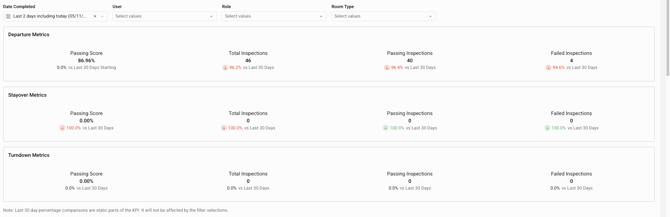
Three side-by-side columns appear at the top, one for each housekeeping task type:
|
Column |
What It Covers |
|---|---|
|
Departure Metrics |
Inspection performance for departure rooms |
|
Stayover Metrics |
Inspection performance for stayover rooms |
|
Turndown Metrics |
Inspection performance for turndown rooms (new in v3.25.0) |
Each column shows:
- Passing Score % — percentage of inspections that passed
- Total Inspections — total number of inspection jobs completed
- Passing Inspections — count of inspections that passed
- Failed Inspections — count of inspections that failed
If the property has zero inspections for a task type (e.g. no turndown inspections), that column will show 0 across all metrics.
Static KPIs (Percentage Comparison Under Each Metric)
Beneath each KPI value, there is a percentage comparison figure. This is a static KPI — it is not affected by the date or filter selection on the tab. Hovering over the information icon shows the tooltip: "This is a static KPI. It will not be affected by the filter selection."
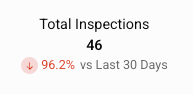
Table: Average Inspection Duration (mins) by User
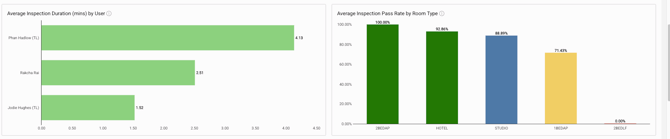
A horizontal bar chart showing each inspector's average inspection duration in minutes. Users are ranked from longest to shortest average duration, giving managers a quick view of which inspectors take the most and least time per inspection.
- Users can scroll up/down within the chart to see all inspectors with completed inspections.
- This table is affected by the tab's date, user, role, and room type filters.
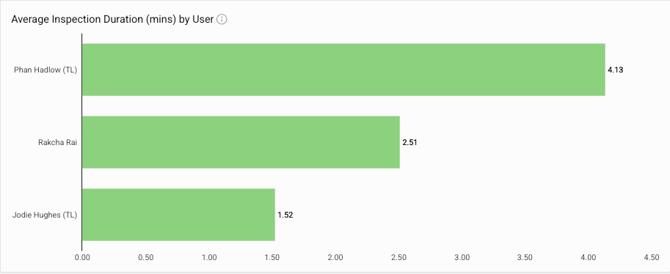
Table: Avg. Inspection Pass Rate by Room Type
A bar chart showing the inspection pass rate (%) broken down by room type (e.g. COMPO, DEL, JSUI, STA, ECO, PM). This helps managers identify which room types are consistently passing or failing inspections.
- Green bars indicate high pass rates; red bars indicate lower pass rates.
- If a room type has a 0.00% pass rate, it means all inspections for that room type failed during the selected period.
- Affected by the tab's active filters.
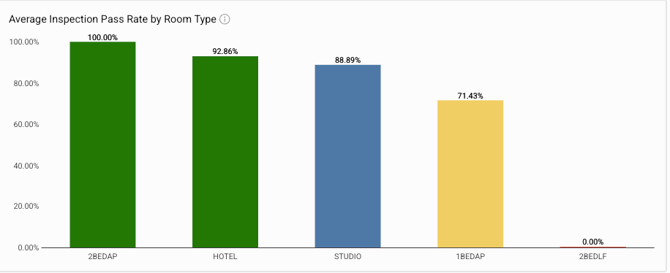
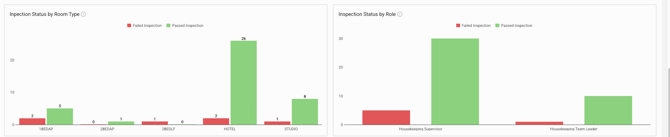
Table: Inspection Status by Room Type
A grouped bar chart showing the count of Failed vs. Passed inspections for each room type. This is the volume view — rather than a percentage, it shows the raw number of inspections that passed or failed per room type.
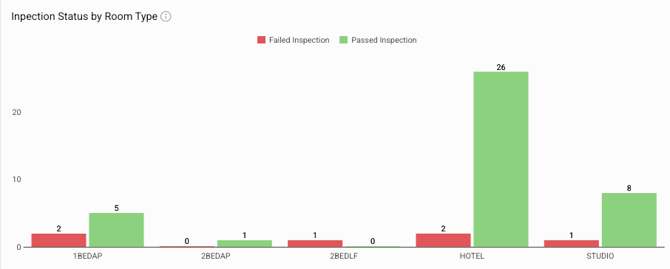
- Red bars = Failed Inspections; Green bars = Passed Inspections.
- Useful for understanding where inspection failures are concentrated by room type.
- Affected by the tab's active filters.
Table: Inspection Status by Role
A grouped bar chart showing the count of Failed vs. Passed inspections broken down by staff role (e.g. Room Attendant, Supervisor, Self-Inspector).
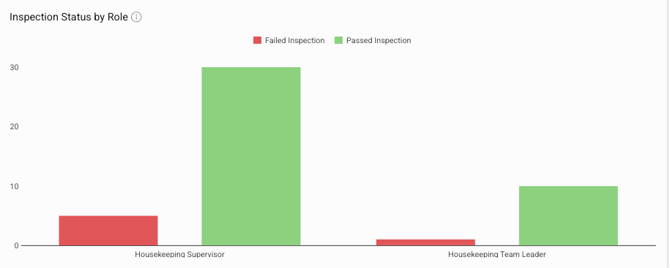
- Red bars = Failed Inspections; Green bars = Passed Inspections.
- Helps managers understand whether inspection outcomes differ across different role types.
- Affected by the tab's active filters.
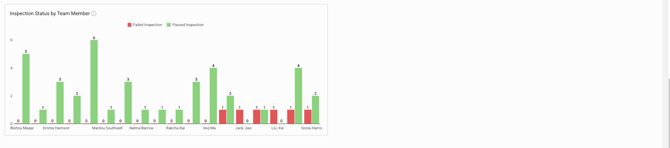
Table: Inspection Status by Team Member
A grouped bar chart showing the count of Failed vs. Passed inspections for each team member.
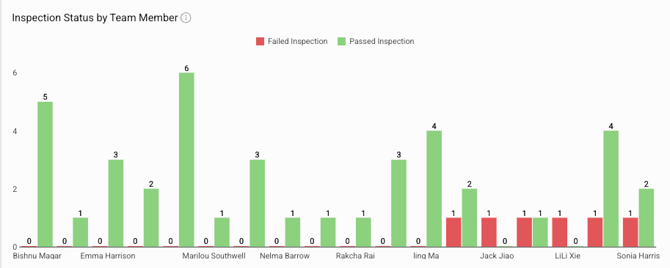
- Red bars = Failed Inspections; Green bars = Passed Inspections.
- Only team members with completed inspections in the selected date range will appear.
- Provides a per-person view of inspection outcomes — useful for identifying individuals who may need coaching or recognition.
- Affected by the tab's active filters.
Table: Avg. Inspection Time in Minutes by User (Top 10 / Bottom 10)
A ranked table showing each inspector's average inspection time in minutes, with a toggle to switch views.
- A toggle lets the user switch between Top 10 (fastest) and Bottom 10 (slowest) performers.
- Only one view is shown at a time.
- The table name changes dynamically: Top 10 Avg. Inspection Time in minutes by user or Bottom 10 Avg. Inspection Time in minutes by user.
- Users can scroll up/down within the table to see all users with completed inspections.
Tab 2: Room Attendant Performance
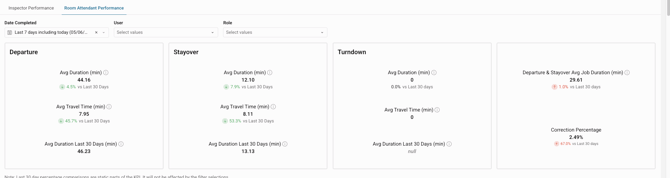
This tab covers the cleaning performance of Room Attendants — departure, stayover, and turndown cleaning jobs, plus credits, corrections, and shift timing.
Available Filters
|
Filter |
Description |
|---|---|
|
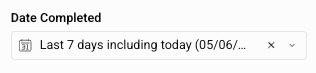
Date |
Defaults to today. Filters by job completion date. Supports multi-day ranges.
|
|
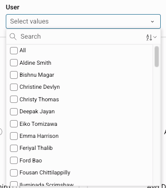
User |
Filters to an individual room attendant or squad.
|
|
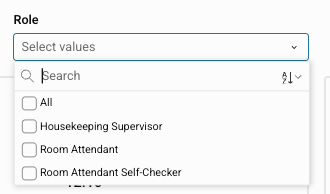
Role |
Filters by role (e.g. Room Attendant, Trainer).
|
No Job filter on this tab.
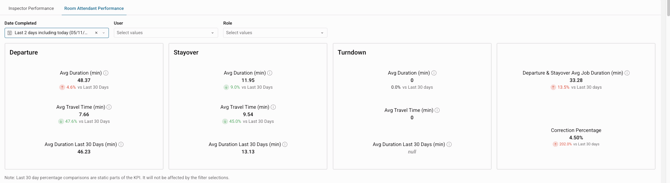
KPI Cards: Departure, Stayover, and Turndown
Three KPI card groups appear at the top — one per cleaning task type, each calculated independently.
|
KPI |
Definition |
Affected by Filters? |
|---|---|---|
|
Average Job Duration |
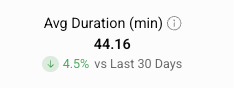
Sum of all job durations ÷ total number of jobs. Decimal format (e.g. 24.5 mins).
|
Yes |
|
Average Travel Time |
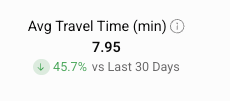
Average travel time per cleaning job, in decimal minutes.
|
Yes |
|
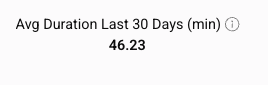
Avg. Clean Time over Last 30 Days |
Rolling 30-day average clean time. Tooltip: "This is a static KPI. It will not be affected by the filter selection."
|
No — static |
Scrollable Tables: Room Attendant Performance Detail
|
Table |
What It Shows |
|---|---|
|
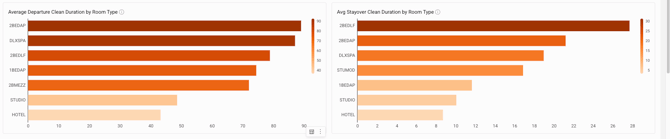
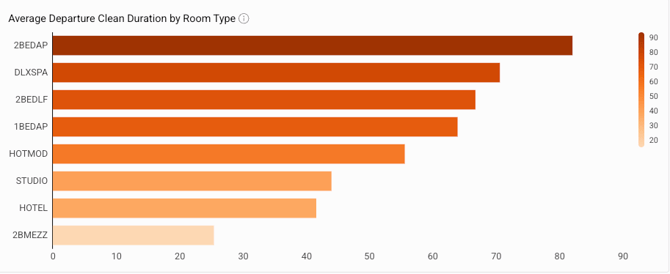
Avg. Departure Clean Duration by Room Type |
Average cleaning time for departure rooms by room type.
|
|
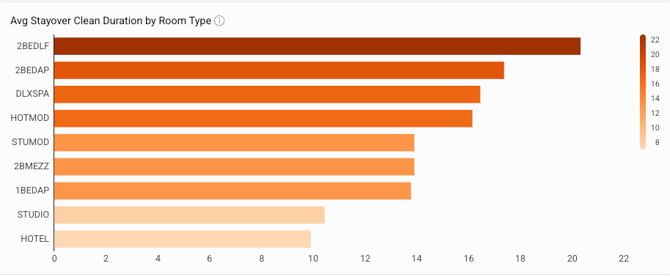
Avg. Stayover Clean Duration by Room Type |
Average cleaning time for stayover rooms by room type.
|
|
Avg. Turndown Clean Duration by Room Type |
Average cleaning time for turndown rooms by room type.
|
|
Avg. Grand Total Duration |
The average of departure and stayover cleaning jobs combined — this is an average, not a sum. Tooltip: "This is the average of both your Departure and Stayover tasks." |
|
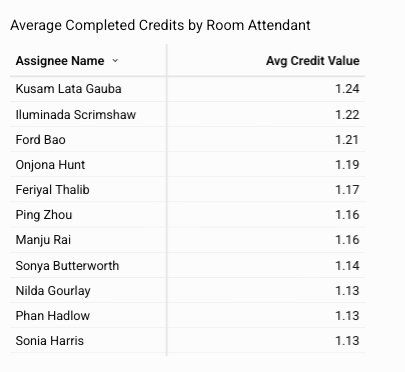
Avg. Completed Credits by Room Attendant |
Sum of total credit amounts across all completed jobs for the selected date(s), per room attendant.
|
|
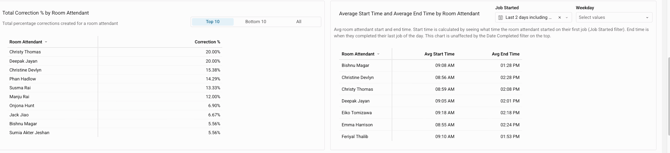
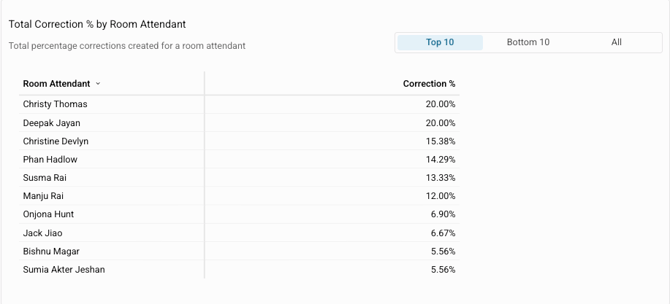
Total Corrections by Room Attendant (Top 10 / Bottom 10) |
Percentage of corrections created for a room attendant on the date(s) the report is run. Toggle between Top 10 and Bottom 10. Defaults to Top 10.
|
|
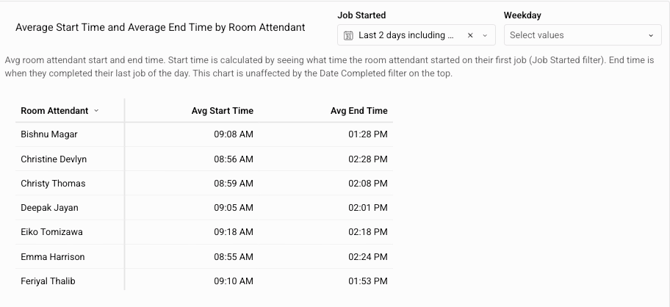
Average Start Time and Average End Time by Room Attendant |
Each room attendant's average first-job start time and average last-job completion time. Has its own Job Started and Weekday filters — independent from the main Date Completed filter at the top.
|
|
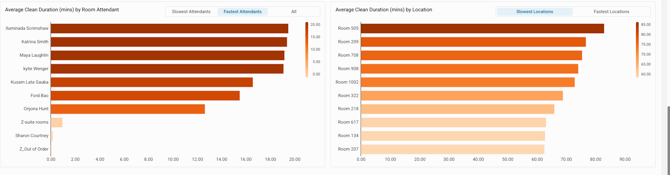
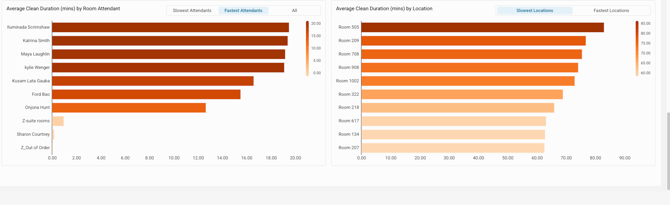
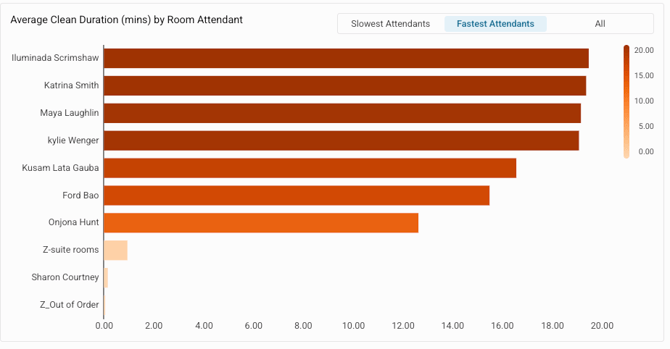
Avg. Clean Time in Minutes by User (Top 10 / Bottom 10) |
Average clean time per room attendant across departure, stayover, and turndown jobs. Toggle between Top 10 and Bottom 10. Defaults to Top 10. Scrollable to see all users.
|
|
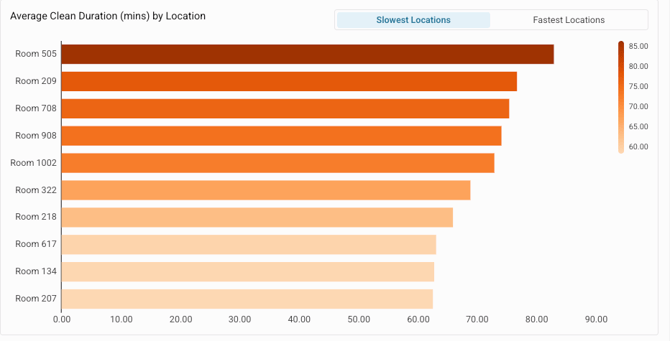
Average Clean Time in Minutes by Location (Top 10 / Bottom 10) |
Average clean time by location (e.g. floor or wing). Toggle between Top 10 and Bottom 10. Defaults to Top 10.
|
Understanding How the Data Works
What counts as "completed"?
- Only jobs with a Completed status are included.
- Cancelled, deleted, and in-progress jobs are excluded.
- Check jobs are excluded from all metrics.
- Inspection Score % is calculated based only on completed inspections tied to cleaning jobs.
How does the date filter work?
The report filters by job completion date. It defaults to today, showing all jobs completed today. If a date range is selected, it shows all jobs completed within that range.
Exception: The Average Start Time and Average End Time by Room Attendant table has its own Job Started and Weekday filters. This table is unaffected by the main Date Completed filter at the top of the tab.
What are static KPIs?
Some metrics are static — calculated on a fixed basis (e.g. a 30-day rolling average or a baseline comparison) and do not change when filters are applied. A tooltip is always visible by hovering the info icon next to the KPI. Static KPIs are designed to provide a stable benchmark regardless of what filter is active.
Historical data and exports
- The report supports historical date lookups — users are not limited to today.
- The report is available for export.
Quick Reference
|
Rule |
Answer |
|---|---|
|
Jobs included |
Completed jobs only |
|
Jobs excluded |
Cancelled, deleted, in-progress, Check jobs |
|
Default date |
Today (job completion date) |
|
Are both tabs connected? |
No — each tab has independent filters |
|
Are static KPIs affected by filters? |
No — they are fixed baselines |
|
Export available? |
Yes |
|
Historical data available? |
Yes |
|
Where is permission managed? |
Settings → Roles & Permissions |
|
Old report name |
Cleaning Benchmark Report |
|
Current report name |
Housekeeping Benchmark Report |
💡Tip: Feel free to share this valuable resource with your colleagues to explore Optii.
Would you like to learn more?
If you would like to learn more about Optii, please check out our Optii learning centre today at help.optiisolutions.comHave questions or need help?
Do you have any questions about Optii? Please contact your success manager today at help@optiisolutions.com