![Optii Logo 3x (2)-3.png]](https://help.optiisolutions.com/hs-fs/hubfs/Optii%20Logo%203x%20(2)-3.png?height=40&name=Optii%20Logo%203x%20(2)-3.png)
Welcome to your comprehensive guide on the Housekeeping Cleaning Report. This powerful tool is your "single source of truth" for everything happening on the floor. Instead of jumping between different dashboards, you can use this report to monitor real-time progress, audit past performance, and identify efficiency gaps in one centralized location.
What is the Housekeeping Cleaning Report?
Think of this report as the digital footprint of your entire housekeeping operation. It consolidates every job action—including time stamps, inspection results, and guest exceptions—into a filterable, exportable format.
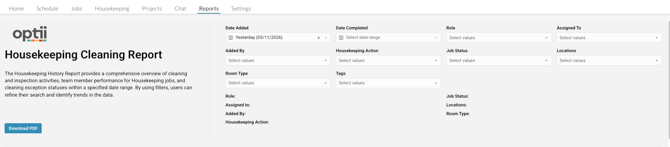

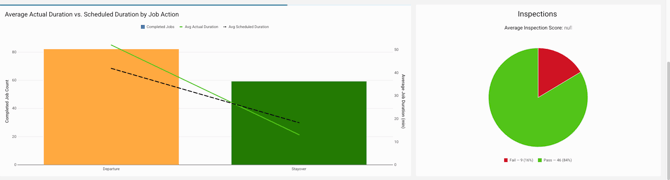
Use this report to answer critical daily questions:
- Performance: Which Room Attendants are meeting (or missing) their time benchmarks?
- Quality: Which rooms passed or failed inspection, and who performed the check?
- Exceptions: How many rooms are currently on "Do Not Disturb" (DND), and for how long?
- Planning: How does our actual cleaning time compare to what we scheduled?
Getting Started: Access & Navigation
Who can see this?
Access is managed via Settings → Roles & Permissions. Look for the Housekeeping History Report permission. Typically, this is reserved for:
- Housekeeping Managers & Coordinators
- Operations & General Managers
- Directors of Operations
How to find it:
Simply navigate to Reports → Housekeeping Cleaning Report
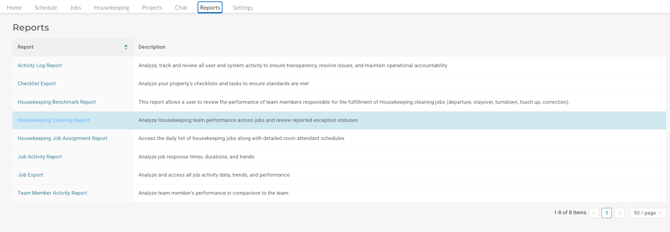
Pro Tip: The report defaults to today’s date every time you open it. You can access historical data as far back as your property’s first day using Optii!
Exploring the Three Reporting Tabs
The report is divided into three distinct tabs, each serving a specific purpose for your workday.
| Tab Name | Purpose | Default View? |
| Daily Summary |
High-level KPIs comparing scheduled vs. actual times.
|
✅ Yes |
| Cleaning Exception |
A dashboard for DNDs, Refusals, and other "No Access" events.
|
✅ Yes |
| Cleaning Activity |
A detailed, row-by-row log of every single job.
|
✅ Yes |

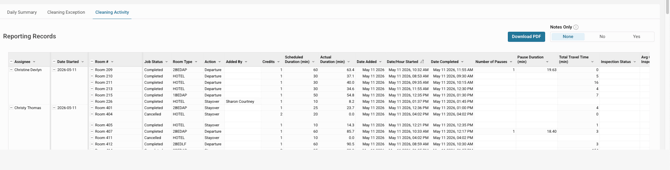
1. Cleaning Activity Deep Dive
This is your main audit log. It shows every job—whether it’s Completed, In Progress, On Hold, or Canceled.
Key Columns to Watch:
- Actual Duration: Total time from "Start" to "Complete" (includes pauses).
- Total Travel Time: The "hidden" time spent moving from one room to the next.
- Avg. Quality Inspection %: The score generated from the supervisor's checklist.
- Paused Duration: If this is blank, the job was finished without interruption.
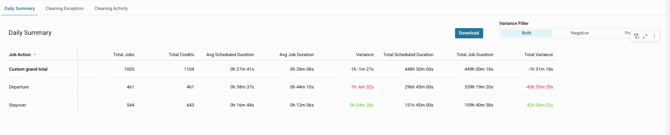
Summary of the Day (The Efficiency Tracker)
This tab aggregates your data to show how your team is performing against goals.
- Red Variance (🔴): The job took longer than scheduled.
- Green Variance (🟢): The job was completed faster than scheduled.
Important: This tab only includes Completed jobs to ensure your averages and variances stay accurate.
KPIs in the Summary Table
Each row in the Summary of the Day table represents a housekeeping job action (e.g. Departure, Stayover, Inspection). The columns are:
|
Column |
Definition |
|---|---|
|
Job Action |
The type of housekeeping job (Departure, Stayover, Inspection, etc.). Housekeeping source jobs only. |
|
Total Number of Jobs |
Sum of all housekeeping jobs for that action on the filtered date. |
|
Total Credits |
Sum of all credits for completed housekeeping jobs of that action type on the filtered date. |
|
Avg. Scheduled Duration |
Average scheduled duration of all housekeeping jobs for the action ÷ total jobs completed. |
|
Avg. Job Duration |
Average actual duration of all housekeeping jobs for the action ÷ total jobs completed. |
|
Variance (+/-) |
Avg. Scheduled Duration minus Avg. Actual Duration. Format: HH:MM. 🔴 Red = job took longer than scheduled. 🟢 Green = job was completed faster than scheduled. |
|
Total Scheduled Duration |
Sum of all scheduled durations for that action type on the filtered date. |
|
Total Job Duration |
Sum of all actual durations for that action type on the filtered date. |
|
Total Variance (+/-) |
Total Scheduled Duration minus Total Actual Duration. 🔴 Red = over scheduled time. 🟢 Green = under scheduled time. |
2. Cleaning Exception
When a Room Attendant can't enter a room, it’s recorded here. This tab features Dynamic KPI Cards at the top that show real-time counts for:
- DND (Do Not Disturb)
- RS (No Service Required)
- DLA (Double Lock Active)
- NS (Sleep Out / No Show)
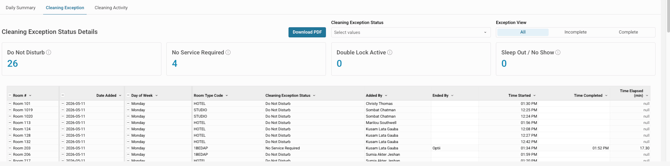
Why it matters: Use the Total Time Elapsed column to see how long a DND has been active. This helps you decide when to follow up for a security check or late-afternoon service.
3. Cleaning Activity
This is the main detailed log of all housekeeping jobs. It loads automatically when the report is opened and shows a row for every housekeeping job matching the active filters.
Job Statuses Included
The Cleaning Activity tab shows jobs across the following statuses:
|
Status |
Description |
|---|---|
|
Completed |
Job was fully completed |
|
In Progress |
Job is currently being worked on |
|
Hold |
Job has been placed on hold |
|
Cancelled |
Job was cancelled |
Columns in the Cleaning Activity Table
|
Column |
What It Shows |
|---|---|
|
Date Started |
The date and time the job was started |
|
Room # |
The room number in which the job was performed |
|
Room Type |
The type of room (e.g. Standard, Suite, ECO) |
|
Job Status |
Current status of the job (Completed, In Progress, Hold, Cancelled) |
|
Action |
Housekeeping job |
|
User |
The assigned staff member (Room Attendant, Houseman, Supervisor, etc.) |
|
Added By |
Who created the job |
|
Credits |
The credit value attached to the housekeeping job |
|
Scheduled Duration |
The time allocated to finish the job |
|
Actual Duration |
Time spent from Not Started until Completed |
|
Date Added |
The date and time the job was created |
|
Date Completed |
The date and time the job was marked complete |
Number of pauses |
How many times has the job been paused |
|
Paused Duration |
Total time the job spent in a Paused status. Blank if the job was never paused. |
|
Total Travel Time |
Time spent between jobs — from when the user hits End on one job to when they hit Start on the next |
|
Inspection status - Pass/Fail |
Whether the user marked the inspection as Passed or Failed |
|
Avg. Quality Inspection % |
The percentage score is calculated based on the inspection checklist |
|
Notes |
Any notes added to the job |
|
Tags |
Any tags added to the job |
Frequently Asked Questions (FAQ)
Q: How is "Actual Duration" different from "Travel Time"?
Actual Duration is the time spent inside the room working. Travel Time is the gap between hitting "End" on one room and "Start" on the next. High travel times often mean inefficient routing.
Q: Why can't I see cancelled jobs in the Summary tab?
Cancelled jobs don't have a "completed time," so including them would ruin your productivity averages. To find a cancelled job, always check the Cleaning Activity tab.
Q: What is the "VC → VI Turnaround Time"?
This tracks the time between a room being finished by an attendant (Vacant Clean) and being approved by a supervisor (Vacant Inspected). If this number is high, you may need more inspectors on the floor!
Quick Reference Summary
- Need to export data? Yes, all tabs are exportable.
- Need historical data? Use the date filter to go back as far as you need.
- Missing the report? Check your permissions in Settings.
- Colors: Red = Over Schedule | Green = Under/On Schedule.
💡Tip: Feel free to share this valuable resource with your colleagues to explore Optii.
Would you like to learn more?
If you would like to learn more about Optii, please check out our Optii learning centre today at help.optiisolutions.com
Have questions or need help?
Do you have any questions about Optii? Please contact your success manager today at help@optiisolutions.com