![Optii Logo 3x (2)-3.png]](https://help.optiisolutions.com/hs-fs/hubfs/Optii%20Logo%203x%20(2)-3.png?height=40&name=Optii%20Logo%203x%20(2)-3.png)
Dynamic Groups in Optii Chat allow hotel staff to create flexible, multi-member group conversations for real-time team communication. This feature, once enabled, empowers hotel operations teams to bring multiple team members together for streamlined discussions. This article explains how to create and manage Dynamic Groups in Optii Chat.
Create your first Dynamic Group
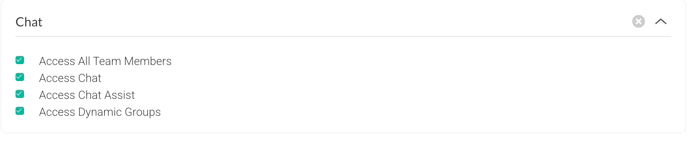
To have access to this function, you will need to have permissions for the Chat Dynamic Group. Learn how to set up roles and permissions.
Step 1
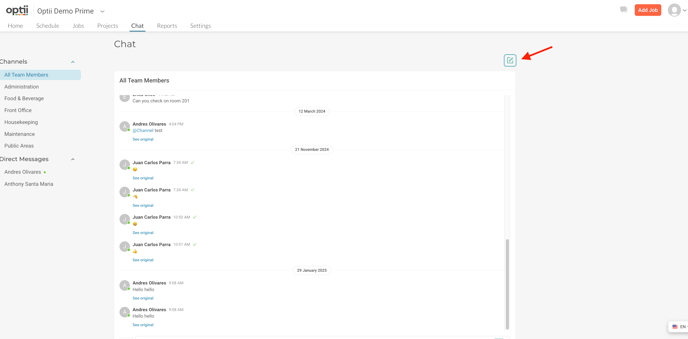
Open Optii Chat and click the green New Group icon on the right-hand side of the Chat panel to start creating a new Dynamic Group.
Step 2
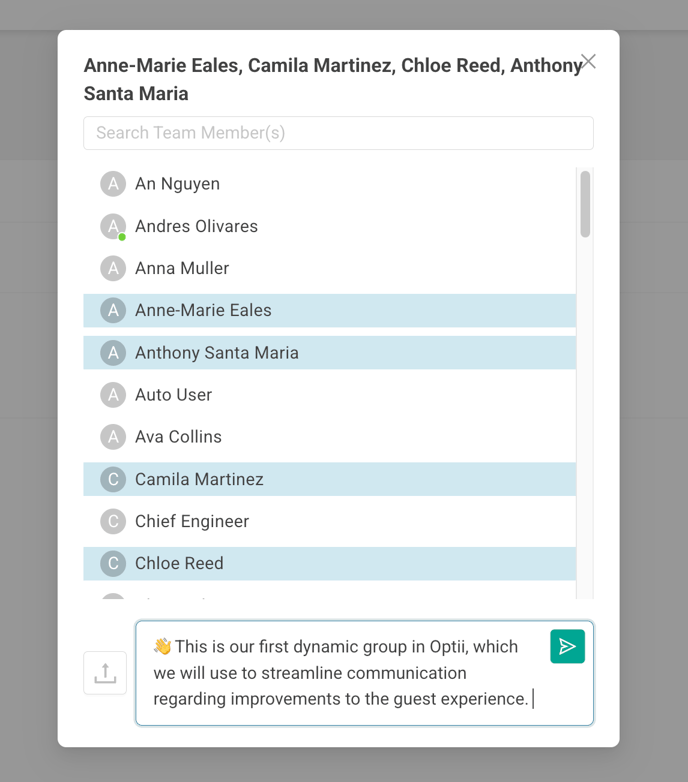
The next step is to populate it with the right team members. Here's how:
-
Select Team Members: Choose the individuals you want to include in the group. This might involve searching for their names or selecting them from a list of available team members.
-
Compose Your First Message: Type your initial message to the group. This could be a welcome message, an introduction to the group's purpose, or a specific question to get the conversation started.
-
Send: Click the "send" button to deliver your message and officially add the selected team members to the group. They will now be able to see the message and participate in the discussion.
Step 3 (Optional)
Naming Private Groups:
As the group creator/owner, you have the ability to name your conversations. This simple step significantly improves organization and makes identifying specific discussions a breeze. Whether you're coordinating with department heads or a team of VIP room attendants, clear naming makes managing group chats intuitive.
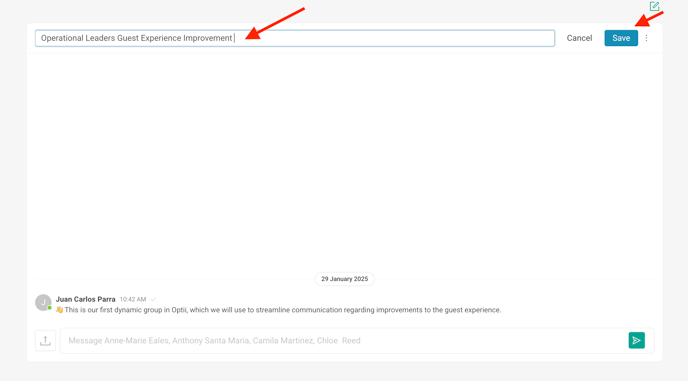
1. Click on the three dots on the right hand side of your chat message and click 'Rename'
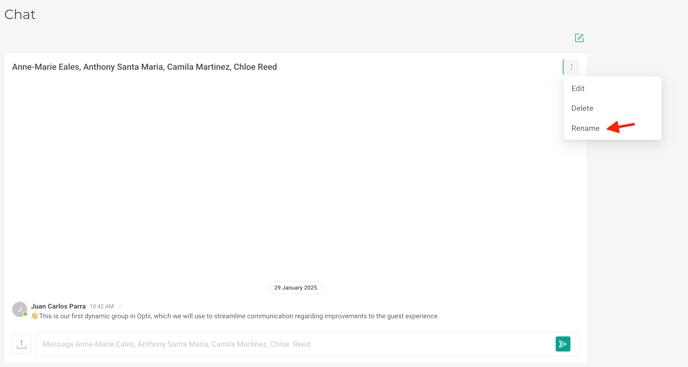
2. Type the name of your desired group name and click 'Save' to save the changes.
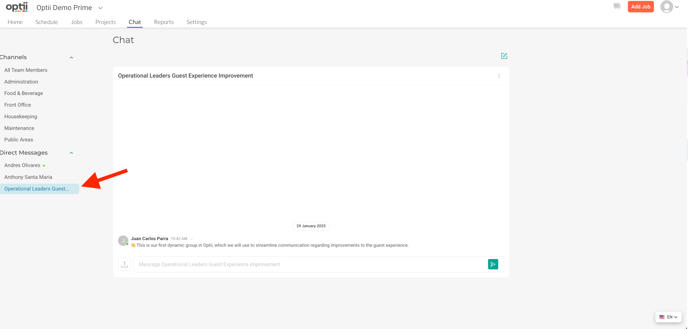
3. To find your renamed group, navigate to the 'Direct Messages' section in Optii Chat.
Tips:
Utilizing the Action Menu:
The Action Menu provides essential controls for managing your Dynamic Groups directly within the Chat interface. Here's a breakdown of each action:
-
Edit: This powerful function allows users with Dynamic Group access to manage group membership. You can easily add or remove members, ensuring the right people are always involved in the conversation. This keeps communication relevant and efficient.
-
Delete: When a conversation is no longer needed, authorized team members (those with Dynamic Group access) can delete the entire chat thread for everyone involved. This helps keep your chat interface clean and focused.
-
Rename: The group creator can use this option to rename the group at any time. This is particularly useful if the purpose of the group evolves or if a more descriptive name becomes necessary. Consistent naming conventions across your organization can further enhance clarity.
💡Tip: Feel free to share this valuable resource with your colleagues to explore Optii.