![Optii Logo 3x (2)-3.png]](https://help.optiisolutions.com/hs-fs/hubfs/Optii%20Logo%203x%20(2)-3.png?height=40&name=Optii%20Logo%203x%20(2)-3.png)
🛠️ How to Set Up Room Attendant Self-Checkers in Optii
To set up a self-inspection cadence for roles such as Room Attendant Self-Checkers or Senior Housekeepers, go to Settings > Job Settings > Job Scheduling > Inspection, check 'Set default cadence by Role', add the role, and enter a cadence number. The cadence number controls how often Optii schedules an inspection after a job is completed.
This configuration determines how Optii schedules inspections after a job is completed and impacts the room status change.
Step 1: Access Job Settings
-
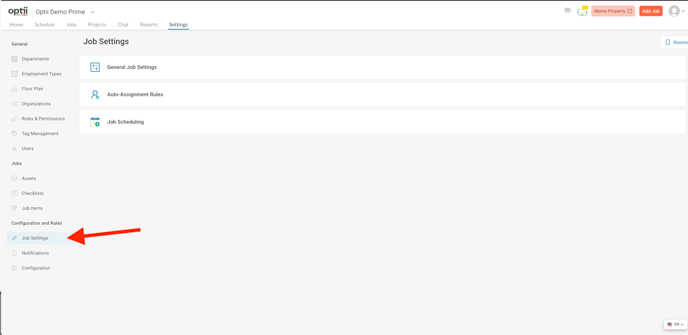
Click on Settings in your Optii menu.
-
Locate and click on Job Settings. This is usually found at the bottom of the Configuration menu under 'Configuration and Rules'.
Step 2: Select Inspection Settings
-
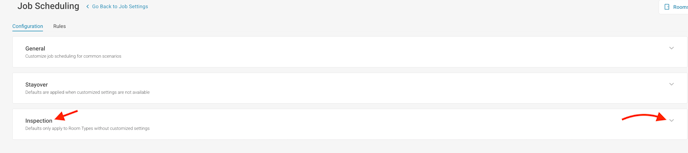
In the Job Settings menu, select the Job Scheduling option.
- Then select the Inspection tab.
-
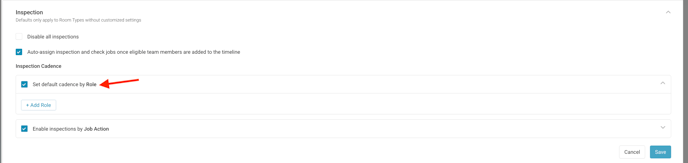
Check the box next to 'Set default cadence by Role'.
Step 3: Add the Role and Set Cadence
-
Click the option to Add Role you wish to configure.

-
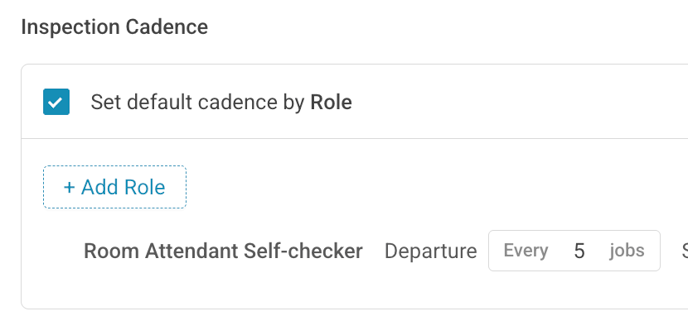
Enter the name of the role (e.g., Room Attendant Self-Checker or Senior Housekeeper).

Please note: if you do not see the role you would like to add, you may need to add a new role in your configuration. To learn how to add new roles in Optii, click here: https://help.optiisolutions.com/video-5-add-or-edit-your-roles-permissions -
Set the cadence for how frequently Optii should schedule an inspection for jobs completed by this role.
| Cadence Number | Action and Room Status Change |
| 0 |
Optii will not schedule an inspection. The cleaning status will go directly from Dirty to Inspected when the job is completed.
|
| 1 |
Optii will schedule an inspection for every job completed. The room status will go from Dirty to Clean.
|
| 2 or more |
Optii will schedule an inspection for every cadence number job. The first jobs with no inspections will go from Dirty to Inspected. The job with the inspection will go from Dirty to Clean.
|



Example: If you set the cadence to 5 departure, the first five departures completed jobs will change the room status to Inspected, and the sixth job will change the status to Clean and schedule an Inspection.
Step 4: Enable Inspection by Job Action (Required for Auto-Generated Inspections)
For Optii to auto-generate inspections based on your cadence setting, you must also ensure that inspections by job action are enabled in the system.
In the Inspection tab of Job Settings, locate the Inspection by Job Action option.
Enable the option for each job action (for example, Departure or Stayover) that should generate an inspection based on your cadence.
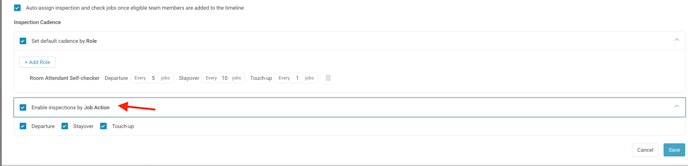
Note: if you do not enable the inspection via job action, Optii will not create the inspection, even if it falls outside the cadence by role. This option is recommended only for those properties that do not schedule inspections for supervisors.
Step 5: Save and Note Configuration
-
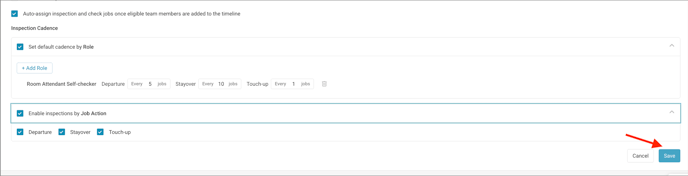
Click Save to apply your changes.
-
Please note: Changes made to this configuration take effect immediately after saving.
Troubleshooting: Why aren't inspections being created?
If no inspection is created even though the cadence says one is due, confirm that inspections by job action are enabled (Step 4).
If the role does not appear in the list, add it first in your roles and permissions configuration.
If room statuses change unexpectedly, check that the cadence number for the role is set as intended, because changes take effect immediately after saving.
Important Recommendations
-
You can add as many roles as necessary to meet your operational goals.
-
We strongly recommend that only Optii Hotel Administrators have access to modify this configuration, since it has an immediate and critical effect on operations.
💡Tip: Feel free to share this valuable resource with your colleagues to explore Optii.