![Optii Logo 3x (2)-3.png]](https://help.optiisolutions.com/hs-fs/hubfs/Optii%20Logo%203x%20(2)-3.png?height=40&name=Optii%20Logo%203x%20(2)-3.png)
Available with any of the following subscriptions:
- Service
- Housekeeping
- Chat
- Projects (Preventative Maintenance)
- Guest Messaging
- Above Property Dashboard
This guide walks you through how to reset your password in Optii in 6 simple steps. If you have forgotten your password, you can quickly regain access by following the process below.
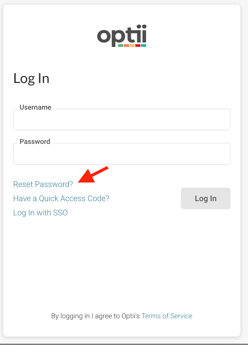
Step 1: Locate the "Reset Password" Link
- Go to the login page: Navigate to the Optii login page.
- Click the link: Click on the "Reset Password" link.
Step 2: Enter Your Username
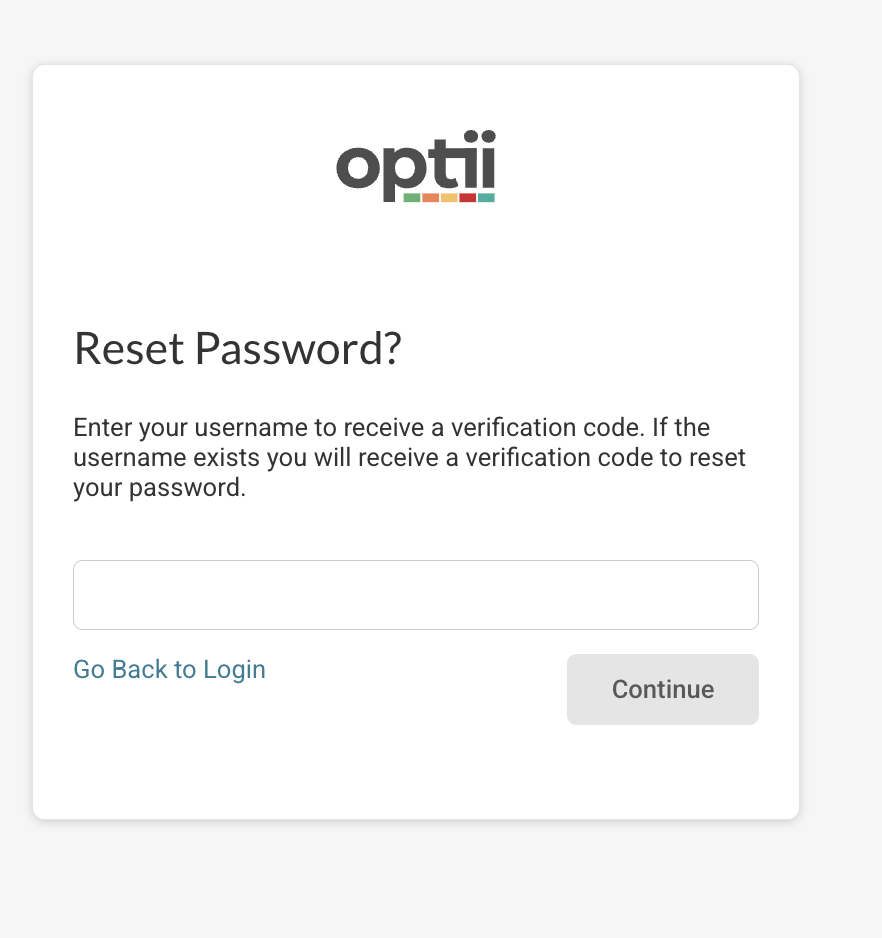
- Provide your username: You'll be prompted to enter the username associated with your account.
- Double-check for typos: Ensure you enter the information correctly to avoid issues.
- Submit the information: Click the "Continue" button.
Step 3: Check Your Email
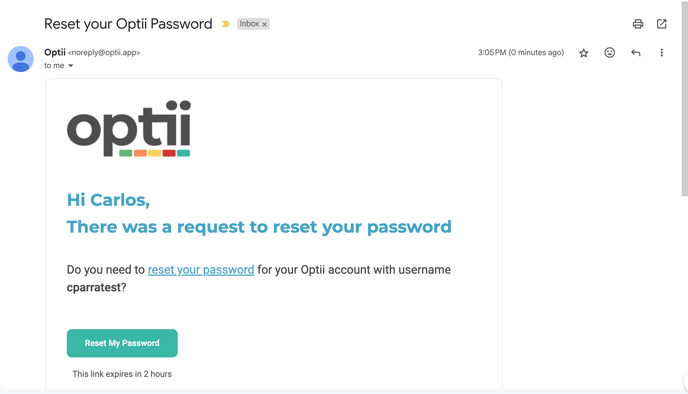
- Look for a password reset email: Optii will send one to the email address you provided in your Optii Profile. This email usually arrives within a few minutes, but sometimes it can take longer.
Be sure to check your spam or junk folder if you don't see it in your inbox.
Step 4: Open the Reset Email and Click the Link
- Open the email: Open the password reset email from Optii

- Click the reset link: The email will contain a unique link that directs you to a password reset page. Click on this link. This link expires after a set period of time, so be sure to use it promptly. If the link has expired, return to the login page and request a new one.
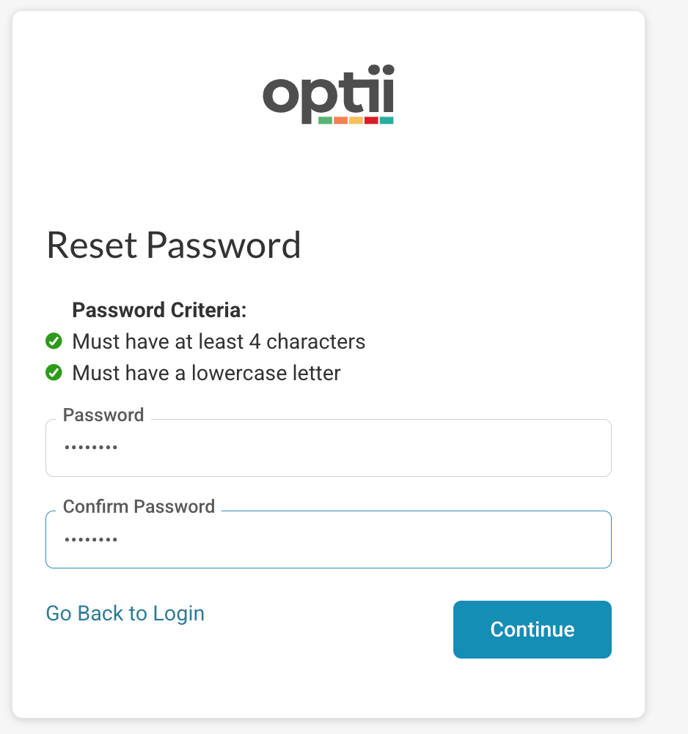
Step 5: Create a New Password
- Enter your new password: You'll be taken to a page where you can create a new password.
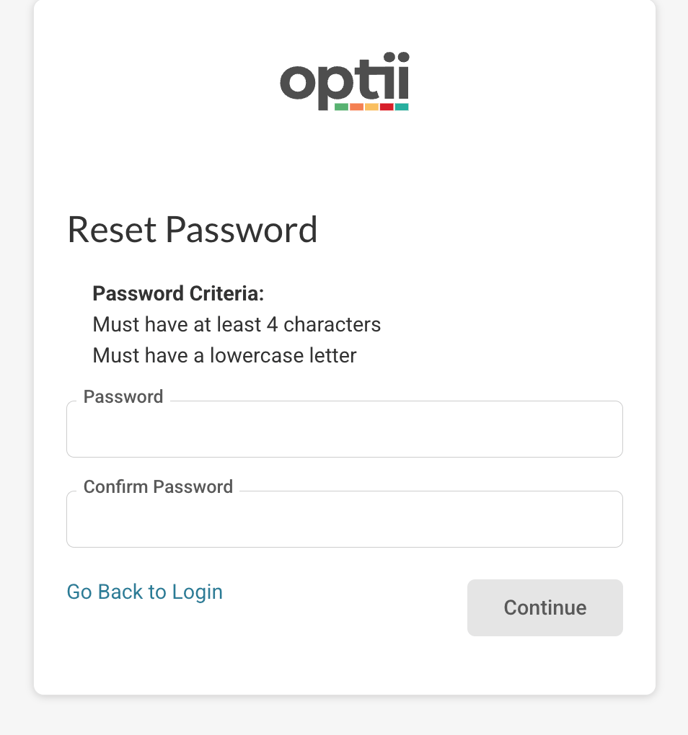
- Choose a strong password: Select one that is unique and difficult for others to guess. A strong password should include a mix of uppercase and lowercase letters, numbers, and symbols. Avoid using easily guessable information like your name, birthday, or your pet's name.
- Confirm your new password: Enter it twice to confirm. This helps prevent typos.
- Submit your new password, then click the "Continue" button.
Step 6: Log in with Your New Password
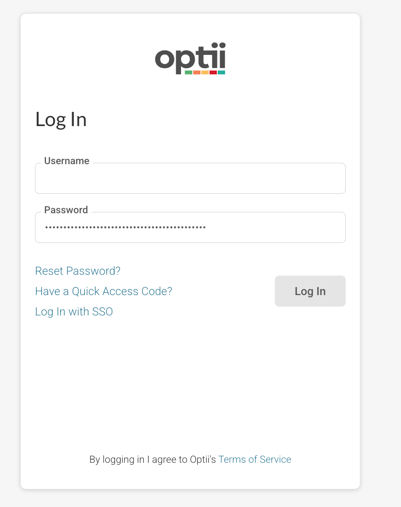
- Go to the login page: Return to the Optii login page.
- Enter your new password: Enter the new password you just created.
- Log in: Click the "Log In" button.
Troubleshooting Tips:
- Email not received: If you don't receive the password reset email, check your spam or junk folder. You can also try requesting the email again. Make sure you entered the correct username.
- Link expired: If the password reset link has expired, return to the Optii login page and repeat Steps 1–2 to request a new reset link.
- Password not accepted: Make sure your new password meets Optii's requirements (for example, minimum length and required character types). Password requirements are displayed on the password creation page.
- Still having trouble? Contact customer support at help@optiisolutions.com
Would you like to learn more?
If you would like to learn more about Optii, please check out our Optii learning centre today at help.optiisolutions.com
Have questions or need help?
Do you have any questions about Optii? Please contact your success manager today at help@optiisolutions.com