![Optii Logo 3x (2)-3.png]](https://help.optiisolutions.com/hs-fs/hubfs/Optii%20Logo%203x%20(2)-3.png?height=40&name=Optii%20Logo%203x%20(2)-3.png)
Managing various job types and departments is now easier with the Saved Filters functionality. Instead of manually re-selecting criteria, you can save multiple custom views and switch between them instantly to streamline your workflow.
Step 1: Access the Filter Menu
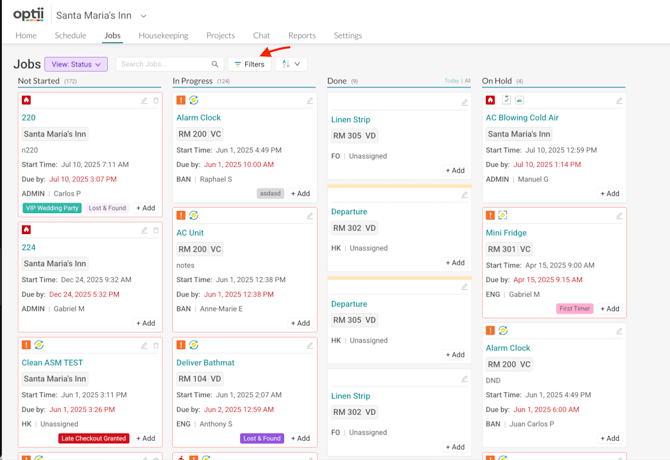
To begin, navigate to the Jobs tab and ensure you are in the View: Status dashboard. Click the 'Filters' button located next to the search bar to open the settings panel.
Step 2: Define Your Specific Criteria
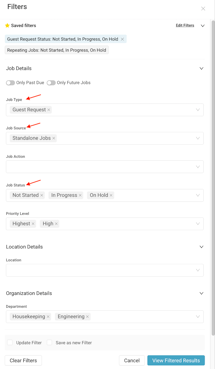
Select the parameters you wish to save for future use. You can combine various details such as:
-
Job Type: Choose specific categories like "Guest Request".
-
Job Source: Filter by "Standalone Jobs" or other sources.
-
Job Status: Track specific stages like "Not Started," "In Progress," or "On Hold".
-
Priority Level: Focus on "Highest" or "High" priority tasks.
-
Department: Narrow the view to teams like "Housekeeping" or "Engineering".
Step 3: Save the Filter
Once your criteria are set, scroll to the bottom of the panel:
-
Check the Save Filter box.
-
Name your filter descriptively (e.g., "Guest Request Status: Not Started, In Progress, On Hold").
-
Click Save and View Filtered Results.
Step 4: Switch Between Multiple Saved Filters
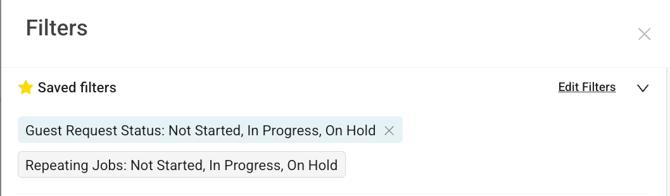
You are not limited to just one view; you can save as many filters as you prefer to handle different tasks throughout the day.
To switch between them:
-
Open the Filters panel.
-
Expand the Saved filters section at the top.
-
Click on any of your named filters, such as "Repeating Jobs" or "Guest Requests," to instantly update your dashboard.
-
If you need to make changes, click Edit Filters within that same section.
💡 Bonus Tip: Quick Identification
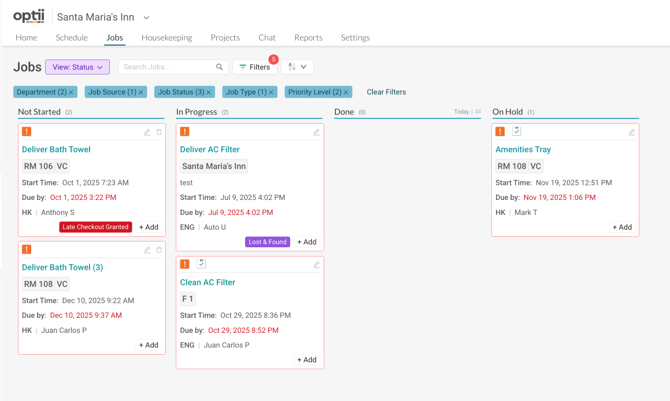
When you have an active filter applied, your dashboard will display blue tags at the bottom showing exactly which criteria are currently in use, such as Department (2) or Job Status (3). This allows you to verify your view at a glance without even opening the filter menu.
By taking a few moments to save your most-used search criteria, you can significantly reduce manual data entry and ensure you never miss a critical update. Start building your library of saved filters today to make your Optii "Jobs" view work harder for you!
😍 Feel free to share this valuable resource with your colleagues to explore Optii.