![Optii Logo 3x (2)-3.png]](https://help.optiisolutions.com/hs-fs/hubfs/Optii%20Logo%203x%20(2)-3.png?height=40&name=Optii%20Logo%203x%20(2)-3.png)
Hello Optii Users!
A very warm welcome to this incredibly vital lesson on effective housekeeping room management! We know how crucial seamless room operations are to the success of your hotel, and we are absolutely thrilled to show you how Optii provides the powerful tools to streamline this entire process.
By the end of this lesson, you'll feel completely confident and empowered to efficiently assign and manage all your housekeeping jobs, expertly optimize your staff assignments, and consistently ensure every room is cleaned to the highest possible standards. We'll walk you through each step with clarity and precision, from seamlessly setting up your room attendants and inspectors on the intuitive Optii Timeline, to intelligently assigning all your housekeeping jobs—whether they're departures, stayovers, or other tasks—and diligently tracking their progress in real-time.
Whether you're just beginning your journey with Optii or looking to refine and enhance your current processes, this guide will provide you with all the essential knowledge and practical skills you need to manage your housekeeping operations with unparalleled effectiveness. Let's get ready to transform your room management!
Who is this for?
- General Manager or Hotel Managers
- Director or Housekeeping Managers
- Assistant Housekeeping Managers or Senior Supervisors
- Optii Hotel Champion
Lesson Details:
Format: Video Tutorial
Duration: 4 minutes
Format: Written Lesson
Estimated Reading time: 3-4 minutes
What you will learn?
-
Roster Staff: Add room attendants, supervisors, and managers to the daily schedule with correct credits and floor assignments.
-
Allocate Cleaning Jobs: Assign departures, stayovers, and inspections using auto-assignment or manual tools.
-
Utilize System Views: Navigate the Housekeeping List, Timeline, and Supervisor views to track real-time progress.
-
Manage Job Details: Enhance tasks with notes, tags, and rush priorities.
By mastering these skills, you'll gain complete control over your housekeeping operations, leading to enhanced efficiency and a consistently superior guest experience!
🎥 Click below to watch this tutorial video!
Step 1: Roster Your Staff
Before assigning rooms, you must define who is working today.
-
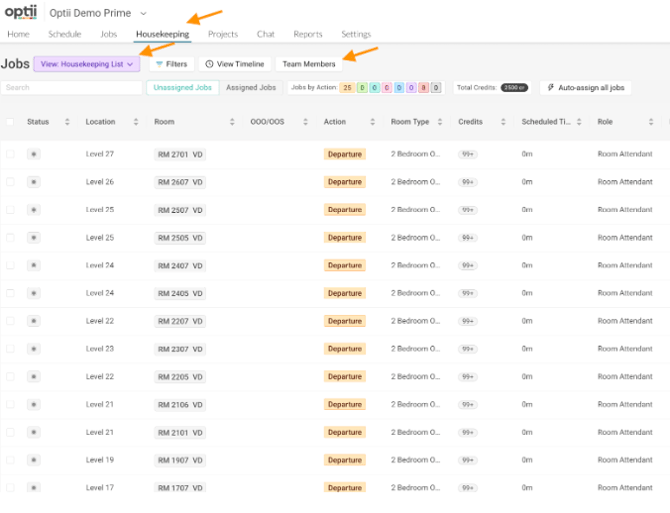
Navigate to Team Members: Go to Housekeeping > Jobs View: Housekeeping List > Team Members.
-
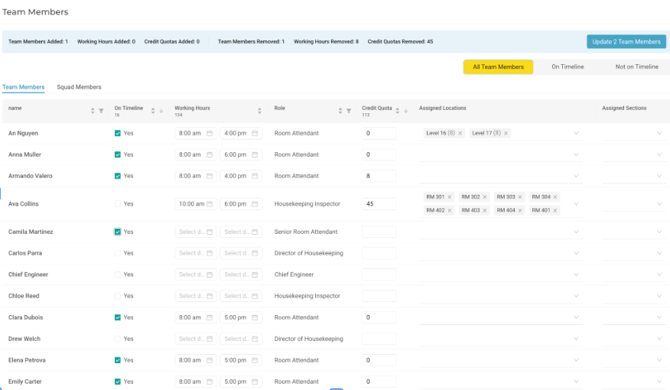
Confirm Key Details: Verify working hours and credit quotas.
-
Pro Tip: Use the column header arrows to bulk-toggle the "On Timeline" status or apply credit quotas across the entire team.
-
-
Assign Locations: For Inspectors, ensure you assign specific locations/sections. This is crucial for enabling their "My Section" mobile view.
Step 2: Room Allocation
Optii offers two primary ways to distribute cleaning tasks.
Option A: Auto-Assignment
This is the fastest way to distribute the bulk of your daily jobs.
-
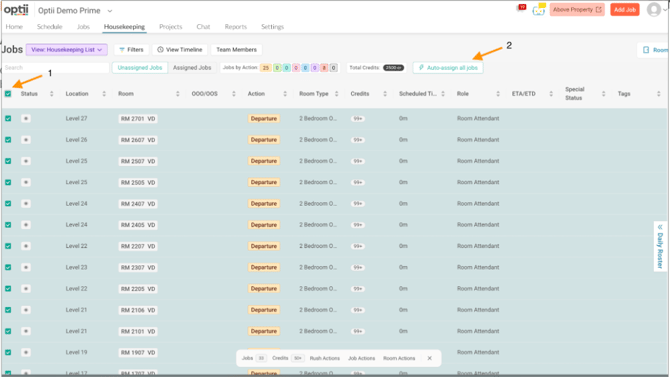
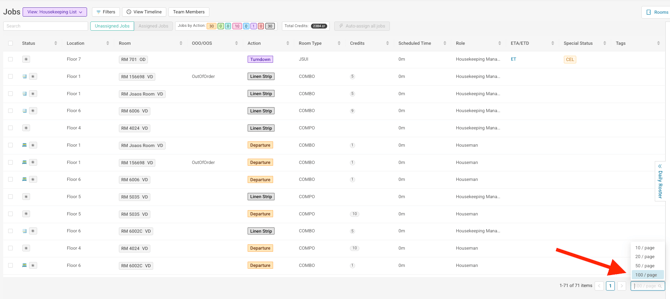
In the Housekeeping List View, click the checkbox in the header (next to 'Status') to select all rooms.
-
Verify the total count of jobs and credits in the bottom bar.
-
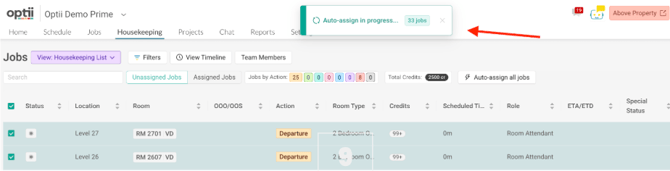
Click Auto-assign all jobs. A progress bar will appear at the top of the screen until the process is complete

Option B: Manual Assignment (Via Unassigned Jobs)
Use this for specific room requests or late additions.
-
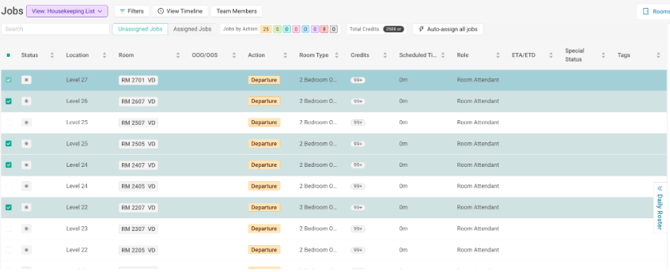
Go to the Unassigned Jobs tab in the Housekeeping List View.
-
Select the specific rooms you wish to assign.
-
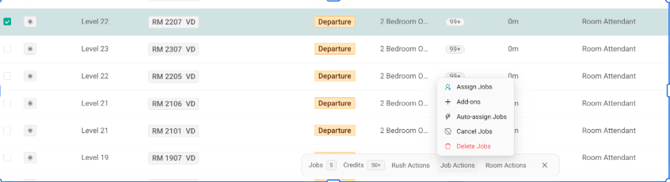
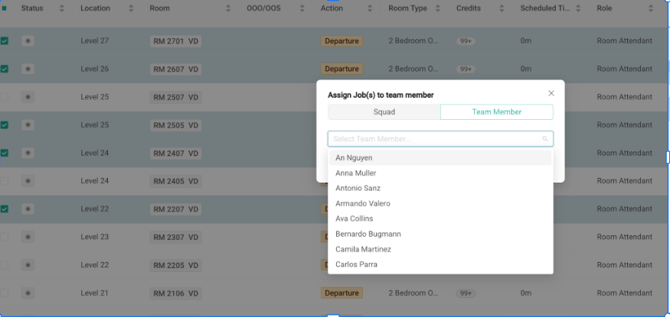
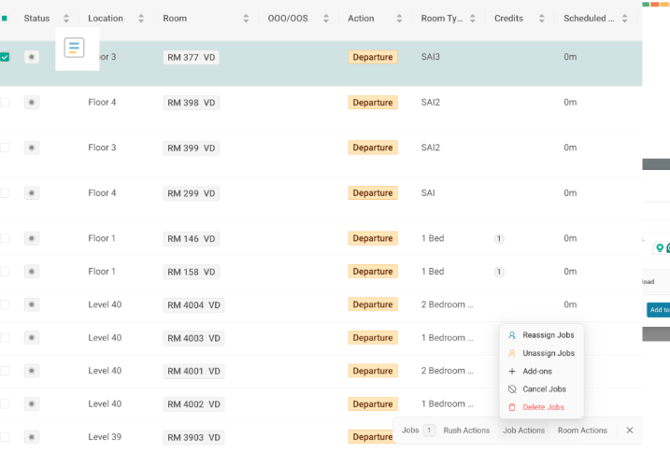
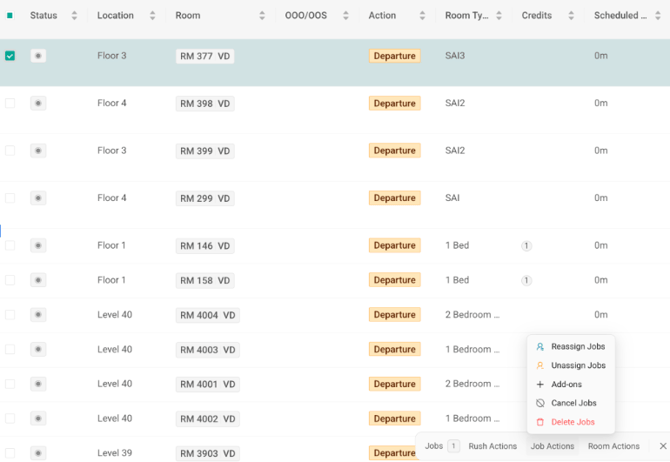
From the Job Actions menu, select Assign or Reassign Job, then choose the Team Member or Squad from the dropdown.
Step 3: Verify and Optimize Workload
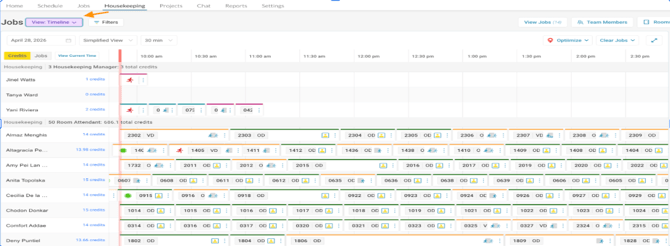
Once rooms are assigned, use the Daily Roster or Timeline View to ensure no one is overloaded.
-
Timeline View: This is your dynamic hub. It displays jobs as color-coded cards. The length of the card represents the estimated cleaning duration.
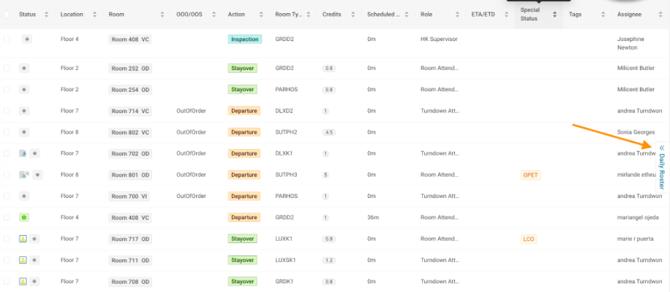
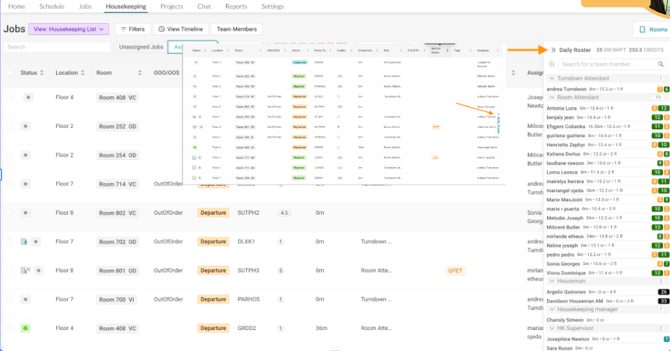
- Daily Roster View: to see the distribution of assignments across your team members
-
Balance Workload: If a room attendant has too many credits, you can drag and drop jobs between staff members on the timeline to balance the day.
Step 4: Add Notes, Tags, and Special Actions
Communication is key to housekeeping excellence. You can modify any job directly from the Housekeeping List View.- Add Notes: Select a room, go to Add-ons, and type specific instructions (e.g., "Guest is allergic to feathers").
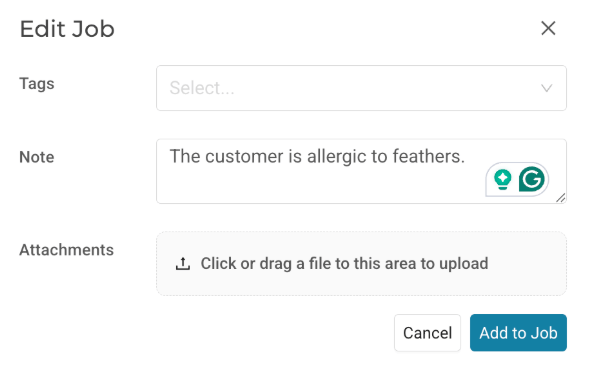
- Add Tags: Use tags like "VIP" or "Group Arrival" to categorize jobs.
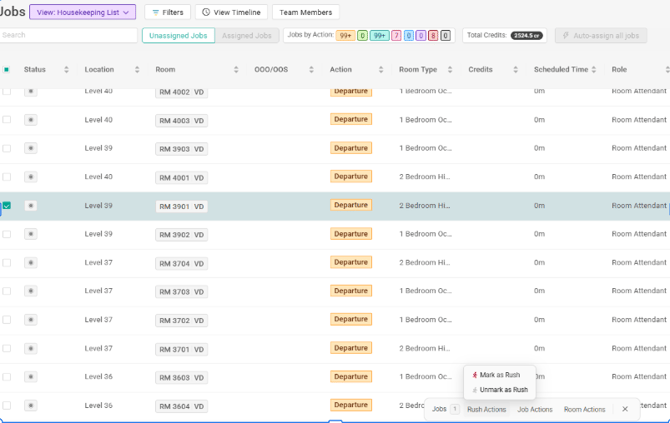
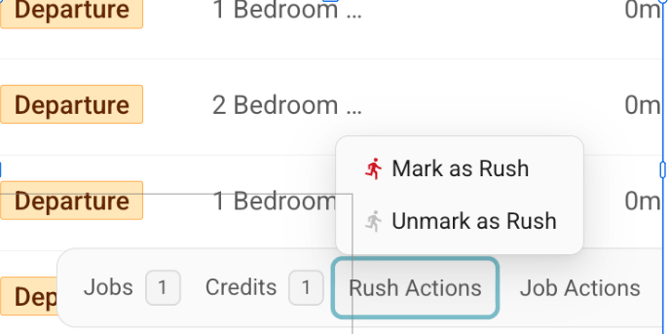
- Rush Jobs: If a guest is waiting in the lobby, select the room and use Rush Actions > Mark as Rush to prioritize it at the top of the attendant's mobile list.
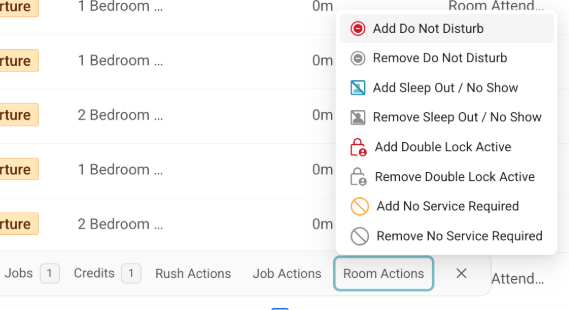
- Room Actions: Quickly mark rooms as DND (Do Not Disturb), NSR (No Service Required), or Sleep Out via the Room Actions menu.
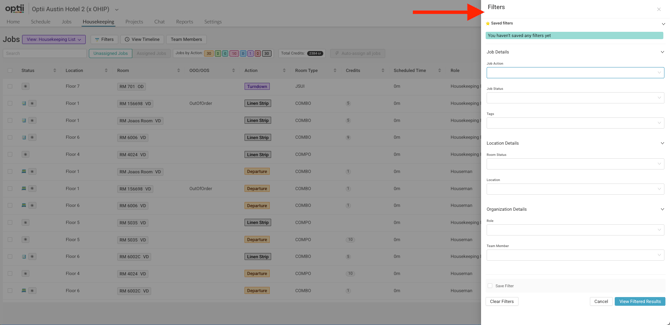
Pro Tip: Filtering Capabilities Use the Filters sidebar to drill down into your data. You can filter by Job Action (e.g., Departure, Stayover, Turndown, Linen Strip), Job Status, Location, or specific Team Members. You can also save these filter configurations to reuse them daily
Essential Housekeeping Views
Understanding these four views will help you manage your department effectively:| View | Purpose |
| My Jobs | Used by staff on mobile to see their specific tasks (Inspections, Departures, etc.). |
| Housekeeping List | A centralized list of all jobs pulled from your PMS; best for bulk assignments. |
| Timeline View | A visual "at-a-glance" view of the whole day’s progress and estimated completion times. |
| Supervisor View | Designed for management to oversee inspections, filter by floor, and monitor credits. |
Practice Exercise
To prepare for launch, complete this simulation:- Roster 3 Room Attendants and 1 Inspector.
- Auto-assign all departure rooms.
- Manually reassign one room from an overloaded attendant to the Inspector.
- Mark one room as "Rush" and add a note regarding a guest preference.
- Lesson #5 Navigating the Timeline View
- Lesson #6 Housekeeping Jobs for Room Attendants
- Lesson #7 Jobs for Inspectors & Supervisors
- Lesson #8 Reports for Optii Housekeeping
- The Quick Access Code to create your Optii Profile
- Getting Started FAQs
- Housekeeping Job Names, Colors, and Symbols
- DND, NSR, Clean Rooms, and Double Lock Active with Optii Housekeeping
- Rooms Filtering Function in Optii
- OLD Lesson #4 Assign Rooms