![Optii Logo 3x (2)-3.png]](https://help.optiisolutions.com/hs-fs/hubfs/Optii%20Logo%203x%20(2)-3.png?height=40&name=Optii%20Logo%203x%20(2)-3.png)
To help room attendants manage their time effectively and maintain pace throughout their shift, Optii has introduced a Live Job Timer on mobile housekeeping job cards. Located at the top right-hand side of the detailed job card view, this timer tracks active cleaning time in real time, pausing automatically when a task is placed on hold and recording total duration upon completion.
Benefits & Value for your Hotel Operations
- Self-Pacing & Time Awareness: hosuekeeping attendants get real-time visual feedback on how long they have been in a room compared to the allocated standard time/credits, helping them stay on track throughout their shift without guessing.
- Fair & Accurate Time Accounting: By pausing the timer when stepping away (e.g., waiting for linen delivery, handling guest interruptions, or taking breaks), attendants ensure external delays do not artificially inflate their actual cleaning time.
- Precise Efficiency Metrics: Executive Housekeepers and Managers receive accurate data on true cleaning duration versus credits assigned, making it easier to evaluate room attendant performance fairly.
- Faster Room Turnaround Times: Tighter time management across the housekeeping team reduces overall turnover duration, helping front desk teams get check-in ready rooms (Vacant Inspected) faster during peak arrival windows.
- Reduced Guest Disturbances: Efficiently cleaned rooms mean attendants spend less time lingering in guest corridors, leading to quieter guest floors and less disturbance during stayover cleans.
How the Live Timer Works Across Job States
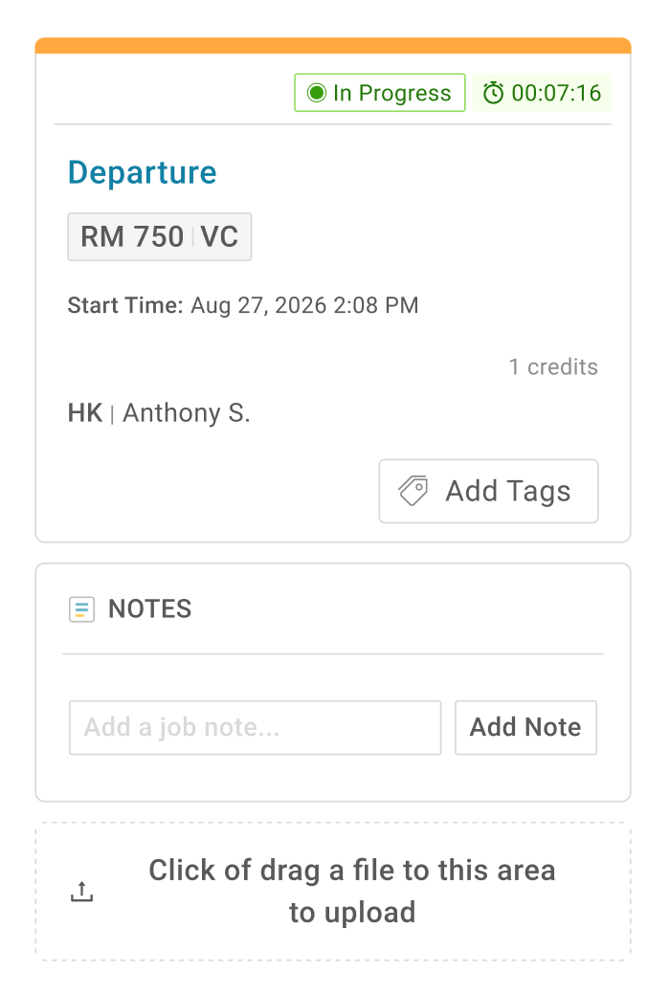
1. Starting a Job (In Progress)
When a room attendant enters a room and presses Start:
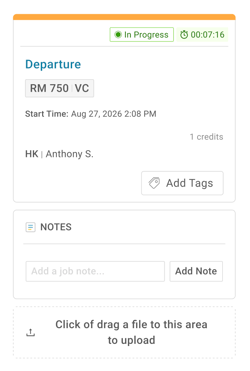
- The job status changes to In Progress.
- The Live Timer immediately activates and begins counting (
00:00:00) in the top right-hand corner of the Job Card. - The card records and displays the exact Start Time (e.g., Aug 27, 2026 2:08 PM).
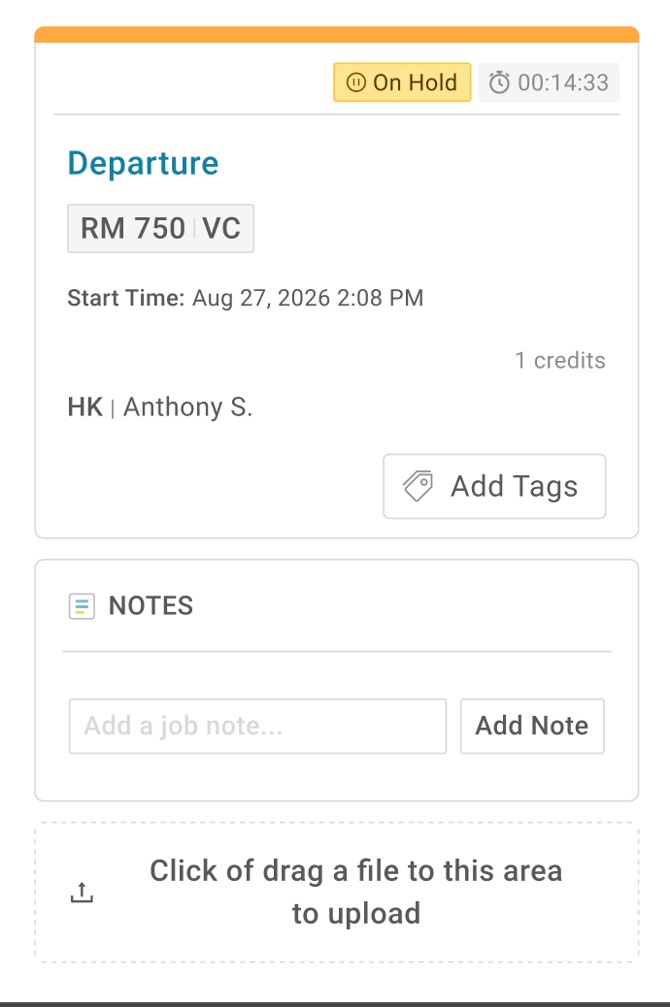
2. Pausing a Job (On Hold)
If an attendant needs to pause cleaning (e.g., step out for supplies, handle a guest interruption, or take a break):
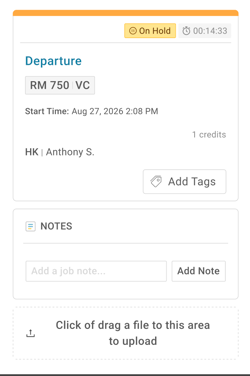
- Pressing Pause updates the job status badge to On Hold.
- The live timer freezes and holds the accumulated cleaning time (e.g.,
⏱ 00:14:33). - Pressing Start again resumes the timer right from where it was paused.
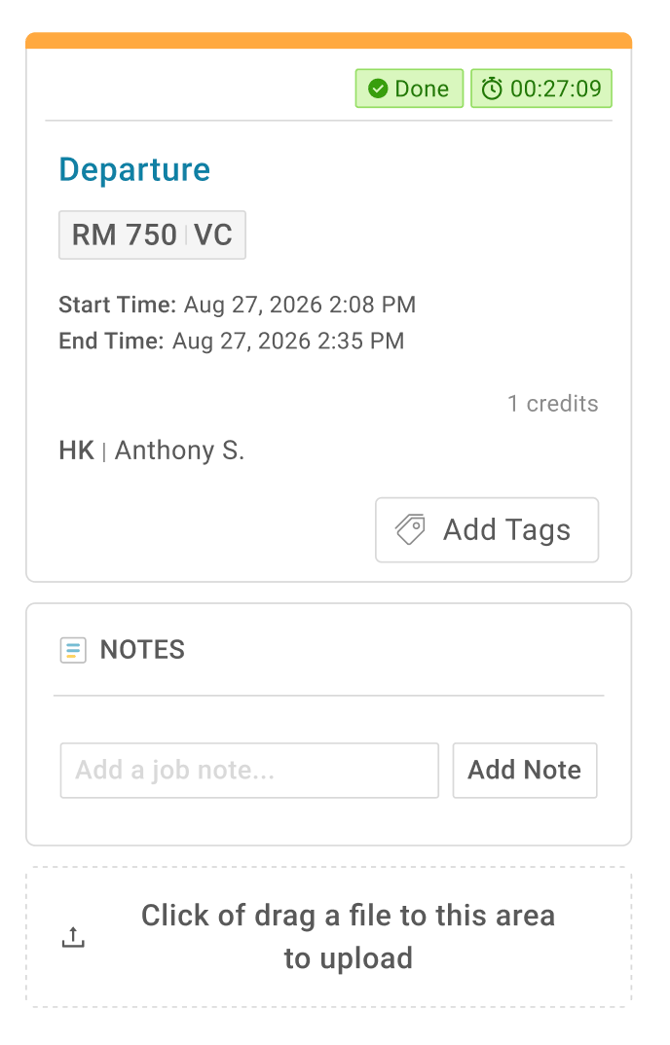
3. Completing a Job (Done)
When the attendant finishes cleaning and presses Complete:
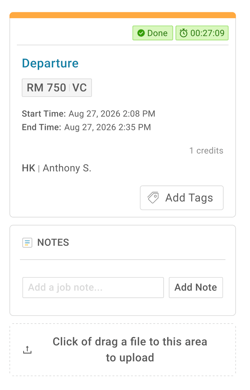
- The job status badge updates to Done.
- The live timer stops and locks in the final elapsed cleaning duration (e.g.,
⏱ 00:27:09). - The card logs both the official Start Time and End Time for operational records and credit tracking.
Quick Reference Summary Table
|
Job Status |
Status Badge | Timer Display | Action Triggered |
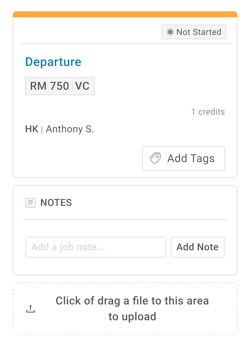
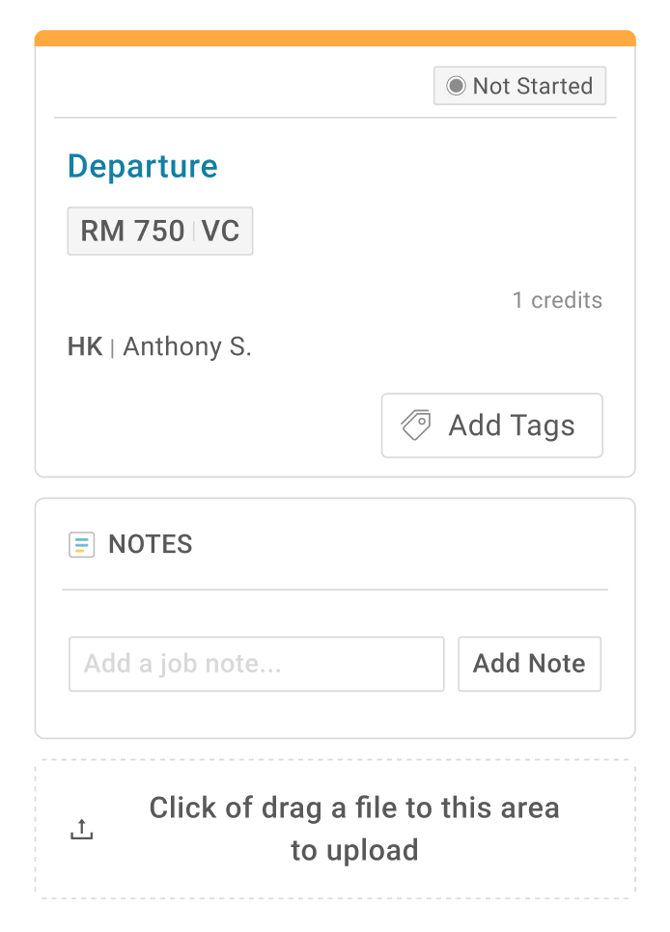
| Not Started | ● Not Started |
Hidden |
Press Start to begin cleaning and trigger the live timer.
|
| In Progress | ● In Progress |
⏱ Running (HH:MM:SS) |
Timer counts active room cleaning time in real time.
|
| On Hold | ⏱ On Hold |
⏱ Frozen / Paused |
Press Pause to hold timer; press Start to resume.
|
| Completed | ● Done |
⏱ Final Duration |
Press Complete to lock total elapsed time and record End Time.
|
💡Tip: Feel free to share this valuable resource with your colleagues to explore Optii.
Would you like to learn more?
If you would like to learn more about Optii, please check out our Optii learning centre today at help.optiisolutions.com
Have questions or need help?
Do you have any questions about Optii? Please contact your success manager today at help@optiisolutions.com