![Optii Logo 3x (2)-3.png]](https://help.optiisolutions.com/hs-fs/hubfs/Optii%20Logo%203x%20(2)-3.png?height=40&name=Optii%20Logo%203x%20(2)-3.png)
Updating room exceptions, flags, and job actions on the Optii Mobile App is now faster and more intuitive. Room attendants and floor staff can quickly apply room status exceptions (such as Do Not Disturb or Rush) directly from their job list using the updated Actions grid view.
Step-by-Step Instructions
Step 1: Open Job Actions
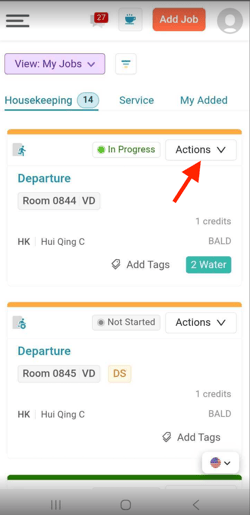
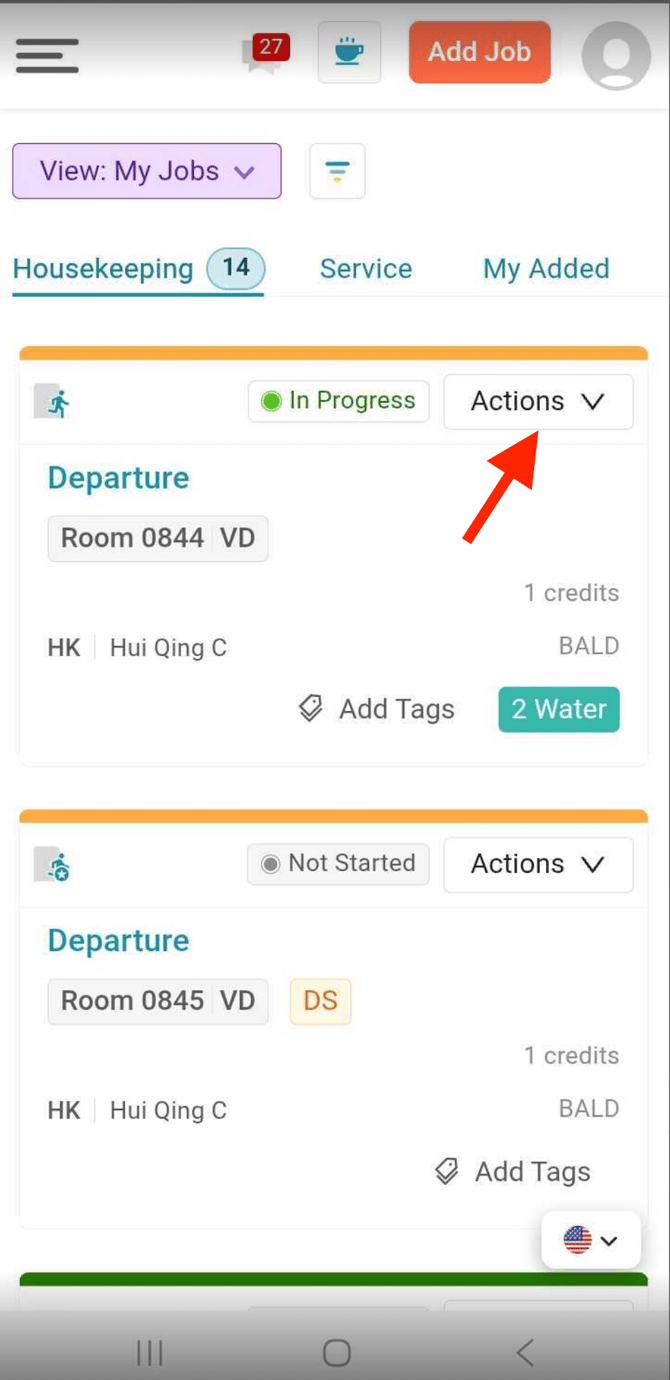
- On your Optii Mobile App, navigate to View: My Jobs and select the Housekeeping tab.
- Locate the room card you want to update.
- Tap the Actions ∨ button located at the top right-hand side of the room card.
Step 2: Select the Required Action
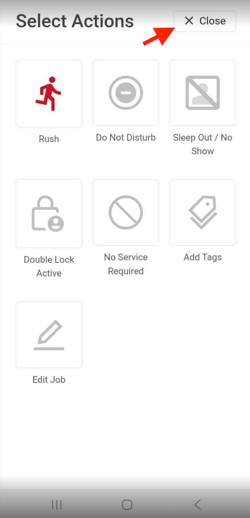
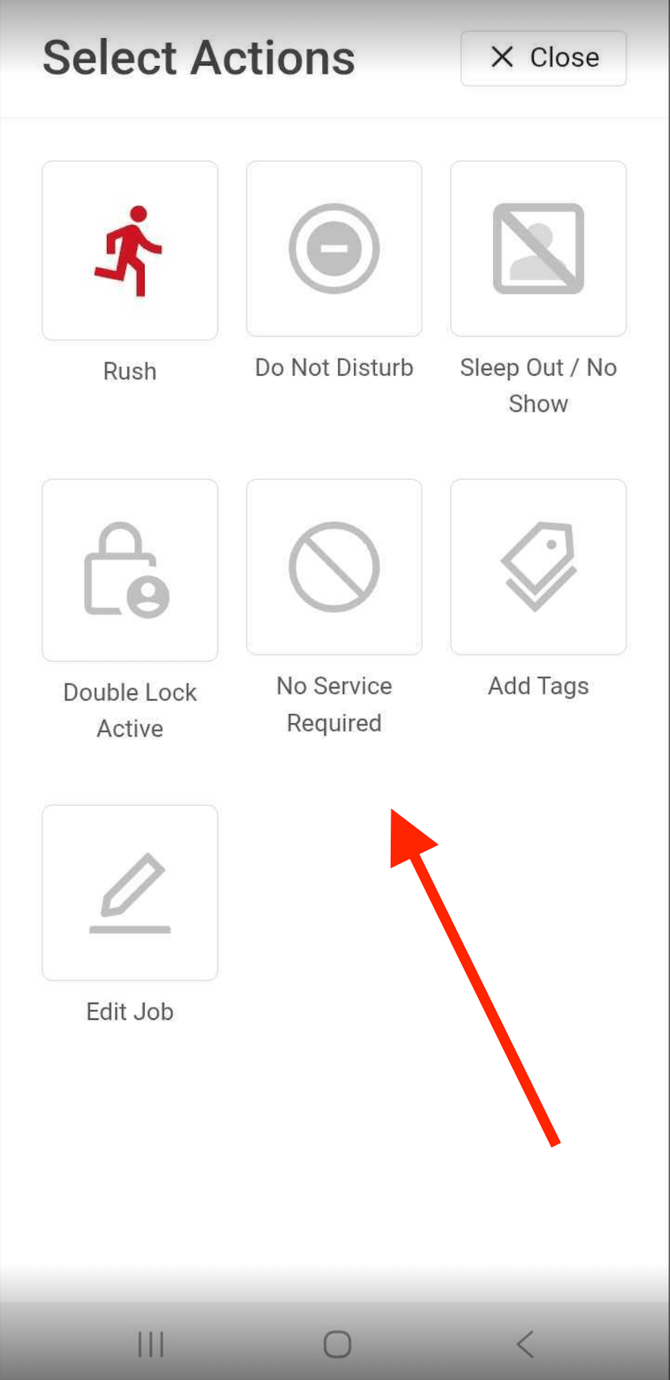
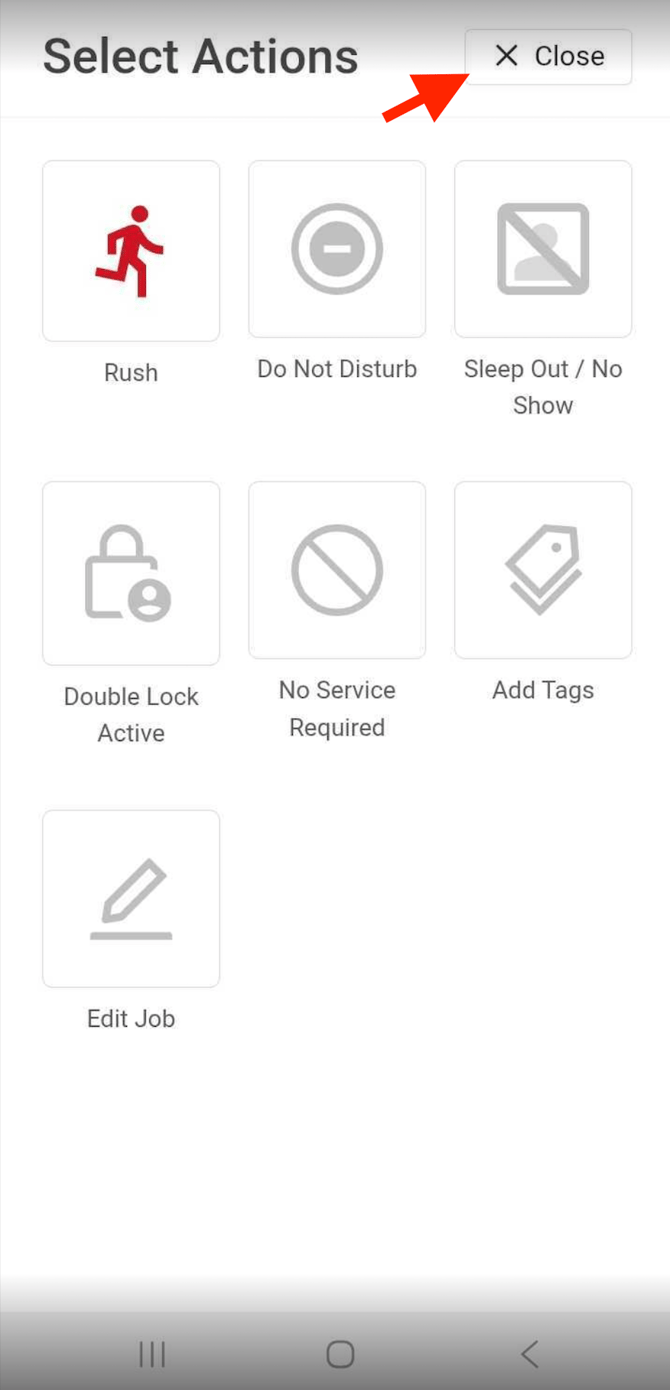
A new full-screen grid titled Select Actions will appear displaying all available options:
- Rush
- Do Not Disturb
- Sleep Out / No Show
- Double Lock Active
- No Service Required
- Add Tags
- Edit Job
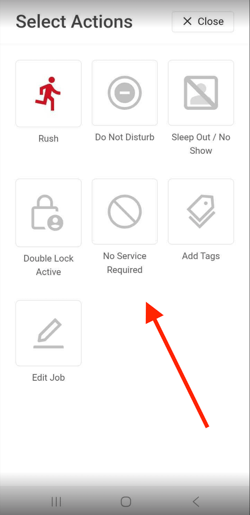
Tap the box corresponding to the action you wish to apply to the room.
Step 3: Confirmation & Exit
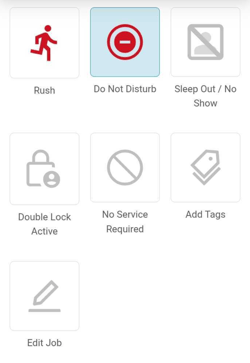
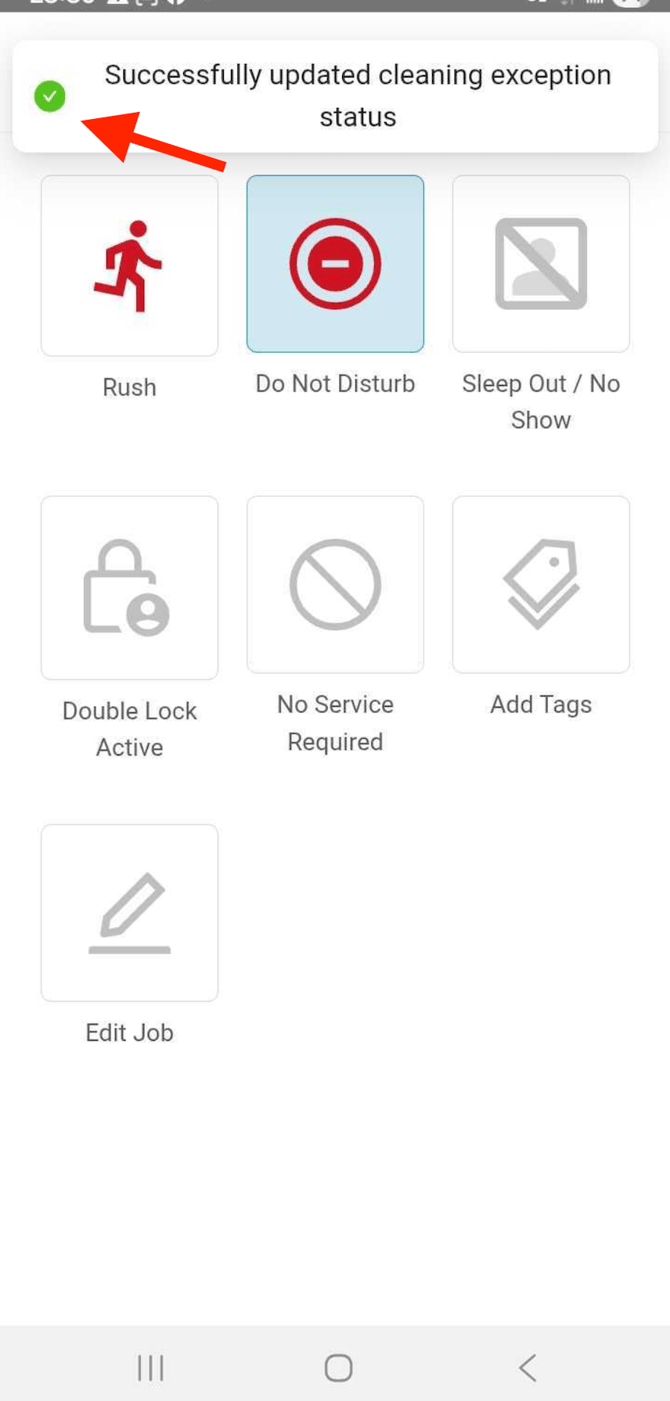
- Once selected, the chosen action box will highlight blue.
- A success notification bar will pop down from the top of the screen confirming:
✓ Successfully updated cleaning exception status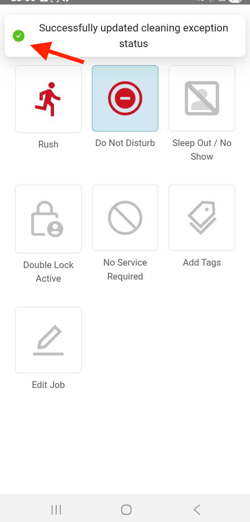
- To return to your job list, tap ✕ Close at the top right-hand side of the screen.
Quick Reference Summary Table
| Step | Location on Mobile App | Action Required |
| 1. Access Actions | Top right-hand side of room card |
Tap the Actions ∨ drop-down button.
|
| 2. Apply Status | Full-screen Select Actions grid |
Tap the box for the required action (DND, Rush, No Service Required, etc.).
|
| 3. Confirm & Exit | Top bar / Top right-hand side |
Review success banner, then tap ✕ Close to exit.
|
💡Tip: Feel free to share this valuable resource with your colleagues to explore Optii.
Would you like to learn more?
If you would like to learn more about Optii, please check out our Optii learning centre today at help.optiisolutions.com
Have questions or need help?
Do you have any questions about Optii? Please contact your success manager today at help@optiisolutions.com