![Optii Logo 3x (2)-3.png]](https://help.optiisolutions.com/hs-fs/hubfs/Optii%20Logo%203x%20(2)-3.png?height=40&name=Optii%20Logo%203x%20(2)-3.png)
Access these settings by navigating to Settings → Job Settings → Job Scheduling.
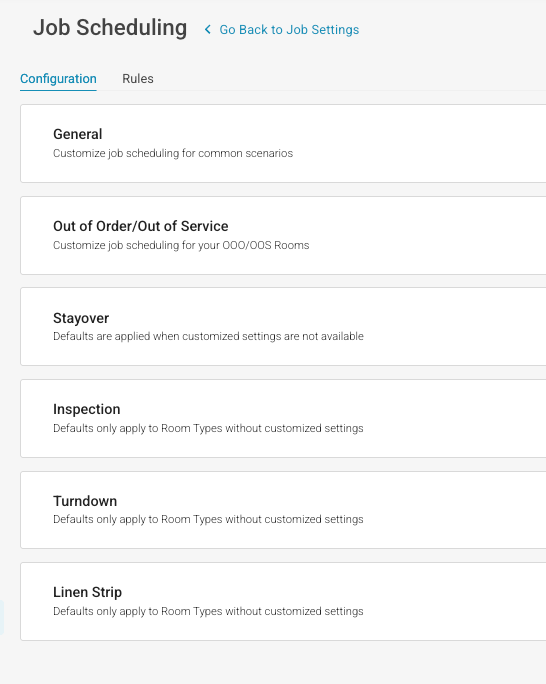
Global Default Configuration
What is OOO/OOS Job Scheduling in Optii?
Optii's OOO/OOS Job Scheduling feature enables hotel administrators to automatically create and manage housekeeping jobs for rooms marked as Out of Order (OOO) or Out of Service (OOS). Administrators can configure global defaults, per-code overrides, on-placement behavior, and early-removal rules — all from a single settings panel.
In Optii, Out of Order (OOO) rooms are completely unavailable for guest use, while Out of Service (OOS) rooms are temporarily removed from inventory but may still be accessible to staff. The OOO/OOS Job Scheduling feature lets administrators automate housekeeping job creation for rooms in either state.
The OOO/OOS Configuration section allows administrators to establish a baseline automation workflow for all OOO and OOS rooms across the property.
Key Capabilities
- Independent Rule Sets: Default scheduling rules can be set completely independently for OOO vs. OOS rooms.

- Shared Daily Trigger Time: A single, centralized timestamp determines exactly when scheduled OOO/OOS jobs are generated each day.

- Note: Updating this trigger time only applies to future job creation; today's already-generated jobs remain unaffected.
- Non-Retroactive Application: Changes made to global defaults apply only to OOO/OOS periods started after the settings are saved. Rooms currently in an OOO/OOS state will finish their cycle under the old rules.
Available Scheduling Rules
When a room is placed in OOO or OOS, you can choose one of the following automated scheduling paths:

- Check Everyday: Schedules a room inspection task every day of the block.
- Departure Clean Everyday: Schedules a full departure clean every day of the block.
- Check on Last Day: Automatically creates an inspection task only on the final day.
- Departure Clean on Last Day: Automatically creates a full clean only on the final day.
- Recurring Departure: Schedules a full clean every $X$ days (customizable from 2 to 90 days).
- Recurring Check: Schedules an inspection task every $X$ days (customizable from 2 to 90 days).
- No Job Needed: No automated jobs are created. (Manual job creation remains available for dispatchers).
Per-Code Scheduling Rules (Overrides)
Properties often treat different maintenance scenarios differently — for example, a full room renovation may require daily inspections, while a minor lightbulb replacement may need no housekeeping job at all. You can bypass global defaults by setting rules for specific, PMS-sourced room codes.
Key Capabilities
- Separate Code Tables: Out of Order and Out of Service codes are maintained in two separate tables. A single PMS code can only belong to one table.
- Read-Only PMS Sync: Dropdown codes are pulled directly from your Property Management System (PMS) and are read-only.
- Granular Overrides: Expanding any code row allows you to assign a specific scheduling rule (from the list above) that completely overrides the global default.
- Live Dynamic Summaries: As you adjust a code's settings, a plain-language summary updates in real-time (e.g., "Creates a Departure Clean on the last day of the OOO period.").
⚠️ Important: Per-code rules take strict precedence. If you alter the global default later on, any code with an explicit override will remain completely untouched. Unsaved changes to code rows will be discarded if you navigate away from the page without saving.
On Placement Behavior
This setting defines what happens to existing, already-scheduled housekeeping jobs the exact moment a room is placed into OOO or OOS status. This can be configured at both the global default and per-code level.
Configuration Options

- Cancel Scheduled Jobs (Default): The system immediately cancels all Scheduled (Not Started) and In Progress housekeeping jobs for that room.
- Affected Job Types: Departure, Stayover, Inspection, Check, Touch Up, Turndown, Correction, and Linen Strip.
- Audit Trail: Cancelled jobs are logged in the activity history. Completed or On Hold jobs are never affected.
- Keep Scheduled Jobs: Existing jobs are left untouched and active. This is ideal for revenue blocks or inventory holds where the room remains physically accessible to staff.
Future-Dated Placements
For OOO/OOS blocks scheduled for a future date, the "On Placement" rules only trigger from the start date forward. Any housekeeping jobs scheduled before the block officially begins will run as normal.
⏱️ Early Removal Behavior

This setting dictates system behavior when a room is fixed ahead of schedule and its OOO/OOS status is removed before the original end date.
Configuration Options
- Auto-create job immediately (Default): The moment the room is cleared early, Optii automatically creates a new job based on your selected sub-option:
- Automatically create a Departure Clean
- Automatically create a Check task
- Don't create a job: The OOO/OOS period ends silently with no job generated. This is best used for cosmetic or inventory blocks where no physical cleaning is required upon release.
Safeguards & Exceptions
- No Duplicates: If a daily-scheduled job (like Check Everyday) was already generated and completed for that room today, Optii will not create a duplicate job upon early removal.
- Future Cancellations: If a future-dated OOO/OOS block is cancelled before it ever begins, it is not treated as an early removal, and this logic will not fire.
- Non-Retroactive: Altering early removal settings will not retroactively impact or alter any room states that have already been cleared.
💡 Tip: Share this article with your colleagues to help them get started with Optii's OOO/OOS Job Scheduling.
Would you like to learn more?
To learn more about Optii, visit the Optii learning centre at help.optiisolutions.comHave questions or need help?
For further assistance, contact your Optii success manager at help@optiisolutions.com