![Optii Logo 3x (2)-3.png]](https://help.optiisolutions.com/hs-fs/hubfs/Optii%20Logo%203x%20(2)-3.png?height=40&name=Optii%20Logo%203x%20(2)-3.png)
Opera OHIP Optii PMS Integration Guide (Hotel Chain SSD/resource owner group)
This guide outlines the steps to integrate the Opera Property Management System (PMS) with Optii using the Opera Hospitality Interface Platform (OHIP) for a hotel chain. The process spans two phases — Phase 1: Integration User Setup and Phase 2: Environment Configuration and Credential Access — and typically takes one to two business days end-to-end. Before you begin, ensure you have the following ready:
- The base registration URL from your hotel chain administrator
- The Oracle Cloud account name for the hotel chain
- Access to the Oracle Hospitality Partner Developer Portal
- Contact details for your Hotel Chain Administrator

Phase 1: Integration User Setup
Step 1: Create the Integration User
- Responsibility: Optii Implementation Manager
- Action:
- Obtain the base registration URL from the hotel chain (your Hotel Project Manager or chain administrator will supply this).
- Append
?apiuser=Yto the end of the URL. - Example: If the URL is
https://xxx-uat-oc.oracleindustry.com/identity/faces/register, modify it tohttps://xxx-uat-oc.oracleindustry.com/identity/faces/register?apiuser=Y. - Open the modified URL in your browser and complete the registration form using the property's information (such as property name, address, and contact details). Submitting the form automatically sends an approval request to the hotel chain administrator; you do not need to notify them separately. Record the Interface ID and Interface Key generated upon registration, as you will need them in Steps 3 and 4.
Step 2: Approve the Integration User
- Responsibility: Hotel Project Manager/Leader
- Action:
- Log in to the Hotel's Single Sign-On Dashboard (SSD).
- Locate the pending Integration User request.
- Claim the request.
- Approve the Integration User.
Step 3: Verify the Integration User's Access
- Responsibility: Optii Implementation Manager
- Action:
- Using the Hotel Chain's SSD URL (e.g.,
https://xxx-uat-ssd-ohs.oracleindustry.com/identity), log in with the Interface ID and Interface Key (username and password) created in Step 1. - Navigate to the "My Access" section.
- Confirm that the role [CHAINCODE]-WSACCESS (where [CHAINCODE] is replaced by your specific hotel chain code) is listed under your integration user's assigned roles.
- If the role is missing: Contact the Hotel Chain Administrator and request that they add the [CHAINCODE]-WSACCESS role (substituting your hotel chain code for [CHAINCODE]) to your integration user. Allow up to one business day for this to be actioned before proceeding to Phase 2.
- Using the Hotel Chain's SSD URL (e.g.,
Phase 2: Environment Configuration and Credential Access
Step 4: Add the Chain Environment
- Responsibility: Hotel Project Manager/Leader
- Action:
- Access the Oracle Hospitality Partner Developer Portal at:
https://partner.hospitality-dev-portal.us-ashburn-1.ocs.oraclecloud.com/[Oracle Cloud Account Name]/ui/. Replace [Oracle Cloud Account Name] with the Oracle Cloud account name provided by the hotel chain. If you are unsure of this value, contact your Hotel Chain Administrator before proceeding. - Navigate to Environments and select Add Environment.
- Complete the required fields, ensuring that the Integration Username field is populated with the Interface ID created in Step 1.
- Access the Oracle Hospitality Partner Developer Portal at:
Step 5: Retrieve Access Credentials
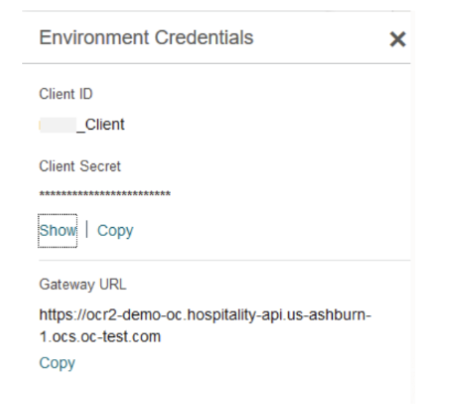
- Outcome: Once the chain environment is successfully registered, the portal will display your credentials for authenticating with the hotel chain's OPERA Cloud environment. These credentials — typically a Client ID, Client Secret, and Gateway URL — must be saved securely and provided to your Optii Implementation Manager to complete the integration configuration.
Phase 3: Testing Connectivity Between OPERA Cloud and Optii & Optii
Post-Installation: After you have provided your credentials to the Optii Implementation Manager (Step 5), the Optii team will configure the integration and perform a connectivity test to verify that your OPERA Cloud system and Optii are communicating correctly. You will be notified of the outcome before go-live.
For further information please contact your Optii Implementation Manager at help@optiisolutions.com
Would you like to learn more?
Have questions or need help?