![Optii Logo 3x (2)-3.png]](https://help.optiisolutions.com/hs-fs/hubfs/Optii%20Logo%203x%20(2)-3.png?height=40&name=Optii%20Logo%203x%20(2)-3.png)
Release date: Wednesday, October 28, 2026 · 3:30 PM CT
Optii 3.31.0 gets the right job to the right person, in the right room — and gives managers three new ways to see how the work is going.
In this release:
|
What's new |
Who it's for |
Where to find it |
|---|---|---|
|
PM Auto-Assignment by Occupancy |
Chief Engineers, Engineering Managers |
Projects → Assignment settings |
|
Assign Only to Team Members on the Timeline |
Executive Housekeepers, Supervisors |
List View, Timeline, Supervisor View (web & mobile) |
|
Above Property Job Items |
Portfolio and Above Property admins |
Above Property → Job Items |
|
Guest Service Report (new) |
GMs, Guest Services and Front Office Managers |
Reports |
|
Team Member Activity Report (redesigned) |
Department Managers |
Reports |
|
Turndown Performance Report (new) |
Executive Housekeepers, Turndown Supervisors |
Reports |
|
Improvements & Bug Fixes |
Everyone |
Across the platform |
Preventive Maintenance Auto-Assignment by Occupancy
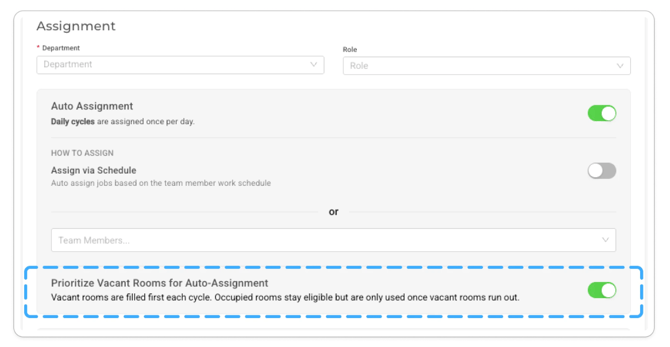
Engineering teams now go to vacant rooms first, so guests aren't disturbed when a ready room is available.
How it works
- Each assignment cycle, Optii checks whether every room in the project is vacant or occupied.
- With Prioritize Vacant Rooms for Auto-Assignment on (the default), vacant rooms fill first. Occupied rooms are assigned only when there aren't enough vacant rooms to complete the cycle.
- Turn the setting off and occupancy is ignored — your existing project rules apply.
- Every assignment decision is recorded in the Location and Job Activity Logs.
- Manual assignment still works regardless of the room's status.
Why it matters
- Fewer guest interruptions from maintenance in occupied rooms
- More PM work completed, because engineers go where rooms are ready
- A clear record of why each room was — or wasn't — assigned
Assign Housekeeping Jobs Only to Team Members on the Timeline
Your timeline decides who's working today. Now the assignee list follows it, so housekeeping jobs never land with someone off shift — or disappear from List View.
How it works
- Applies when you create, assign, or reassign housekeeping jobs from List View, the Timeline, and Supervisor View, on web and mobile.
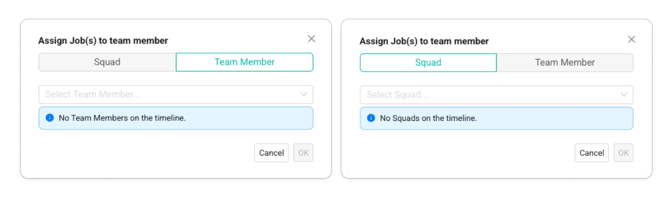
- Only team members and squads set to On Timeline for the day appear in the list.
- Search still finds people who aren't on the timeline. They appear greyed out with a "Not on timeline" label and can't be selected.
- If there's no timeline for the day, or it has no team members, the list shows "No timeline has been created."
- Jobs already assigned to someone who later leaves the timeline stay assigned.
- Guest and internal jobs are unchanged — every team member and squad is still available.
Why it matters
- Jobs only go to people who are actually working today
- Your timeline and the day's real workload stay in sync
- Assigned housekeeping jobs stay visible in List View
Above Property Job Items
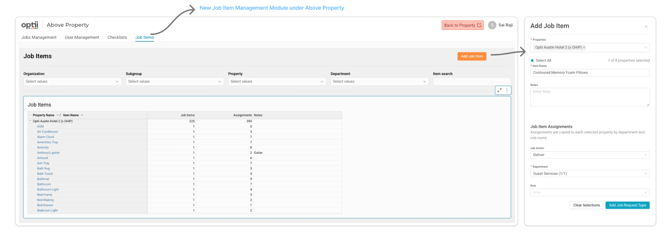
Set a brand-standard job item once and roll it out across your portfolio — no more of the same task living under different names at different properties.
How it works
- Review: Go to Above Property → Job Items to see every property's job items in one list, grouped by property. Filter by Organization, Subgroup, Property, Department, or item name.
- Create and distribute: Select Add Job Item, then choose properties by Organization, Subgroup, or all properties in scope. A running count shows how many you've selected.
- Catch duplicates: Before you save, Optii shows how many selected properties already have an item with the same name.
- Edit: Rename an item or update its notes across every property in scope. A confirmation shows how many properties will change.
- Change scope: Add or remove properties anytime. Removing a property deactivates the item there — it isn't deleted.
- Deactivate and reactivate: Retire an item portfolio-wide without losing history. Open jobs can still be completed.
- Check results: After any change, see how many properties succeeded or failed, and retry the ones that failed.
At the property
Above Property items carry an AP icon. Item Name and Notes are read-only, but property admins keep full control of job item assignments — how each job is routed to departments and roles.
Why it matters
- One consistent catalog across your portfolio, and cross-property reporting you can trust
- Roll out a new brand-standard task once, not hundreds of times
- Properties still decide how their jobs are routed
Guest Service Report (New)
See guest-request demand, service speed, and on-time performance in one view — so you can staff against real demand.
How it works
- Go to Reports → Guest Service Report. Filter by date added, department, role, priority, location, job name, and status.
- KPI tiles show Total Guest Requests, median Pickup, Response, On-Task and Resolution times, and On-Time Completion.
- Charts cover peak hours, resolution-time bands, daily and day-of-week volume, and most-requested items.
- Download the Guest Request Records table for deeper analysis.
Why it matters
- Know when guests ask most, and staff accordingly
- Track speed at every stage — not just total time
- Stock and prepare the most-requested items ahead of demand
Team Member Activity Report (Redesigned)
Rebuilt from the ground up, this report now loads reliably over standard reporting ranges and shows how much service work each team member completes, how long it takes, and how often it's on time.
How it works
- Same name and location under Reports. Filter by completion date, department, role, team member, service type, job name, priority, and location.
- KPI tiles and per-team-member charts show Completed Jobs, Jobs per Active Day, Work Duration, and On-Time Completion — each split by Guest and Internal jobs.
- Download the Team Member Reporting Records table: one row per team member, completed service jobs only.
Why it matters
- A report that loads reliably over the ranges you actually use
- Fair comparisons — Jobs per Active Day adjusts for people who worked fewer days
- Clear data to balance workloads and coach individual performance
Turndown Performance Report (New)
Turndown performance now has a home of its own: completion, duration, travel time, missed-turndown reasons, and individual throughput in one report.
How it works
- Go to Reports → Turndown Performance Report. Filter by date completed and/or date added, user, role, and room type.
- KPI tiles show turndown jobs created, assigned, and completed, completion rate, average completion time, and average travel time.
- Charts compare assigned vs. completed by day, reasons turndowns weren't completed, and performance by team member and room type. Expand the Reporting Records for detail.
Why it matters
- See how much turndown work gets done — and why some doesn't
- Pinpoint which rooms and team members take the longest
- Track travel time between jobs to tighten routing
Improvements & Bug Fixes
We've resolved customer-reported issues across Housekeeping, PMS integrations, Reports, Projects, and the mobile app for a smoother, more reliable day.
Questions?
Your Optii Success Manager is happy to walk you through anything in this release.
Email: help@optiisolutions.com