![Optii Logo 3x (2)-3.png]](https://help.optiisolutions.com/hs-fs/hubfs/Optii%20Logo%203x%20(2)-3.png?height=40&name=Optii%20Logo%203x%20(2)-3.png)
Optii Version 3 is here, and it does a lot more than housekeeping. In this 30-minute walkthrough, we show your team exactly what changes when you move from Optii Keeper (V2) to Optii Platform (V3): where everything lives, what's new, and how to get value from it on day one.
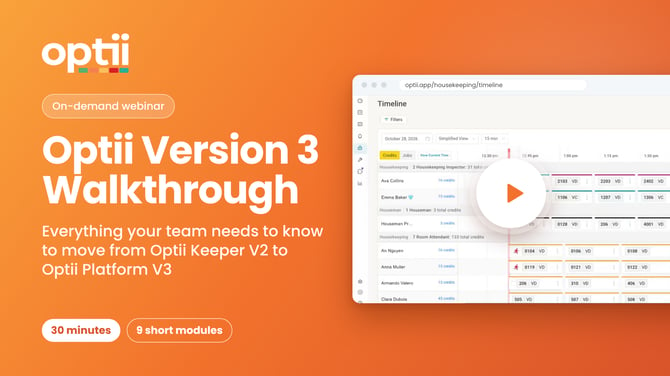
The session is built in 9 bite-sized modules, each ending with a quick knowledge check, so you can watch it start to finish or jump straight to the part that matters most to your role. Pause, rewatch, and follow along in Optii as you go.
Who should watch: General Managers, Directors of Operations, Executive Housekeepers, Housekeeping Supervisors, Front Office and Service teams, and Maintenance leads at properties moving from Version 2 to Version 3.
|
Format |
Length |
Structure |
Knowledge checks |
|---|---|---|---|
|
On-demand video walkthrough |
30 minutes |
9 modules |
9 (one per module) |
Why Version 3: from housekeeping to the whole house
Optii Keeper (V2) proved predictive housekeeping works: intuitive, data-driven scheduling that room attendants actually use. Optii Platform (V3) keeps that same engine and extends it across the whole hotel. A guest request, a broken air conditioner and a late checkout now all live in the one system your team already opens every shift.
In practice, that means:
- Room attendants get their assignments without a supervisor tracking them down.
- Front desk sees a guest request the moment it's raised, not at shift handover.
- Managers know which rooms are behind before it turns into a 3pm scramble.
V3 brings four connected modules (Service, Chat, Projects/Preventative Maintenance and Housekeeping), plus home dashboards, reports and a built-in self-support chatbot.
|
Optii Keeper (V2) |
Optii Platform (V3) |
|
|---|---|---|
|
Who it covers |
Room attendants, supervisors and managers |
Adds housemen, runners, public areas, maintenance and front desk teams |
|
Guest requests |
No dedicated home for requests |
Jobs module plus a live list view built for Front Office |
|
Maintenance and PM |
Not supported |
Job requests, preventative maintenance and asset tracking (Projects) |
|
Team communication |
Not supported |
Real-time Chat with translation and AI job detection |
|
Dashboards |
No home page |
Service, Housekeeping and GM dashboards, plus an AI chatbot |
|
Integrations |
PMS only (Oracle, Mews, Stayntouch and more) |
Same PMS coverage, plus guest-experience platforms such as Tapendium and Medallia |
📕 What you'll learn
By the end of this walkthrough, you'll be able to:
- Explain what's new in Version 3 compared with Version 2.
- Find your way around and create jobs in seconds with Optii AI.
- Monitor your operation with real-time dashboards.
- Manage service jobs, schedules and the Status board.
- Run housekeeping with the Timeline, List and Supervisor views.
👇 Inside the walkthrough: module by module
Jump to any chapter in the video using the times below.
|
Start |
Module |
Best for |
|---|---|---|
|
0:40 |
1. Welcome to Optii Platform (V3) |
Everyone |
|
3:00 |
2. Getting Around Optii |
Everyone |
|
5:20 |
3. Create Jobs in Seconds with Optii AI |
Front Office, Housekeeping, Service teams |
|
8:10 |
4. Real-Time Dashboards |
GMs, Directors of Operations, department heads |
|
11:10 |
5. Managing Service Jobs |
Front Office, Service and Maintenance teams |
|
15:10 |
6. The Status Board and Scheduled Jobs |
Service and Maintenance leads |
|
18:00 |
7. The Housekeeping Timeline |
Executive Housekeepers, Housekeeping Managers |
|
24:10 |
8. Housekeeping List and Supervisor Views |
Housekeeping Supervisors and Inspectors |
|
27:50 |
9. Maintenance, Chat and Reports |
Everyone |
|
29:20 |
Recap and next steps |
Everyone |
1. Welcome to Optii Platform (V3)
V3 is the operations platform your hotel runs housekeeping, maintenance, guest requests and preventative maintenance through: one system, in one place. It now covers your houseman, runners, public areas, maintenance and front desk teams, not just room attendants.
2. Getting Around Optii
Everything lives in the left-hand menu: every module and product, plus Settings, your profile and support.
- Ask the chatbot: get answers to questions directly inside Optii.
- Check the library: release notes are published here, so your team always knows what's new.
- Translate instantly: switch the whole screen into your team member's language, including checklists and notes, with the translate widget. Team members can also set their language in their profile.
3. Create Jobs in Seconds with Optii AI
The Add Job button is always at the top of the screen, ready for guest requests, maintenance requests or houseman tasks.
- Type it, say it or snap a photo: describe the job (for example, "replace towels room 0101") and Optii AI builds it for you, with the request type, action, item and location filled in.
- Voice on mobile: on your phone, tap the microphone and say "Replace bath towel, room 101." It's a quick, easy way for team members on the floor, juggling multiple tasks, to log requests.
- New Linen Strip job action: runners or housemen strip the room first, so it's ready the moment the room attendant arrives.
4. Real-Time Dashboards
Four dashboards give every leader the view they need, at a glance:
- Service dashboard: job requests, jobs completed (guest and internal), average response times and on-time performance, plus your top five most frequent jobs. Filter by department, job type, priority and date, and spot jobs that missed their target time.
- Housekeeping dashboard: departures, stayovers, out of order and out of service rooms, room statuses, staffing on shift and completed jobs.
- Discrepancy dashboard: spot rooms where Optii and the PMS disagree on cleaning or occupancy status, before it becomes a front desk headache. Export to CSV, Excel or PDF.
- GM dashboard: a general overview of today's housekeeping, service and preventative maintenance jobs, with completion rates and overdue jobs in one place.
5. Managing Service Jobs
- My Jobs: see the jobs assigned to you, and the jobs you've assigned to others.
- Service List: every guest and internal request in one list, sorted by status and priority. You only see the departments your role allows.
- Elapsed Time: shows how long it has been since a job was created without being completed. A long elapsed time is your cue to follow up with the team.
- Saved filters and tags: save your favourite filter and Optii applies it for you. Tag jobs (for example, a guest who needs extra attention) for quick follow-up.
6. The Status Board and Scheduled Jobs
- Status board: a board view with jobs in columns by status (not started, in progress, on hold and completed). Drag and drop jobs across the board to update them.
- Schedule ahead: create a job for a future date and time, then use the Only Future Jobs toggle to see what's coming.
- Repeating jobs: set jobs to repeat daily, weekly, monthly or yearly, or multiple times per day, on the days you choose, with a start and due time. Optii generates them automatically.
7. The Housekeeping Timeline
The Timeline has a newer, much improved design, and it now shows every housekeeping role in one view: room attendants, inspectors, housemen, runners and turndown.
- No more toggling: see your room attendants and your other teams side by side.
- New job colours and clear occupancy icons: touch-ups, corrections and checks each have their own colour, and room status (vacant clean, vacant pickup, occupied dirty and more) is easy to read.
- Bulk actions: select several rooms, open the three-dot menu and choose Rush, instead of rushing rooms one by one. Rushed rooms move to the top of the list, as before.
- Live timers: in-progress jobs show a live timer that keeps counting until completion.
- Past days: in V2, the Timeline reset at midnight. Now you can open the calendar and review any previous day.
8. Housekeeping List and Supervisor Views
- List view: see unassigned and assigned jobs together, and reassign rooms through Job Action.
- Bulk notes and tags: select rooms and add one note or tag to all of them at once.
- Vacant pickup checks: complete a VP check as normal and Optii updates the PMS.
- Supervisor view (brand new): see all the allocations in your section and manage them directly, on desktop or on your mobile.
- Do Not Disturb: DND and No Service Required rooms drop to the bottom of the list, just like before, and you can configure other statuses to behave the same way.
9. Maintenance, Chat and Reports
- Preventative maintenance: plan and track recurring maintenance and asset care in the Projects module.
- Optii Chat: an internal communication tool with channels, direct messages and group chats. Use @tags to notify people, share pictures and create groups for each team, such as your housemen.
- Reports: a full library of reports, including the cleaning exceptions report, history and benchmarks.
Quick answers
The questions from the walkthrough's knowledge checks, answered.
What does Optii Platform (V3) add beyond housekeeping? Service, maintenance, chat and AI in one platform. V3 runs your whole back of house.
How can a team member use Optii in their own language? Translate instantly with the translate widget, or set a language in their profile.
What does the new Linen Strip job action do? It lets runners or housemen strip a room first, so it's ready for the room attendant.
Which dashboard shows rooms where Optii and the PMS disagree? The Discrepancy dashboard, which compares Optii's room status with the PMS.
In the Service List, what does Elapsed Time tell you? How long it has been since the job was created without being completed.
A houseman must check the pantries every Monday and Friday. What do you use? A repeating scheduled job. Optii generates it automatically on the days you choose.
How do you rush several rooms at once on the Timeline? Select the rooms, open the three-dot menu and choose Rush.
In the Supervisor view, what happens when you mark a room Do Not Disturb? It moves to the bottom of the list, just like before. No Service Required rooms do the same.
Where can you create a group chat with just your housemen? In Optii Chat, using channels, @tags, direct messages and groups.
Put it into practice
The fastest way to feel the difference is to use V3 on your next shift. Start with these three:
- Create your first job by voice in the Optii app.
- Save your favourite filters on day one.
- Rewatch any module from the chapter list whenever you need a refresher.
New features land in V3 regularly, so keep an eye on the release notes in the Optii library.
Questions? Email us at help@optiisolutions.com or contact your Customer Success Manager.