![Optii Logo 3x (2)-3.png]](https://help.optiisolutions.com/hs-fs/hubfs/Optii%20Logo%203x%20(2)-3.png?height=40&name=Optii%20Logo%203x%20(2)-3.png)
Overview
- Polling
- a. Create External System
- b. Create External Database
- c. Configure Business events
- d. Configure Publisher
- e. Adding Second and subsequent properties to existing external system and external database
- Streaming
- a. Create Application
- b. Configure Events in Template
- c. Subscribe Environment
- d. Configure Publisher
Polling Business Events Configuration
1a. Create External System
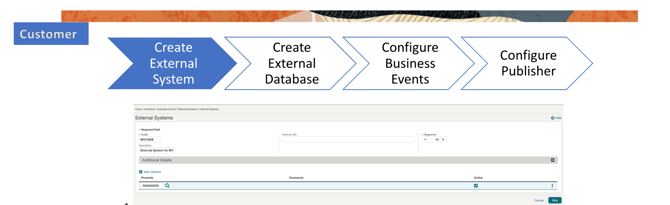
- Navigate to Administration in OPERA CLOUD UI, Interfaces, Business Events, External Systems
- If you are logged into HUB, please select the property Code from drop down menu
- Press "NEW"
- "CODE" should be Partner Code with no special characters and spaces. Make sure that the code doesn't start with numbers
- "Description" should be easily identifiable by customer
- "Sequence" Customer choice where it will show in the external system screen
- "Property" Choose the correct property when logged into Hub
- "Active" Tick the checkbox when ready for the external system to be active
- Press "SAVE"
- NOTE: if you don't see external system option in UI, that means that your user has no permission to access that area. You can check the role permission by going into Role Manager, Chain Admin role, Interfaces Admin. You will need Business Events (New/Edit Business Events and Delete Business Events), External Systems (New/Edit External Systems, Delete External Systems, Publisher). If you don't have access to Role Manager, customer will need to contact their Chain Admin. Oracle support is not chain admin.
1b. Create External Database
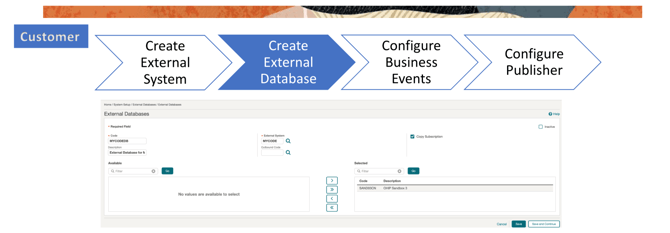
- Navigate to Toolbox, System Setup, External Databases
- Press "NEW"
- "CODE" Make sure you append the external database with "DB" with no space or special characters. Do not have the same code as External System
- "Description Insert an easily Identifiable description for the external database
- "External System" Choose from the drop down menu the correct external system which was create as step 1
- You will now see in lower left box the property Code being populated for those properties which external system was linked earlier.
- Press the right arrow so that you can select the property code which you want to link the external database to Press "SAVE"
- NOTE: if you don't see external system option in UI, that means that your user has no permission to access that area. You can check the role permission by going into Role Manager, Chain Admin role, Toolbox, External Database
1c. Configure Business Events

- Navigate back to Administration, Interfaces, Business Events and Business Events Configuration
- Press "NEW"
- "Property" Code Choose correct Code if you are logged into HUB
- "External System" Choose the correct code
- "Module" Choose the appropriate from drop down menu. There are 16 Modules to choose from
- "Business Event" Choose the correct event (actionType) from the drop down menu. Please note these values adapt according to the module you have chosen before Once Business event is chosen, you will see Data Elements appearing on lower left box
- Press double arrow to move the data elements into the selected box Press "SAVE"
1d. Configure Publisher

- Publisher is required to be setup if the partner requires messages from a third party interface.
- For example if you are a Central Systems application and you need to be informed by the rate changes which is being updated by an yield system, you will need to configure Publisher between your system and Yield Management
- Subscriber means Receiving system
- Publisher means system which triggers
- If both systems requires each other messages, publisher needs to be set on both external systems
- Navigate to Administration, Interfaces, Business Events, External System
- Search for property Code and the external system you want to set the publisher
- Click on the 3 dotted lines on the external system and Press "Publisher"
- Press "NEW"
- "Publisher" will be the triggering System
- Do the same configuration by choosing the third party system as subscriber
1e. Adding Second and subsequent properties
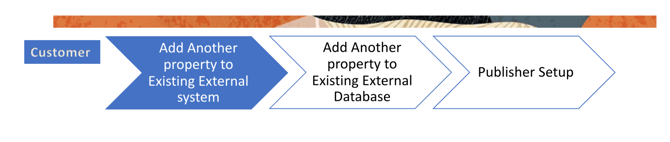
- Login into HUB
- Navigate to Administration, Interfaces, Business Events, External System
- Choose the first property and external system which was created as first
- Press SEARCH
- When the Result is returned with correct external System, press on the 3 dotted lines and press "EDIT" PRESS "NEW"
- Under Property now choose the new property
- Tick the Active checkbox
- SAVE and exit
- Navigate to Toolbox, System Setup, External Database
- Search for the External System which was created for first property
- Once found press "EDIT" by clicking 3 dotted lines
- Now you will see a new property in the lower left box under Available
- Click on the right arrow and property should be now visible as Selected "SAVE" and exit
- Follow same step as publisher setup which was done for first property
Streaming Business Events Configuration
2a. Create Application

- Navigate to your developer Portal
- Under the tab application Press "Register Application to create a new application. If the application of your choice already exsists, please navigate to Events TAB
- NOTE: Only available for streaming enabled environments. This is easily identifiable within your environment tab when you add the customer environment Tile. The tile will be marked as streaming enabled. Available for OPERA Cloud customers who are on 22.3 version and above
2b. Configure Events in Template

- If the application of your choice already exsists, please navigate to Events tab.
- Press "Add Event to Template" and start adding Modules (Category) and Event
- Press "Add" for each event
- Once all added Category and Event added in template, move to "Subscribed" tab
2c. Subscribe Environment
- Click on "Subscribe" and choose the correct environment
- Now wait for customer approval
2d. Configure Publisher

- (Follows the same publisher logic and navigation as step 1d)
Additional Comments
How to fetch Business Events (Polling)
- Use API getBusiness Events (INT Module)
- 2 Variations how Business Events can be fetched:
- For all hotels in the same chain by external system: /int/v1/externalSystem//businessEvents?limit=20
- For single hotel in the same chain by specifying Hotel id in the path parameter: /int/v1/externalSystem//hotels//businessEvents?limit=20
- Important Note: To be able to fetch hotel specific messages, the external database which you created, requires to be individual external database linked to only one hotel.
- You can link multiple external database to one external system, If you haven't done so, you will pickup any hotel messages in the chain even if you specify hotel id in the path parameter.
- limit = 20. Max number allowed is 20. I.e. With one fetch, you will receive unto 20 events.
- When no message present in the queue, you will receive 204 No Content response.