![Optii Logo 3x (2)-3.png]](https://help.optiisolutions.com/hs-fs/hubfs/Optii%20Logo%203x%20(2)-3.png?height=40&name=Optii%20Logo%203x%20(2)-3.png)
Whether you want to verify that your app has received the latest system features or need to provide technical details to your IT support team during troubleshooting, checking your Optii mobile app version takes just two simple steps.
Step-by-Step Instructions
- Log into Optii on your mobile device or web browser.
- Tap or click on your Profile Menu icon located in the top right-hand corner of the header screen.
- Scroll to the very bottom of the profile drop-down menu.
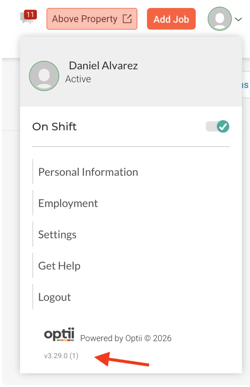
- Your current app version will be displayed directly beneath the copyright notice (e.g.,
v3.29.0 (1)).
How is this helping your team?
For Fast Technical Support & Troubleshooting
- Instant Verification: Allows users and floor managers to quickly confirm their exact software version when reporting issues to IT or Optii Support, reducing back-and-forth communication.
🚀 For Feature Access Awareness
- Confirm Updates: Helps staff verify whether their device has received the latest feature rollouts (such as the new Live Timer, Enhanced Actions Drawer, or Updated Add Job experience).
Quick Reference Summary Table
| Action Step | Location in Optii | Display Output |
| 1. Open Profile Menu | Top right-hand corner of header bar |
Opens user profile options menu.
|
| 2. Locate App Version | Bottom of profile drop-down menu | Displays current build version (e.g., v3.29.0 (1)). |
💡Tip: Feel free to share this valuable resource with your colleagues to explore Optii.
Would you like to learn more?
If you would like to learn more about Optii, please check out our Optii learning center today at help.optiisolutions.com
Have questions or need help?
Do you have any questions about Optii? Please contact your success manager today at help@optiisolutions.com