![Optii Logo 3x (2)-3.png]](https://help.optiisolutions.com/hs-fs/hubfs/Optii%20Logo%203x%20(2)-3.png?height=40&name=Optii%20Logo%203x%20(2)-3.png)
Release Notes 3.26.0, Week of April 16th, 2026
We’re pleased to introduce Optii v3.26.0. This release brings powerful new capabilities to how teams are organised and managed, how housekeeping operations are viewed and reported, and how quality inspections are scored alongside a number of targeted improvements and bug fixes across the platform.
Squad System — Multiple Assignees on a Job- Assign a single housekeeping job to a group of team members (a “squad”) instead of one individual
- A new paginated, sortable, filterable table of all housekeeping jobs
- Checklists now use a standardised Pass/Fail/N/A scoring model across all task types
- Users can now skip an inspection job even when a mandatory checklist is attached
- Managers can add non-cleaning credits directly to a room attendant’s daily board
- Enhancements & Bugs
 Squad System — Multiple Assignees on a Job
Overview
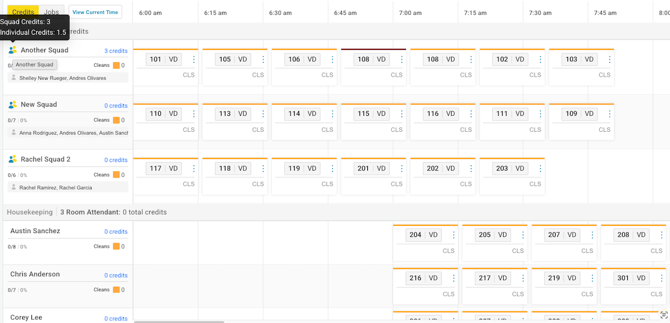
Optii now supports assigning a single housekeeping job to a group of team members — a “squad” — rather than to a single individual. This is designed for large suites, VIP turndown service, training pairings, and any scenario where two or more attendants work together in the same room. Previously, properties had to create duplicate jobs or manually juggle assignments to share workload, which created reporting inconsistencies. The Squad System removes that need entirely.
Functionality
- Create and manage squads from a new Settings → Squad System Management page
- Assign jobs directly to squads from the Timeline and the Add/Edit Job form
- View squads in a dedicated Squads tab alongside Team Members on the Timeline and Housekeeping List View
- Staff can carry out jobs as individuals and as part of a squad, and can belong to multiple squads simultaneously
- Credits for squad jobs are automatically split across squad members and shown separately from individual credits
- A new My Squad Jobs section in the mobile app keeps squad work clearly visible
- A Squad System Management permission (Settings → Roles & Permissions) controls who can create and delete squads
Benefits
- Eliminates the need for workaround duplicate jobs when multiple attendants share a room
- Accurate credit attribution — each squad member’s contribution is recorded correctly
- Management retains full control over who can create or modify squads
Optii Checklist — Standardised Pass/Fail Scoring
Overview
Checklists now use a standardised Pass/Fail/N/A scoring model across Pass/Fail, Yes/No, and On/Off task types. Scores update in real time as users complete tasks, giving inspectors and supervisors an immediate picture of inspection quality.
Functionality
- Better scoring for proper management of checklist completion
- Pass = full points; Fail = 0 points; N/A = excluded from scoring (the denominator adjusts automatically)
- Scores update in real time as tasks are answered
- Task failures do not automatically fail the overall inspection — the final outcome (Pass, Fail, Cancel, or Pause) remains a deliberate user choice
- Corrections created from failed inspections inherit the original score and list of failed tasks
- Unanswered tasks default to Pass; historical inspections are not recalculated
- If all tasks are marked N/A, the inspection receives no score
Benefits
- Consistent, objective scoring across all checklist types
- Real-time feedback during inspections reduces errors and rework
- N/A handling ensures scores reflect only what was actually inspected
Skip Inspection — Now Works with Mandatory Checklists
Overview
Users can now skip an inspection job even when it has a mandatory checklist attached. Previously, mandatory checklists blocked the Skip action, forcing ‘fake completions’ that distorted reporting data. This change restores flexibility without sacrificing data integrity.
Functionality
- The Skip action bypasses the mandatory checklist requirement when selected
- Skipped inspections are tracked separately from completed ones
- All other skip behaviour remains unchanged
Benefits
- Prevents artificial completions from inflating the checklist and inspection reporting
- Gives inspectors a clean, honest way to record when an inspection is intentionally skipped
- Aligns Optii’s workflow with real operational needs — particularly in time-sensitive situations
 Non-Cleaning Credit Management
Overview -
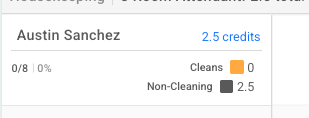
Managers can now add non-cleaning credits directly to a room attendant’s daily board. This is designed for union and credit-sensitive properties where workload factors such as travel distance, multi-floor coverage, or complex boards need to be recognised beyond the credits assigned to individual room cleans.

Functionality
- From Timeline → Detailed View, click a user’s credit value to open the credit breakdown
- Add or edit Non-Cleaning Credits using +/– controls (in 0.5 increments) or by entering a value directly (decimals supported)
- Credits cannot be reduced below zero
- Non-Cleaning Credits are board-level — they are not tied to a specific job or room
- Visible across Timeline → Detailed View (add/edit), the View Jobs modal (read-only), and the mobile app under a new ‘Non-Cleaning Credits’ category
Benefits
- Accurate workload accounting for union and credit-managed properties
- Recognises travel, floor coverage, and other labour factors that existing room credits don’t capture
- Visible to staff in the mobile app, keeping everyone aligned on their total daily credit picture
Enhancements & Bugs
Add/Edit Job Form — Mobile Optimisation
Consistent required field indicators, improved touch targets, cleaner Date/Time layout, and a collapsed Job Assist section that expands on demand
Prevent multiple in-progress Jobs
The app now prevents a second job from being started while one is already in progress, with a clear prompt linking back to the active job
Applies to: Inspection, Departure, Stayover, Check, Turndown, Linen Strip, Touch Up, and Correction
Checklist Icon on Timeline and Supervisor View
When a checklist is attached to a job via a rule, the checklist icon now displays correctly on job cards in both the Timeline and Supervisor View
Bulk ‘On Timeline’ in Team Members Modal
The Team Members modal now includes a bulk checkbox for the On Timeline column, allowing managers to toggle all filtered team members on or off the Timeline at once
My Jobs Tooltip — Jobs and Credits
The My Assigned Jobs tooltip in the mobile app now shows both job count and credits per job type (e.g. Departure: 3 jobs / 25 credits)
Section Column in Floor Plan Settings
A Section column has been added to Settings → Floor Plan, making it easy to see which section each location belongs to without opening individual records
Bugs Addressed
- Checklist tasks on service jobs are now restricted to assigned users only
- Exception status changes (DND, NSR, etc.) are now attributed to the acting user in the activity log, not ‘Optii’
- Duplicate stayover jobs are no longer created after a reservation extension
- Project completion rates and Done job counts are now consistent
- Mobile app pull-to-refresh and real-time job updates now work correctly on first login
- Assignment modal no longer opens behind the main screen for Housekeeping Supervisor roles
- Job source filter in Status View now counts jobs correctly
- Room Status and VIP code fields now display in View Jobs lists
- Linen Change icon now renders correctly on Timeline cards
- Inspection auto-assign configuration no longer reverts when other settings are saved
- Edit and delete actions are now available for existing notes on repeating job templates
- Stayover cadence now triggers on the correct day for long-stay bookings
- Inspection auto-assign now strictly respects per-user floor scope
What if I have questions about all of this?
Your Optii Success Manager is awaiting your call — ask as many questions as you would like!
Call on:
- +1 855 398 1447 if you are located in North America, or
- +852 3008 0288 if you are located in Asia, or
- +44 20 3037 8851 if you are located in Europe, or
- +61 7 5292 5166 from Australia/New Zealand.
If you prefer to email, reach to us at help@optiisolutions.com.