![Optii Logo 3x (2)-3.png]](https://help.optiisolutions.com/hs-fs/hubfs/Optii%20Logo%203x%20(2)-3.png?height=40&name=Optii%20Logo%203x%20(2)-3.png)
We're pleased to introduce Optii v3.27.0. This release delivers full control over how Out of Order and Out of Service rooms are managed, a complete overhaul of the Turndown job lifecycle, offline support for job fulfillment, Service jobs in the My Jobs view, and Permanent Notes — alongside several targeted improvements and bug fixes across the platform.
-
Out of Order & Out of Service — Smarter Job Scheduling
Configure exactly what housekeeping jobs are created — and when — for every OOO and OOS room at your property
-
Turndown — A More Reliable Overnight Service
Turndown jobs are now created for every eligible arrival room, protected from accidental cancellation, and fully configurable in how they affect room status
-
Smarter Handling of Reservation Extensions
Optii now checks the room's current job state before acting on a reservation extension, preventing duplicate jobs
-
Offline - Job Fulfillment
Team members can now start, pause, and complete jobs without an active connection, with all actions syncing automatically once the device is back online
-
Automatic Check Job on Unexpected PMS Status Changes
When the PMS marks a room as Clean while Optii still has an active cleaning job, a Check job is created automatically so the room is verified before it reaches a guest
-
Breaks
Enable team members to start and end breaks mid-shift, with clear break visibility for supervisors.
-
Permanent (Location) Notes
Allow location-specific notes to automatically appear on all associated jobs, helping teams keep important instructions visible across workflows.
Enhancements & Bugs
 Out of Order & Out of Service — Smarter Job Scheduling
Overview
Until now, Optii has applied the same housekeeping job logic to every Out of Order and Out of Service room, regardless of why the room was blocked.
A flooded room, a VIP hold, and a long-term renovation all behaved identically — which meant teams either got the wrong jobs or had to manually cancel them after the fact. This release changes this completely. Property admins can now configure a default rule for all OOO and OOS rooms, customize that rule per reason code, and control exactly what happens when a room is placed out of service or returned early.
Functionality
- A new OOO/OOS Configuration section is available under Settings → Job Settings → Job Scheduling
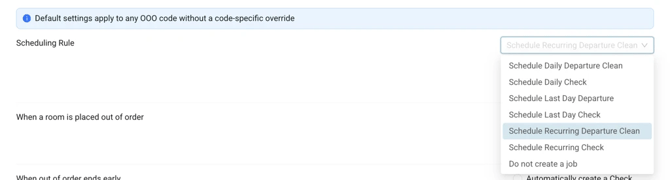
- Set a Global Default Scheduling Rule for OOO and OOS independently. Options include:
- Create a Check or Departure Clean every day
- Create a Check or Departure Clean on the last day only
- Create a job on a recurring interval (every 2–90 days)
- No job — manual job creation is still available
- Set a shared Daily Trigger Time that controls when OOO/OOS jobs are generated each day
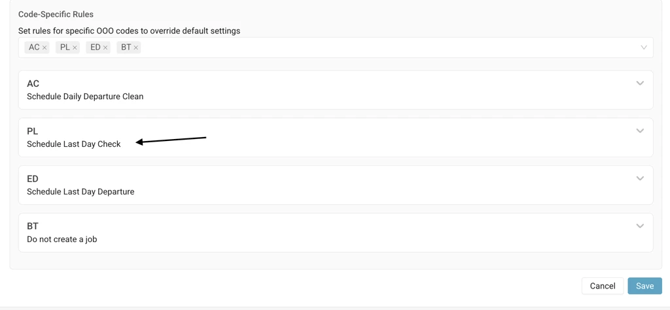
- Add individual OOO and OOS reason codes to a Per-Code Configuration table and assign each code its own scheduling rule, overriding the global default for that code only
- A live plain-language summary displays what each code is configured to do — no guesswork required
New Added Configurations
- Configure what happens when a room is placed out of order: choose whether existing housekeeping jobs are cancelled or kept when a room is placed OOO/OOS
- Configure what happens when out of order ends early: choose whether a Check or Departure Clean is created automatically when a room is returned to service before its scheduled end date, or whether the room simply returns quietly with no job
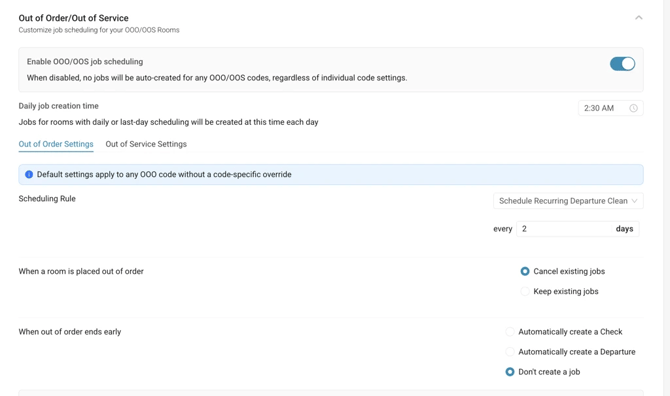
- All settings are independent for OOO and OOS, and per-code rules always take priority over the global default
Benefits
- The right job — or no job — for every OOO/OOS scenario, without any manual workarounds
- Admins can match each reason code to the actual operational need: daily checks for revenue holds, a final clean for maintenance rooms, nothing for long-term renovations
- Rooms returned early are automatically prepared for the next guest without any manual intervention
 Turndown — A More Reliable Service and Management
Overview
Three connected improvements ship together in this release to make the Turndown workflow dependable from end to end.
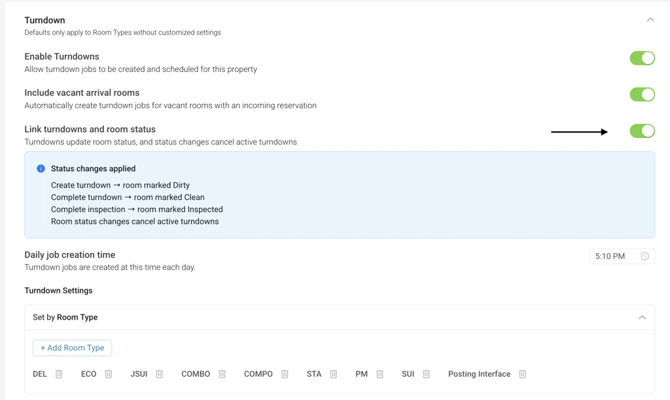
First, a new property-level setting controls whether Turndown jobs affect room cleaning status — solving a long-standing issue where creating a TD job incorrectly flipped an Inspected arrival room back to Dirty.
Second, Optii now reacts in real time when a room becomes eligible for a Turndown job after the daily batch has already run, so late reservations and same-day bookings are never silently missed.
Third, a fix ensures that active Turndown jobs are no longer cancelled when a room's cleaning status changes — meaning staff won't arrive to find their assignment list unexpectedly empty.
Benefits
- Arrival rooms stay in Inspected status after a Turndown job is created — front office check-in workflows are unaffected
- No more missing Turndown jobs for late bookings or same-day arrivals
- Turndown staff arrive to a complete, accurate job list — no silent cancellations, no lost assignments
Functionality
- A new toggle — TD Jobs Affect Room Cleaning Status — is available under Settings → Job Settings → TD Configuration
- When off (default): Turndown jobs do not change the room's cleaning status at any point — creation, start, completion, or inspection. An arrival room marked as Inspected remains Inspected.
- When TD Jobs Affect Room Cleaning Status is off, room status changes — from cleaning completions, PMS updates, or duplicate PMS messages — will no longer cancel an active Turndown job
- When on: Turndown jobs behave as before — creating a TD job sets the room to Dirty, completing it sets the room to Clean
- Optii now automatically creates a Turndown job when a room becomes TD-eligible after the daily batch has already run — covering late PMS syncs, same-day bookings, and room swaps
- Particularly helpful for walk-in reservations after TD jobs have been created or late room assignments
- On a room move, the original room's Turndown job is cancelled, and a new one is created on the destination room
- Duplicate prevention is built in — if a Turndown job already exists for a room that day, no additional job is created
- Guest checkouts will continue to cancel Turndown jobs as expected — only unintended, status-triggered cancellations are prevented
Offline - Job Fulfillment
Overview
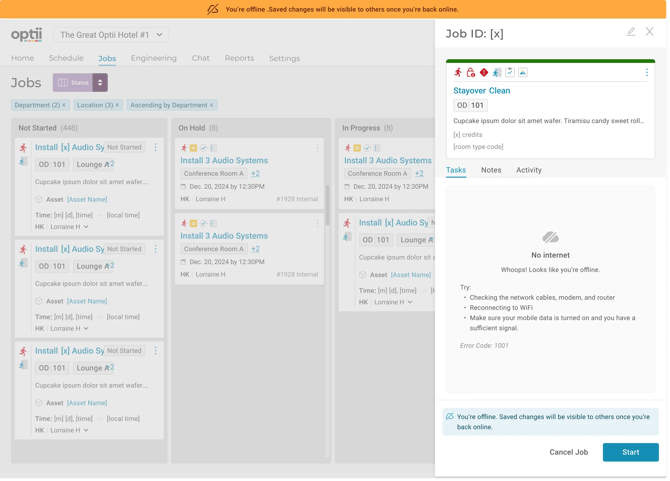
Team members can now keep working through their jobs even when their device temporarily loses Wi-Fi or cellular connection. Any changes made offline sync automatically once the connection is restored.
What's New
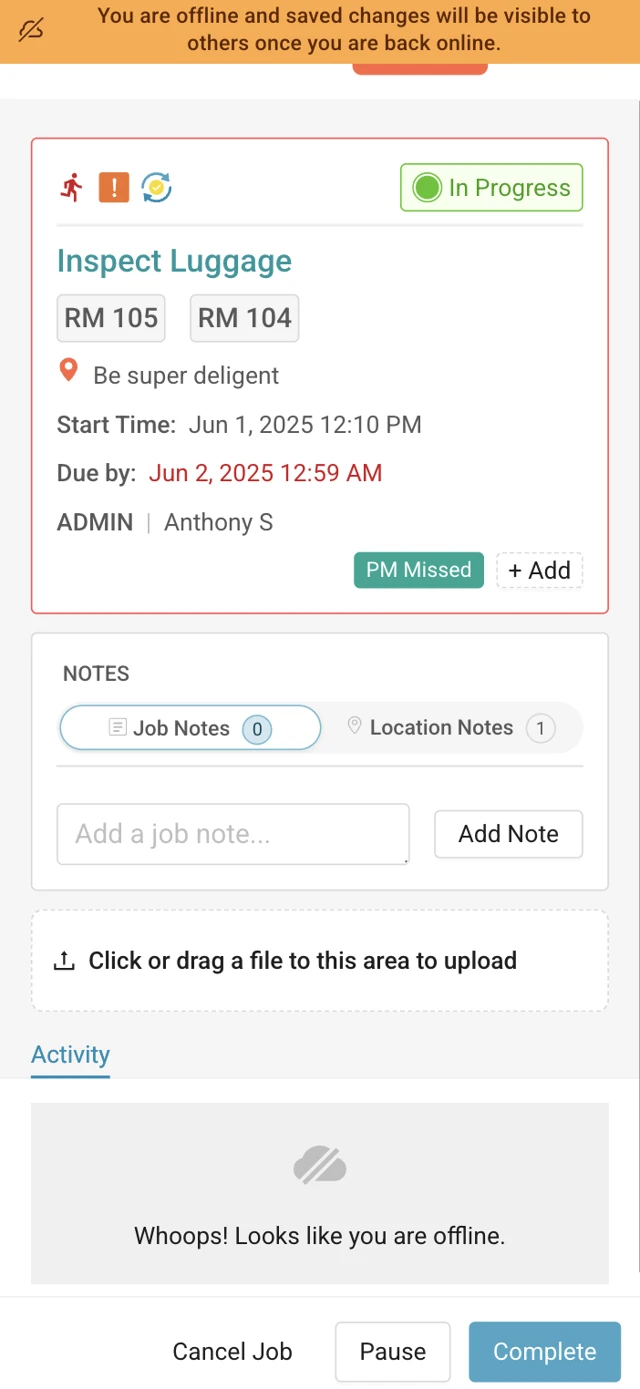
- A clear offline banner lets users know when Optii is in offline mode.
- The Job Status Board and My Jobs remain accessible offline, with full job details visible.
- Note: Users must have access to the job status page or My jobs with their jobs loaded in order to access their jobs.
- Team members can start, hold, complete, and update jobs while offline.
- Checklists stay interactive — users can check off tasks, add notes, and upload attachments.
- Once back online, all changes sync automatically in the order they were taken, with original timestamps preserved.
Benefits
- Keeps teams productive in low-connectivity areas like basements, stairwells, and remote buildings.
- Eliminates lost work and delays caused by dropped connections.
- Ensures reports and activity logs reflect when work actually happened — not when the device reconnected.
Note: Activity Log and Add Job are not available while offline.
Breaks
Overview
This release introduces Breaks in Optii, allowing team members to record break time directly from the product while continuing to give supervisors visibility into who is currently on break.
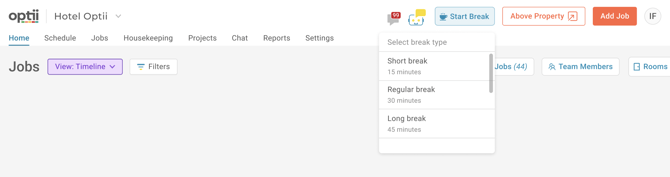
Admins can configure different break types, such as Short Break, Regular Break, or Long Break, along with their respective durations.
Functionality
- A new Breaks setting is available under Settings → Job Settings → General Settings.
- Managers can configure break types with a custom name and duration.
- Team members can start a break from the Start Break option available in the product.
- Once a break is started:
- A break banner appears at the top of the screen.
- The active break type and elapsed time are displayed.
- The team member is shown with a break indicator on the timeline.
- Users can only have one active break at a time.
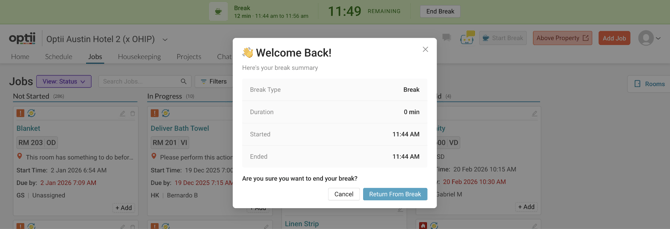
- Users can end their break using End Break.
- When ending a break, users will see a confirmation summary with break type, start time, and end time.
- While on break, users cannot start, complete, or place jobs on hold until the break has ended.
Benefits
- Helps supervisors clearly identify which team members are currently on break.
- Improves visibility into team member availability during day-to-day operations.
- Reduces confusion around whether a team member is actively working or temporarily unavailable.
- Creates a structured way to capture break activity within Optii.
- Lays the foundation for improved break tracking and future reporting enhancements.
Permanent (Location) Notes
Overview
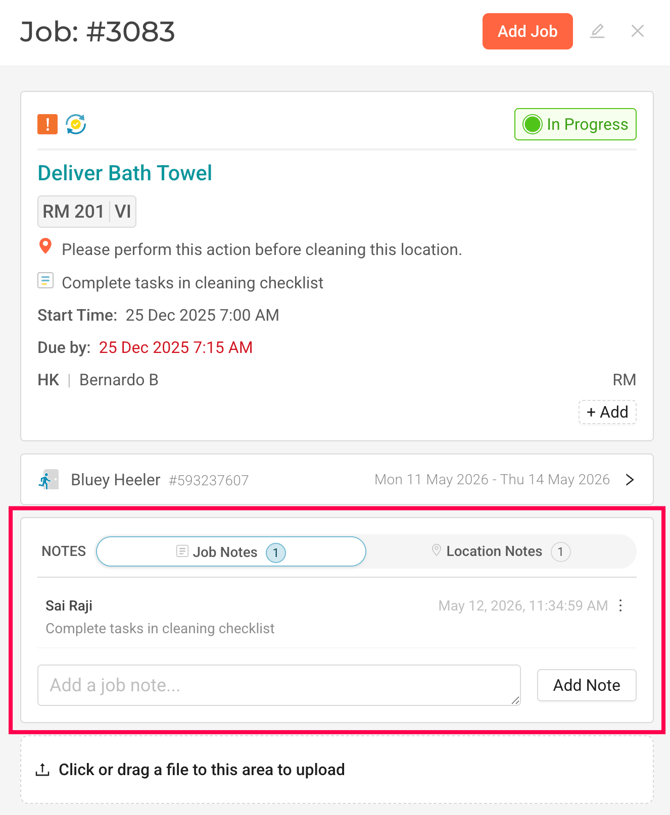
This release introduces Permanent Notes for Locations, allowing important location-specific instructions or reminders to automatically appear on all associated jobs.
This helps teams keep critical information visible across Housekeeping, Service, Repeating, and Project jobs without needing to manually add the same note to each job.
|
|
|
Functionality
- Users with access to Location Details management can add, edit, or remove permanent notes at the location level.
- Once added, the note automatically appears on all jobs associated with that location.
- Location Notes are shown on both existing and newly created jobs.
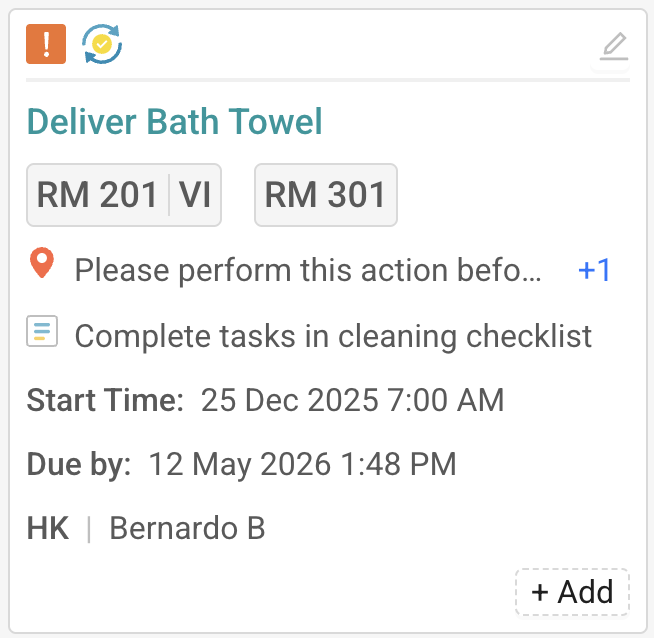
- A Location Note icon appears on job cards across supported job views to indicate that a note is attached.
- Location Notes are visible inside the job drawer.
- Updates to a Location Note are reflected immediately across all associated jobs.
- Removing a Location Note automatically removes it from all associated jobs.
- Location Notes and Job Notes remain separate, so adding a Location Note does not overwrite or affect existing Job Notes.
- When a job has multiple associated locations, all relevant Location Notes are displayed with the corresponding location name.
My Jobs – Now Supports Service Jobs
Overview
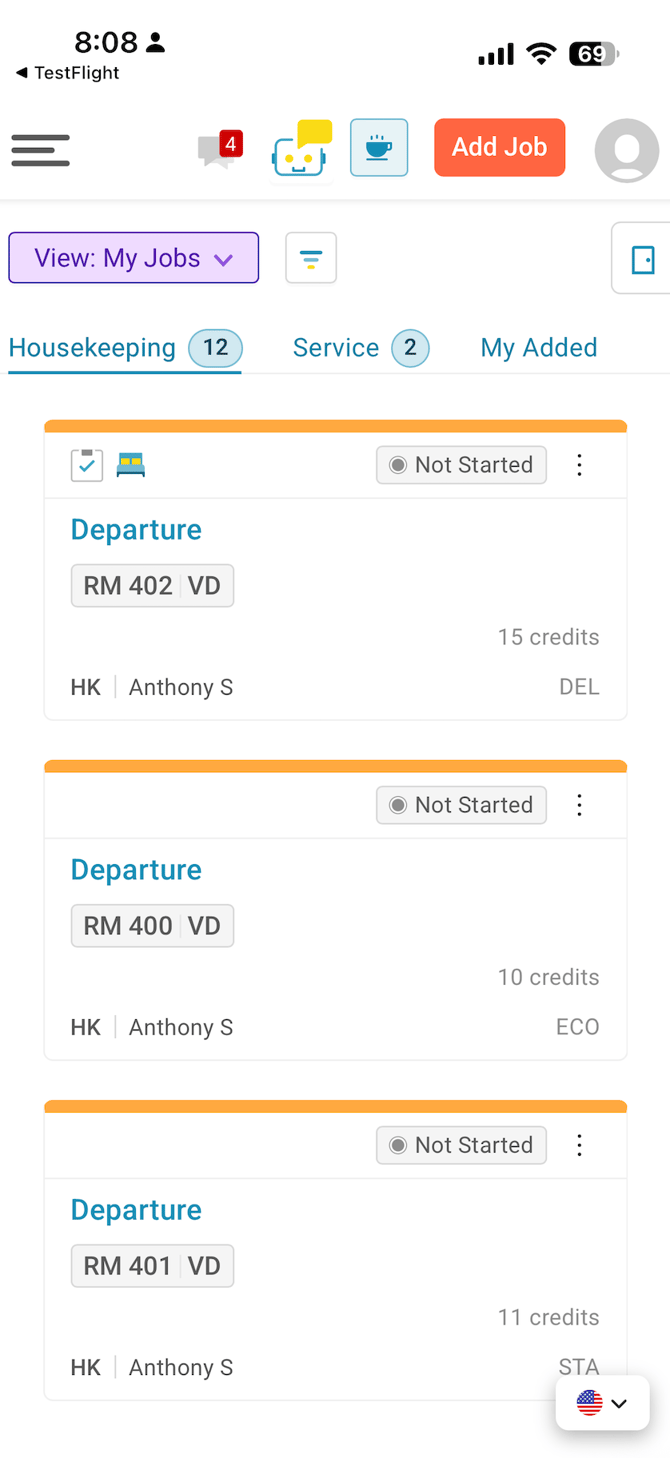
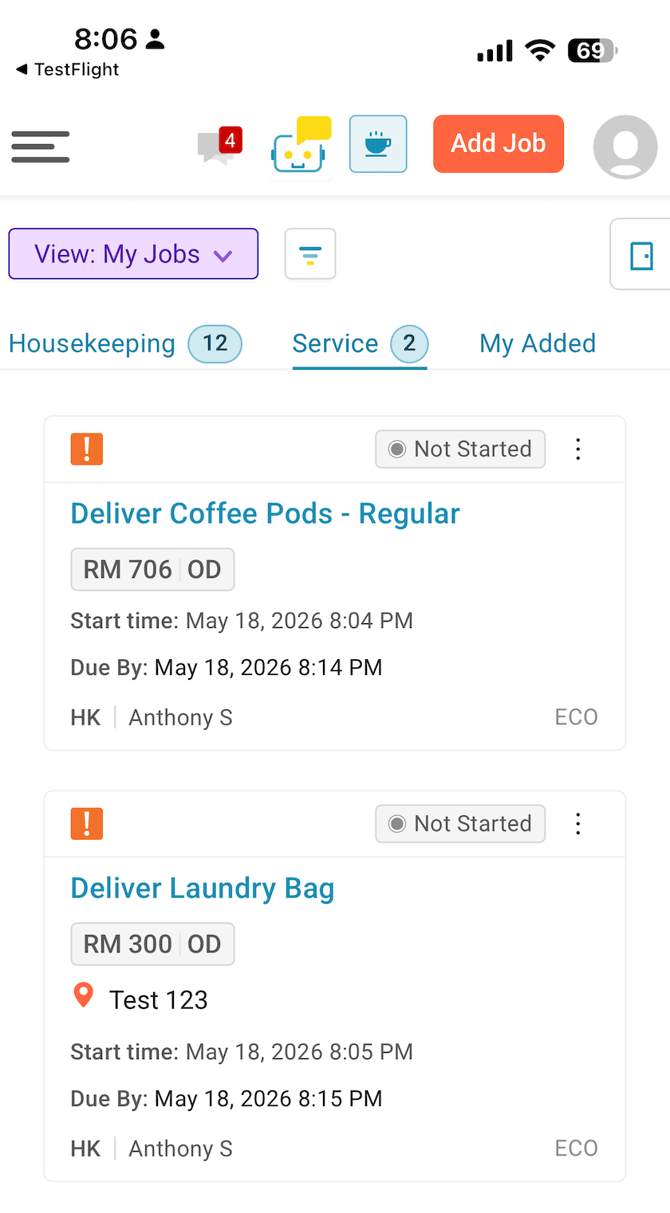
The My Jobs view now includes Service jobs alongside Housekeeping, giving team members one place to see everything assigned to them.
Whats New?
- My Jobs now includes two tabs: Housekeeping and Service.
- Service jobs are sorted by priority and due time, with In Progress, Not Started, and On Hold jobs shown by default.
- Job count badges show assigned work at a glance for both Housekeeping and Service.
- Newly assigned jobs and updates appear in real time — no refresh needed.
Benefits
- One consolidated view of all assigned work across Housekeeping and Service.
- Less context switching during a shift, so team members stay focused on what's next.
- Better visibility for users who handle both Housekeeping and Service work.
Enhancements
- Additional Filters for Service and Housekeeping - New filter options have been added to the Housekeeping and Service List views, including occupancy status, clean status, job tags, room type, and sections. Existing saved filters functionality is retained.
- Rooms Drawer — Floor & Location Filter - The Rooms Drawer now supports filtering rooms by floor or room using a collapsible location selector.
- Job Assist Performance Loads and responds noticeably faster, reducing wait times when attendants pull up guidance mid-shift, with a new visual indicator when using speech-to-text
Bugs
- Arrival icon was persisting in Supervisor View after a no-show followed by a reservation extension
- A room was showing as occupied with no reservation details after being released from OOS, because the guest checkout had not been received from the PMS — reservation resynced and status corrected
- Occupancy discrepancies between Opera On Prem and Optii following room moves and checkouts — reservations resynced to restore alignment
- Discrepancies Dashboard was not updating in real time to reflect the latest room status from the PMS
- On iOS, tapping a room or location link inside a job detail was returning users to their full job list instead of back to the job they were working on
- Project Edit button was not responding on the first click when navigating from another module
- Completed jobs were showing a duration of 0h 00m 00s in the Job Activity Report, despite having non-zero response and wait times
- My Assigned Jobs – selecting a location fails to return user back to job
What if I have questions about all of this?
Your Optii Success Manager is awaiting your call — ask as many questions as you would like!
Call on:
- +1 855 398 1447 if you are located in North America, or
- +852 3008 0288 if you are located in Asia, or
- +44 20 3037 8851 if you are located in Europe, or
- +61 7 5292 5166 from Australia/New Zealand.
If you prefer to email, reach us at help@optiisolutions.com