![Optii Logo 3x (2)-3.png]](https://help.optiisolutions.com/hs-fs/hubfs/Optii%20Logo%203x%20(2)-3.png?height=40&name=Optii%20Logo%203x%20(2)-3.png)
Running a seamless hotel back-of-house operation comes down to two things: real-time operational control and actionable data. Optii 3.29.0 is built to deliver both.
In this release, we’re putting total property visibility and instant floor control directly into the hands of hotel operational leaders. From full-screen property overview tables and automated VIP inspection overrides to faster, thumb-friendly mobile workflows and deep-dive team performance reports, version 3.29.0 is engineered to eliminate room-turn bottlenecks and give you complete oversight of your floor team's day.
Here is what’s new inside Optii 3.29.0:
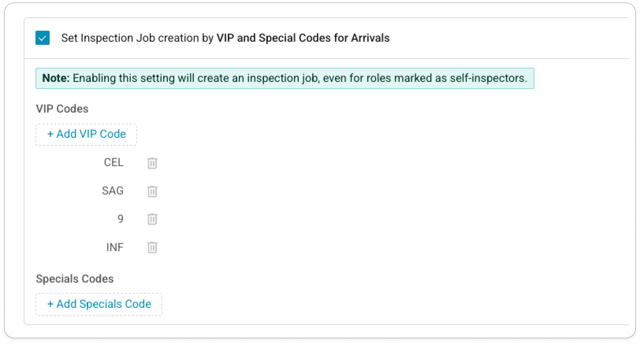
- Automated VIP & Special Code Inspections — Protect high-profile guest experiences automatically. Optii detects VIP or special codes on arriving reservations and automatically mandates supervisor inspections on those rooms—temporarily overriding self-inspection rules to guarantee flawless standards.
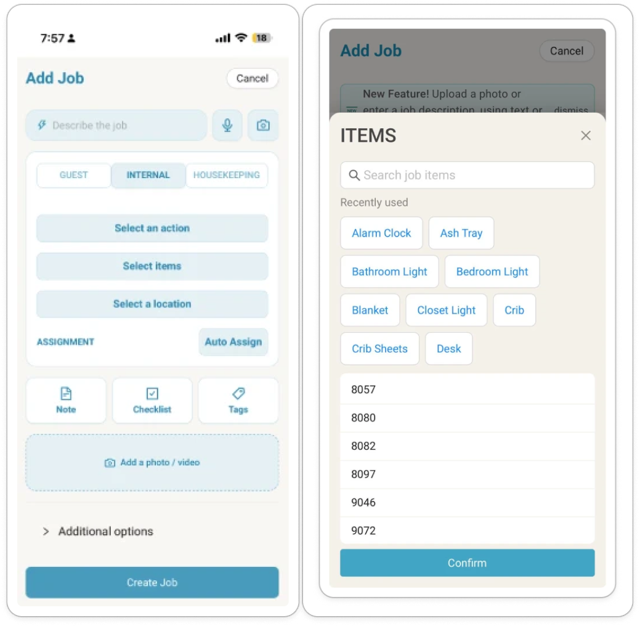
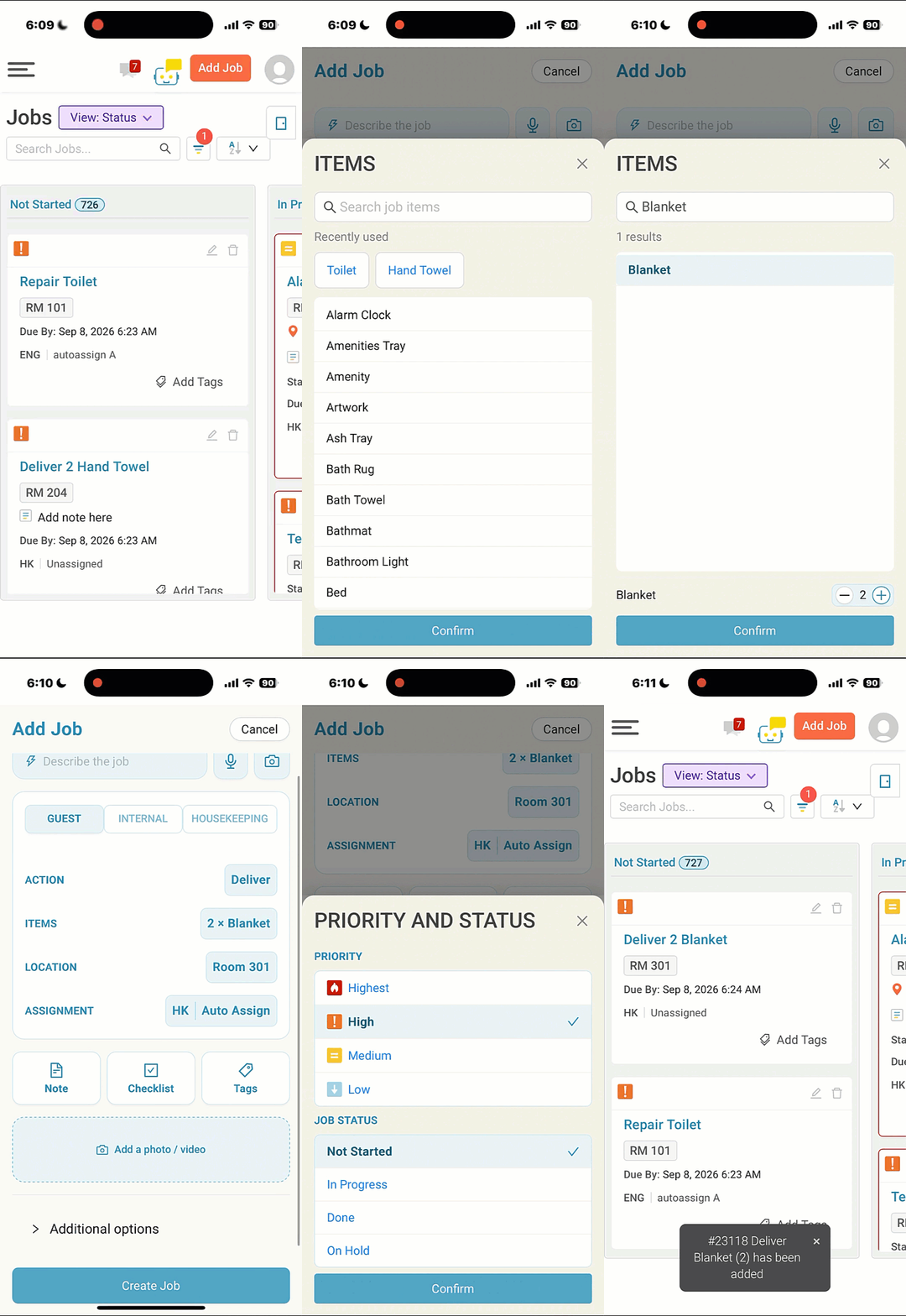
- Mobile Add Job Form Upgrade — Speed up task creation on the move. Rebuilt for quick on-the-floor entries, the new mobile layout serves up each user’s most-frequent items, dynamic fields, and multi-language search so staff can log jobs in seconds.
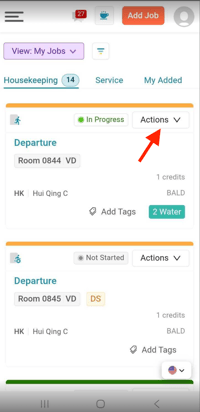
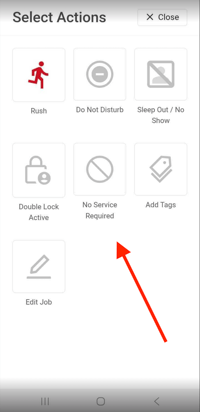
- One-Handed Mobile Job Actions — Streamline floor workflows for staff on the go. Designed for thumb-friendly navigation, tapping Actions now opens a quick bottom-drawer menu that lets room attendants log exceptions with a single tap without slowing down.
- Live Job Duration Visibility — Stop guessing how long tasks actually take. Monitor active tasks in real time with an in-app timer inside Job Details, and review complete start-to-finish logs once the job is wrapped.
- Optii Chat: Edit Sent Messages — Keep team communication fast and accurate. Quickly fix typos or clarify instructions on sent messages without deleting the thread, keeping floor teams aligned without confusion.
- Expanded Activity Logs — Gain full audit trail transparency. Track Out-of-Order (OOO) and Out-of-Service (OOS) return-to-service updates, along with the exact context behind why jobs were created or canceled.
- Room Attendant Performance Report — Eliminate operational blind spots with a single, consolidated dashboard. Measure actual cleaning durations, track travel time between rooms, and spot correction rates to coach your team and optimize daily floor routes.
- Inspector Performance Report — Standardize room quality across your property. Track pass/fail rates, inspection times, skipped rooms, and overall completion speeds in one clear view to keep your turnover pipeline moving fast.
- Platform Enhancements & Bug Fixes — Under-the-hood stability improvements and speed optimizations to keep your daily operations running without a hitch.
Inspection for VIP and Special Code Arrivals
Overview
Where a high-profile guest is arriving, you can require a supervisor to inspect the departure room before check-in — regardless of who cleaned it. Optii looks at the VIP and Special Codes on the arriving reservation and creates an inspection job on any room that matches, overriding self-inspector behavior for that room only.
Functionality
- Configure it under Settings → Job Settings → Job Scheduling → Inspection by enabling Set Inspection Job creation by VIP and Special Codes for Arrivals and selecting the VIP and Special Codes that should trigger an inspection
- Codes come straight from your PMS, so the list stays in step with how reservations are already flagged
- Optii evaluates the arriving reservation, not the departing guest's — the room is verified before the incoming guest walks in
- On a matched room, a completed departure clean moves the room to Vacant Clean and raises an inspection job, assigned by your existing floor, section and location rules. The room reaches Vacant Inspected once the inspection is complete
- Rooms with no matched arriving code follow your normal self-inspector behavior
- Applies to departure rooms, and takes precedence over every other inspection cadence rule
Benefits
- High-priority arriving guests get a supervisor-verified room regardless of who cleaned it
- Self-inspector automation stays intact everywhere else, so there's no trade-off between VIP assurance and day-to-day efficiency
- Setup uses the VIP and Special Codes your property already maintains — nothing new to configure in Optii
Add Job Form update on Mobile
Overview
Creating a job on a phone takes three decisions: what action, what item, and where. The mobile Add Job form is built around exactly that — it shows the fields that apply to the job in hand, puts each person's most-used items in front of them, and lets them search in whatever language they speak.
Functionality
- The form centers on Action, Item, and Location, adapting to the job type so only the relevant fields appear
- The item picker opens on a Frequently Used list of up to 10 items, ranked from that person's own job history at the property — so two people in the same role see different lists, each matched to their own work
- Search works in the user's own language for both items and locations, with no need to know the system name or code
- Location search resolves your floor and building hierarchy in the background and returns the right location directly, so staff never have to navigate down through levels
- The full alphabetical item list stays available underneath for anything outside the frequent set
Benefits
- The items someone reaches for every shift are already in front of them, taking most of the scrolling and typing out of job creation
- Multilingual teams can use the form in their own language with no training on system naming
- Fewer fields on screen means fewer decisions per job — which counts most when the job is being raised in a corridor, not at a desk
Improved Job Actions on Mobile
Overview
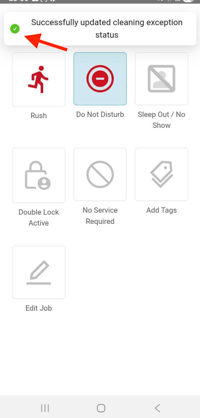
Room attendants apply room exceptions standing in a doorway, on a phone, usually one-handed. Tapping Actions on a job card opens a drawer at the bottom of the screen with every action available for that job, sized for a thumb and applied with a single tap.
Functionality
- Tapping Actions on any job card opens the drawer with the actions available for that job and that user's role: DND, NSR, No Sleep / No Show and Tags
- One tap applies the action and closes the drawer, with a confirmation at the top of the screen
- Swipe down or tap outside to dismiss without changing anything
- Actions apply to the job in hand; bulk actions across many rooms stay on the web List View
- The drawer shows only what the user's role permits, so staff see the actions they can actually take
Benefits
- Large, well-spaced targets mean far fewer mis-taps for staff working one-handed on the floor
- Room exceptions get applied without navigating away, so attendants keep their place in the list
Job Duration Visibility — Live Timer
Overview
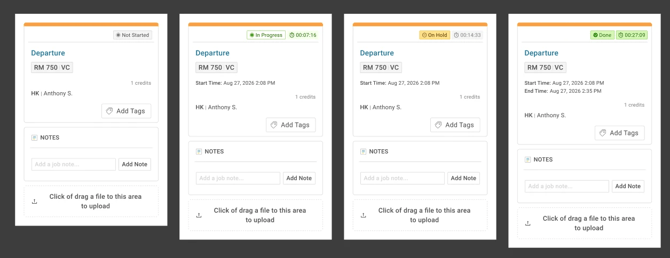
Job Details now surfaces elapsed job time directly in the drawer — on both web and mobile. For a job that is in progress, a live timer counts up in real time from when the job was started. For a paused job, the timer freezes and greys out. For a completed job, the timer is replaced by a static Start Time, End Time, and total duration. This information was always recorded by Optii; it is now visible where it is most useful — while reviewing the job itself.
Functionality
- A live elapsed timer displays in Job Details for any job that is In Progress, counting up in HH:MM:SS from when the job was started
- The timer excludes paused time — it holds at the accumulated value while paused and continues from that value when the job resumes
- The timer survives closing and reopening Job Details, refreshing the page, or opening the job from another device — it is driven by server-side timestamps, not local state
- A paused timer is greyed out to distinguish it from an active one
- For completed jobs, the live timer is replaced with a static Start Time, End Time, and duration — paused time excluded; dates are shown if the job starts and ends on different calendar days
- Jobs that are Not Started or Canceled display no timing information
- Behavior is consistent for both Housekeeping and Service jobs
- Reassigning or unassigning a started job does not reset or alter its timing; completed values remain fixed regardless of later assignment changes
Benefits
- Coordinators and managers can see whether a room or request is running long without waiting for the job to finish or pulling a separate report
- Room attendants on mobile see the same elapsed time as coordinators watching from the web — no more guessing how long a job has been running
- Completed jobs provide an auditable, at-a-glance timing record that does not require navigating to a report
Optii Chat — Edit/Delete Sent Messages
Overview
Users can now edit/delete a message they have already sent in Optii Chat. Previously, the only way to correct a sent message was to delete it and re-send — removing it from the recipient's thread entirely and breaking the conversation context. The Edit option lets users correct a typo or clarify an operational detail in place, without losing the original message position in the thread..

Functionality
- An Edit option is available in the three-dot action menu on any message the user sent — displayed above the existing Delete option
- Selecting Edit opens an inline editable field pre-populated with the current message content, with Save and Cancel actions
- Save is unavailable if the content is unchanged or the field is empty
- The updated content displays in the thread in the original message's position, retaining the original timestamp, and is delivered to all participants without a page refresh
- An Edited indicator is shown on the message; hovering it reveals the date and time of the most recent edit
- Edit applies to text content only — attachments and uploaded files cannot be edited (they can still be deleted)
- There is no time limit — any previously sent message can be edited at any point after sending
- Edit applies to all conversation types — direct messages and group chats
- Only messages sent by the user are editable; messages sent by other participants show no Edit option
Benefits
- Operational instructions — room numbers, times, job details — can be corrected without deleting the message and losing conversation context
- Reporting accuracy improves: corrected messages remain in place rather than being deleted, preserving the thread for audit purposes
- Keeps workflows moving — no need to resend a full message just to fix a typo
Activity Log Enhancements
Overview
The Activity Log Report now captures a broader set of business events, giving teams a clearer audit trail of what happened, when, and why. A new class of Return to Service events now records when a room is removed from OOO or OOS status and what jobs were created or removed as a result.
Functionality
- Return to Service events are now logged when a room is removed from OOO or OOS, showing whether linked jobs were created or removed as a result — visible in both the Location Detail log and the Activity Log Report
- Events are organized by Event Source Type, Event Type, and Event for easy filtering and auditing
Benefits
- OOO/OOS return-to-service events close a long-standing gap in the audit trail, providing confidence that the correct sequence of actions took place when a room came back into service
- Consistent event naming makes the log easier to read and filter at scale
Rooms Drawer — Reservation Status & Reservations Filter
Overview
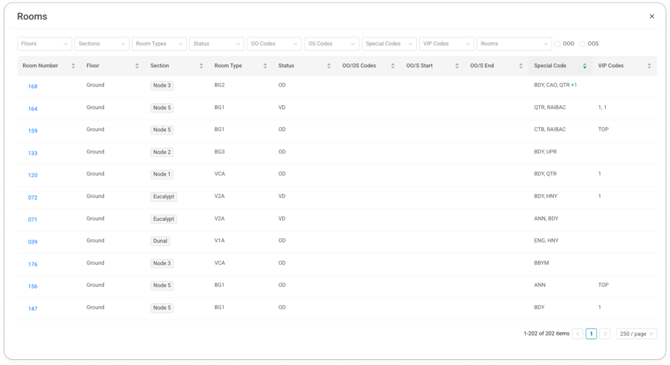
The Rooms drawer gives you a full operational view of every room at the property in one table — room number, floor, section, room type, room status, OOO/OOS codes and dates, special codes and VIP codes. It opens to full page, sorts on any column, filters across the whole property, and refreshes in real time as statuses change through the day.
Functionality
- Filters cover Floors, Sections, Room Types, Room Status, OO Codes, OS Codes, Special Codes, VIP Codes, and Rooms, plus OOO and OOS toggles. Values within a filter widen the results; filters combined together narrow them
- Any column sorts ascending or descending on click, defaulting to room number ascending on open
- A room number search jumps straight to a single room, and the table holds up to 250 rows per page
Benefits
- Occupancy, statuses and codes stay current in real time, with no manual refresh
- The ability to make updates to job details in real time
Room Attendant Performance Insights
Overview
Optii now includes a dedicated Room Attendant Performance Insights report, accessible from the Reports section alongside existing housekeeping reports. Previously, room attendant performance data was spread across several different reports, requiring managers to cross-reference multiple exports to understand how their cleaning team was performing. This report brings it all together in one place, with a clear structure covering property-level KPIs, team-level charts, and a per-team-member breakdown.
Functionality
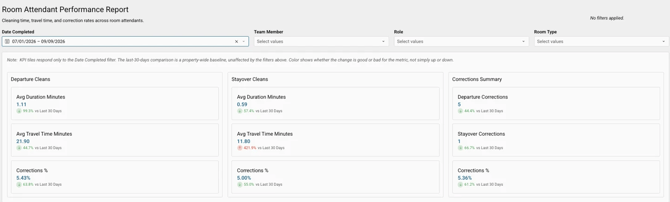
- Four filters are available at the top of the report: Date Completed, User, Role, and Room Type — filterable independently or in combination
- Three property-level KPI tiles display Departure, Stayover, and Corrections metrics — each with an average duration, average travel time, and correction percentage, plus a vs last 30 days comparison line that reflects the whole-property baseline regardless of active filters
- A Travel Time by Room Attendant horizontal bar chart shows average travel time per job, sorted highest first, with a dashed property-average line and a Highest 10 / Lowest 10 / All toggle
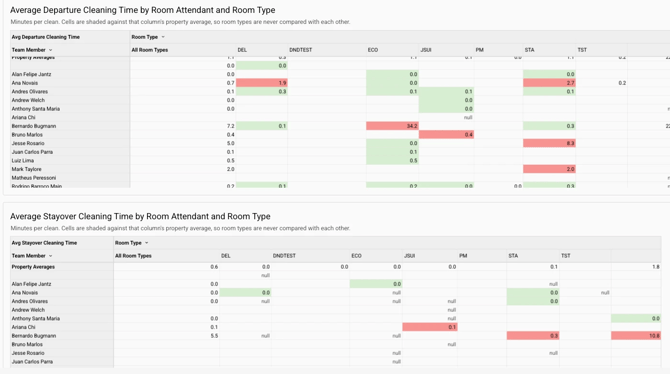
- Two Average Cleaning Time Heatmap Tables — one for Departures, one for Stayovers — show cleaning time by room attendant and room type, with colour shading against the property average for each room type column and horizontal scrolling for wide tables
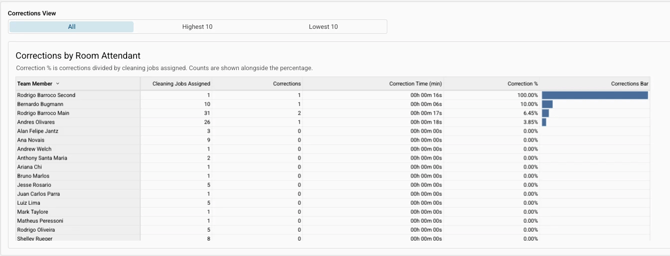
- A Corrections by Room Attendant table shows correction counts, correction percentage, and cleaning jobs assigned, with a Highest 10 / Lowest 10 / All toggle
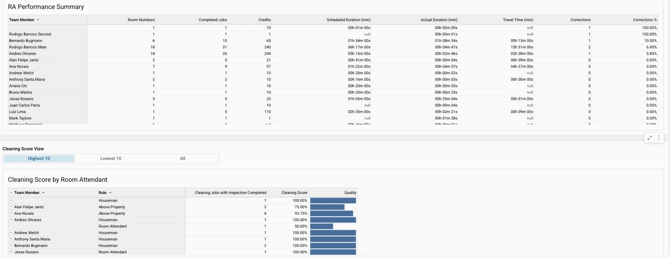
- A Reporting Records section at the bottom provides one summary row per team member, expandable to individual job-level rows, with a download option
Benefits
- Managers no longer need to cross-reference multiple reports to understand how their cleaning team is performing
- Color-coded KPI tiles make it immediately clear whether duration, travel time, and correction rates are trending in the right direction
- The heatmap tables surface which room attendants are running long on specific room types, enabling targeted coaching conversations
- The vs-last-30-days baseline provides consistent context regardless of what filters are applied
Inspector Performance Report
Overview
Optii now includes a dedicated Inspector Performance Report, accessible from the Reports section alongside existing housekeeping reports. Inspector performance data was previously scattered across multiple reports, making it difficult for managers to get a consolidated view of how their inspection team was tracking. This report brings inspection pass rates, duration, skipped inspections, and completion rates together in a single, structured view covering both departure and stayover inspections.
Functionality
- Five filters are available at the top of the report: Date Completed, Date Added, User, Role, and Room Type — filterable independently or in combination, with a Clear all filters option
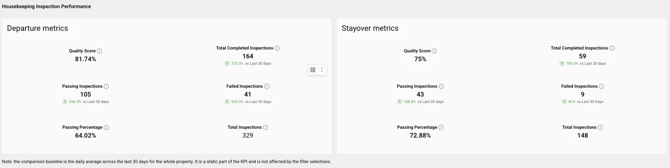
- Two property-level KPI tiles — Departure Metrics and Stayover Metrics — each display Inspection Score, Total Inspections, Passing Inspections, Failed Inspections, and Passing Percentage, with a vs daily average, last 30 days comparison line that is not affected by active filters. Note: Inspection Score (checklist quality score) and Pass/Fail outcome are independent data points
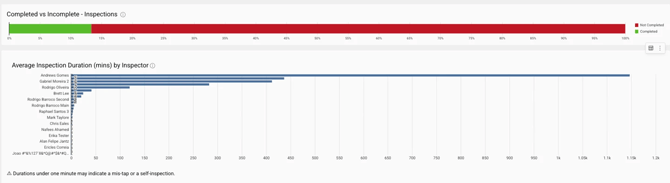
- An Average Inspection Duration by Inspector horizontal bar chart shows average inspection duration per inspector, with a labeled median line and a hover tooltip breaking down duration by job type (Departure vs Stayover)
- An Inspections Incomplete vs Completed Line chart shows the split between completed and incomplete inspections, with total completed count and completion rate displayed beneath
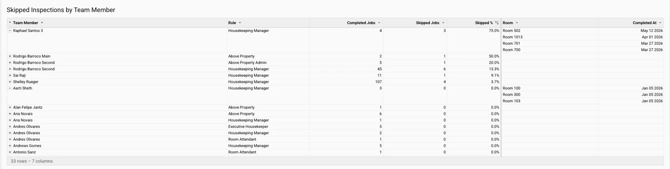
- A Skipped Inspections by Team Member table shows assigned inspections, skipped count, and skipped percentage per inspector, with expandable room-level detail showing the specific location and date of each skipped inspection
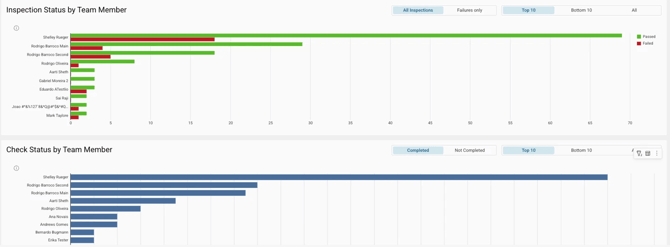
- An Inspection Status by Team Member stacked bar chart shows passed and failed inspection counts per inspector, with Top 10 / Bottom 10 / All and All inspections / Failures only toggles
- A Check Jobs Completed by Team Member chart surfaces check job completion by inspector with Top 10 / Bottom 10 / All toggle
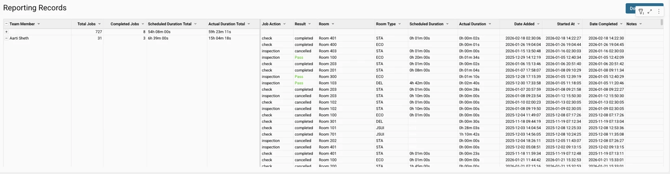
- A Reporting Records section at the bottom provides one summary row per team member, expandable to individual room-level records including Pass/Fail outcome, Inspection Score, scheduled and actual duration, date added, date completed, result, and notes count. A Download button exports the visible records
Benefits
- Managers can assess the full picture of inspection team performance — pass rates, duration, skipped inspections, and completion rates — without opening multiple reports
- The skipped inspections table makes it easy to identify patterns in where and when inspections are being bypassed
- The stacked status chart and Top 10 / Bottom 10 toggles quickly surface which inspectors are passing consistently and which may need support
- The created vs completed donut gives an at-a-glance view of how much inspection work is actually being closed out
Enhancements & Bugs
Enhancements
- Housekeeping Cleaning Report — Date Started and Date Completed columns
- The Housekeeping Cleaning Report now includes a Date Started column and a Date Completed column in the reporting records, making it easier to track when individual cleaning jobs began and ended without needing to cross-reference another source
- Housekeeping List View — Canceled jobs scoped to current timeline day
- When the All Jobs view is active, canceled jobs are now scoped to the current DJC timeline day only — removing stale canceled jobs from prior days that were previously appearing alongside today's work
- Departure job label locks at completion
- When a departure job is completed, its label is now fixed at "Departure" at the moment of completion. Previously, if a new guest checked into the same room after the job was done, the completed job's label could revert to "Due Out" — which was confusing when reviewing completed work. The label for active jobs continues to update dynamically based on room occupancy, as before. This applies across the Housekeeping List View, Supervisor View, Timeline, and mobile
Bugs Fixed
- OOO dates were displaying multiple times on the same room record
- The Tag Activity Report date filter was not defaulting to the property timezone or the correct 7-day window
- The Housekeeping List View job count shown in the Jobs by Action chips was inconsistent with the All Jobs total
- The Cleaning Exceptions Report was defaulting to UTC today rather than the property's operating day
- The Rooms Drawer was rendering blank values in the Room Number, Floor, and Section columns for every room
- Guest records were failing to cache due to a character limit error in the activity log
- Jobs were not defaulting to high priority first in the job list
- Filtering by VIP in Housekeeping was not returning all matching results
- An error was displayed when accepting a new property invite
- The Add/Edit Job form allowed saving with an invalid item state (empty item quantity and zero items)
- Housekeeping boards were disappearing from the Timeline at midnight upon page refresh
We hope this new release makes managing your hotel back-of-house operations smoother than ever.
For support, feature inquiries, or assistance, please reach out to our support team at help@optiisolutions.com.
If you are experiencing an urgent operational outage, you can reach emergency support in your region:
- North America: +1 855 398 1447
- Asia: +852 3008 0288
- Europe: +44 20 3037 8851
- Australia/New Zealand: +61 7 5292 5166
Please note: Phone lines are reserved for critical emergency support. For all general release questions and feature guidance, email is the best way to reach us.
Thank you for your partnership! If you would like to learn more about Optii, we recommend visiting our Learning Center at help.optiisolutions.com.