![Optii Logo 3x (2)-3.png]](https://help.optiisolutions.com/hs-fs/hubfs/Optii%20Logo%203x%20(2)-3.png?height=40&name=Optii%20Logo%203x%20(2)-3.png)
We're pleased to introduce Optii 3.30.0. This release adds real-time break tracking, guest-level Stay Notes, smarter connecting-room handling, and a wave of reporting and portfolio-management improvements.
- Breaks on the Timeline — Active and completed breaks now appear directly on the Housekeeping Timeline, so supervisors can see at a glance who is out and for how long
- Stay Notes — Notes tied to the guest's length of stay, not just the room, so anything important about a guest follows them across their whole visit
- Component Room Handling — Rooms shared across overlapping suite configurations are now cleaned exactly once, in the right place, with no duplicate or missed jobs
- Bulk Skip Inspection — Skip many inspections at once from the List or Supervisor View, with a reason captured for every batch
- Rooms Drawer — Full Room Table — A full-page, filterable, sortable table of every room at the property, including Special Codes and VIP Codes
- Activity Log — OOO/OOS Tracking — Every time a room goes Out of Order or Out of Service, and every time it comes back, is now written to the activity log
- Above Property Job Items — Portfolio users can now create, distribute, and manage job items across every property in their portfolio from one place
- Bugs Fixed — Ten fixes across Housekeeping, Reports, and Scheduling, including room status mismatches and inconsistent report totals
Breaks on the Timeline
Overview
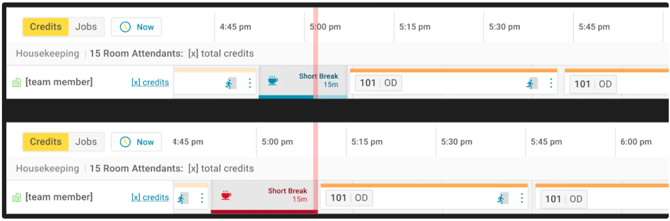
The Housekeeping Timeline now shows breaks as a visual block on a team member's row, so supervisors always know who is out and for how long — without asking around or digging into another report. This closes a long-standing visibility gap: break time already existed in Optii, but it was invisible from the view supervisors use to manage the floor in real time.
Functionality
- When someone starts a break from their device, a break block appears instantly on their Timeline row, labeled with the break's name (e.g., "Short Break")
- The block reflects the break's configured length at first, then keeps growing if the person stays out past it
- Jobs scheduled after the break shift right automatically, the same way the Timeline already handles a job that runs long
- A break still running past its allotted time turns red, flagging it for supervisor attention at a glance
- Once the break ends, the block locks in the actual time taken — not the planned length — so the record is accurate
- Multiple breaks in a day show as separate, ordered blocks
- Works identically on desktop and mobile Timeline views
Benefits
- Supervisors get real-time visibility into staffing gaps without leaving the Timeline
- Break time is now an accurate, auditable record — useful for payroll conversations and performance coaching alike
- No extra steps for room attendants: breaks are tracked automatically from the same break banner they already use
Stay Notes or Length of Stay Notes
Overview
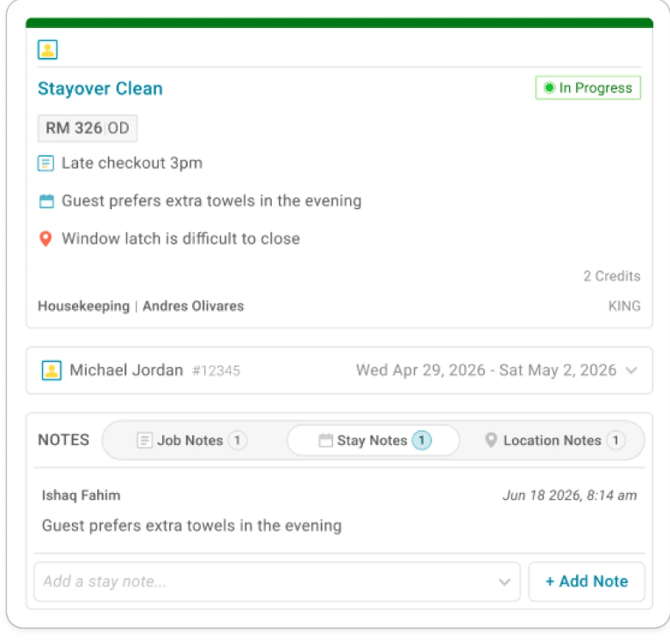
Guest-related information often needs to follow the guest through their entire stay, not just a single day's job. Stay Notes solve that: a new note type tied to the reservation rather than the room or a single job, so anything a team member flags — a preference, a request, a heads-up for the next shift — stays visible for as long as the guest is in-house.
Functionality
- A new Stay Notes tab sits alongside Job Notes on every job tied to a checked-in guest
- Staff can add a note of up to 500 characters, timestamped and attributed to the person who wrote it
- Stay Notes can also be added in bulk, across many rooms at once, from the Add-ons panel in the Housekeeping List View or Supervisor View — useful for flagging something property-wide (e.g., a VIP arrival wave) in one action. Optii only applies the note where the room has an active reservation, and flags which selected jobs couldn't take one
- Notes automatically move with the guest if they change rooms, and are cleared out once the guest checks out, cancels, or no-shows
- A returning guest in the same room starts with a clean slate — the previous guest's notes never carry over
- No new permission is required: anyone who can open a job can read and add Stay Notes, though only the author can edit or delete their own
Benefits
- Important guest context is no longer siloed to a single job or shift — it travels with the reservation
- Front-line teams get a shared, reliable place to flag guest-specific details without relying on verbal handoffs
- Because notes are scoped to the active reservation, there's no risk of old information leaking into a new guest's stay
Component Rooms in Multiple Suites
Overview
Some properties sell the same physical room as part of more than one connecting-room configuration — for example, room 1354 might be booked as part of suite 1353-54 on one stay and suite 1353-54-55 on the next. Optii now determines which configuration is actually booked at any given moment, so cleaning jobs are created once, and in the right place — eliminating the duplicate or missing jobs this setup used to cause.
Functionality
- When a suite is booked, the reservation is recognized across every room that makes up that suite
- Because a room can only hold one reservation at a time, Optii always resolves which suite configuration is currently active
- Properties using the Child Location setting (Settings → Job Settings → Job Scheduling → Virtual Rooms) get jobs created only on the individual rooms in the booked suite
- Properties using Parent Location get a single job on the suite itself, never duplicated across the individual rooms
- Applies across Stayover, Departure, Turndown, and Check jobs
Benefits
- No duplicate cleans and no missed rooms for properties with overlapping or shared connecting-room setups
- Removes a common source of confusion for teams configuring complex room layouts
- Housekeeping gets a single, reliable source of truth for which rooms need attention on a given day
Automatic Check or Inspection for Rooms Sitting Vacant Inspected
Overview
A room that's been cleaned and inspected but sits empty for several days can gather dust before the next guest arrives. Optii can now automatically create a Check or Inspection job once a room has stayed in Vacant Inspected (VI) status for a property-defined number of days — so rooms get a second look before they're sold again, without anyone having to remember to check on them manually.
Functionality
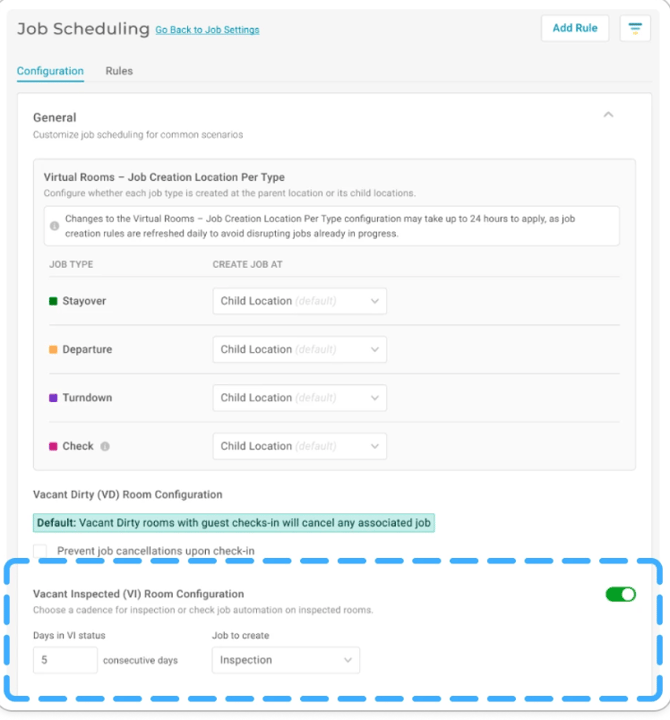
- Configure it under Settings → Job Settings → Job Scheduling, in the new Vacant Inspected (VI) Room Configuration section
- Turn the feature on, set the number of days in VI status that should trigger a job (1–99), and choose whether that job is a Check or an Inspection
- Each night, Optii counts how long every room has stayed in VI status; once a room reaches the threshold, the chosen job is created and its counter resets
- The counter also resets if the room leaves VI status (e.g., a check-in) or if any existing Check or Inspection on that room is completed
- Off by default — nothing happens until a property turns it on and saves both fields
- Post Master rooms are excluded from this automation entirely
Benefits
- Rooms that sit unsold for extended periods get proactively re-verified, catching dust, odors, or maintenance issues before a guest does
- Fully configurable per property — properties set their own threshold and choose whether a Check or a full Inspection makes sense for their operation
- Zero manual tracking required; the rule runs automatically every night
Timeline Inspection by Action Type
Overview
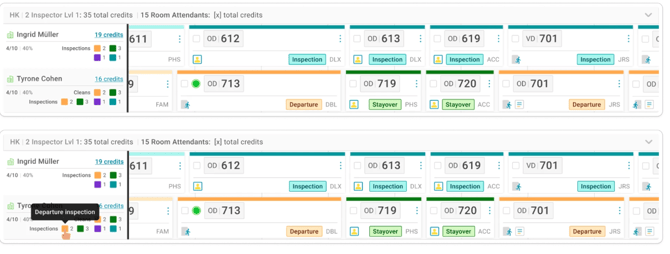
The Housekeeping Timeline's detailed view previously showed a single combined "Inspections" count for each team member. That count now splits into four distinct types, so supervisors can see the actual mix of inspection work someone is doing without opening individual jobs.
Functionality
- Under each team member's name in the Timeline's detailed view, the single Inspections count becomes four colored tiles
- Hovering a tile reveals its type: Departure, Stayover, Turndown, or Manual inspection
- Only the types a person actually has appear — no stayover inspections means no stayover tile
- Team members who both clean and inspect get a Cleans row and an Inspections row
- Reassigning an inspection moves its count to the new assignee; the inspection's type never changes
- Display-only — nothing about how inspections are created or assigned changes, and the List View is unaffected
Benefits
- Supervisors get an at-a-glance breakdown of inspection workload by type, directly from the Timeline they already use
- Makes it easier to balance inspection assignments across a team without digging into reports
- No workflow changes for inspectors — this is purely added visibility
Resync Room from Location Details
Overview
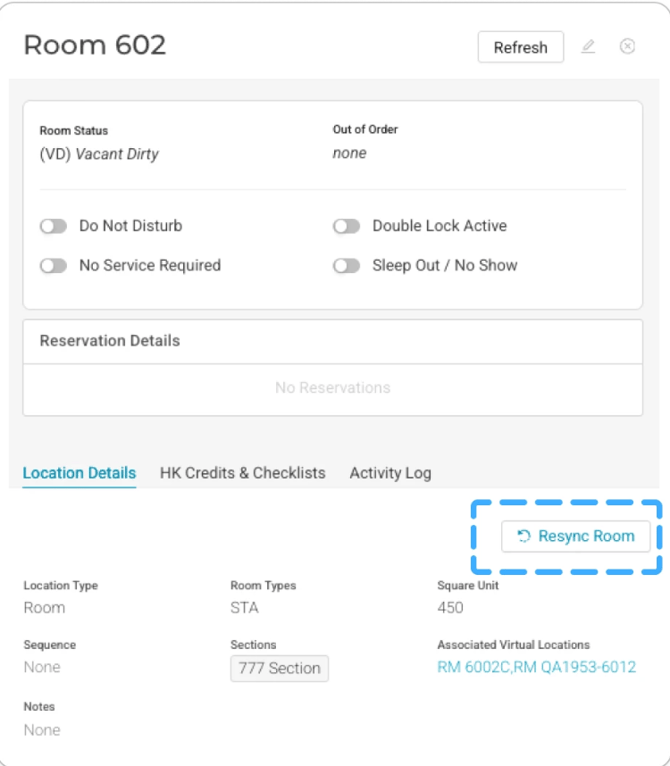
When Optii and the PMS fall out of sync on a single room — an attendant started the wrong job, or the PMS connection briefly dropped — properties previously had no quick, targeted way to fix it. Resync Room lets any user with the right permission correct a single room's status against the PMS in a couple of clicks, without waiting on a full property resync.
Functionality
- Open a room's Location Details (from the Floor Plan or by clicking a room) and go to the Details tab
- Click Resync Room — Optii immediately requests the latest status from the PMS
- A confirmation appears once the resync completes, and the room's status, Out of Order/Out of Service state, and reservation details all update with whatever the PMS returns
- The action is recorded in the room's Activity Log as "Resync: Requested," so there's a clear record of who triggered it and when
- Available only to users whose role has the PMS Resync permission, on properties with PMS data enabled
Benefits
- Fast, targeted correction for single-room mismatches, instead of needing a full property-wide resync
- Gives coordinators and supervisors more confidence in what they see on the floor plan day-to-day
- Every resync is logged and attributable, supporting a clean audit trail
Bulk Skip Inspection
Overview
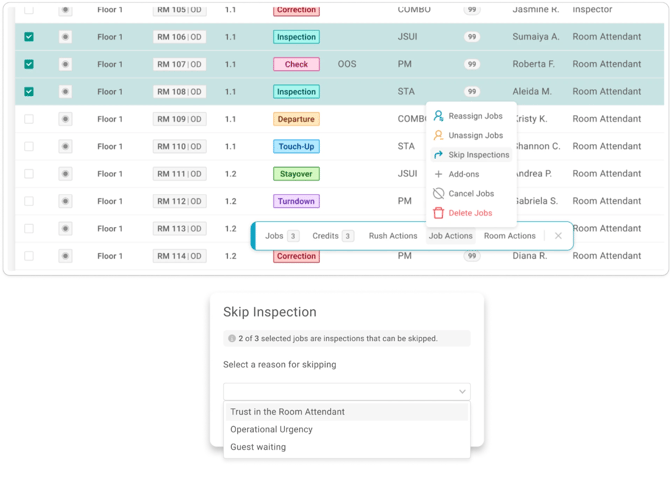
On a busy turnover morning, opening and skipping inspections one at a time can slow down room release. Bulk Skip Inspection lets managers select multiple jobs in the Housekeeping List View or Supervisor View and skip every eligible inspection among them in a single action — with a reason captured for the batch.
Functionality
- Select jobs in List or Supervisor View — inspections and cleaning jobs can be selected together; only eligible inspections are affected
- From Job Actions, choose Skip Inspections; Optii shows exactly how many of the selected jobs qualify (e.g., "2 of 3 selected jobs are inspections that can be skipped")
- Choose one reason for the whole batch: Trust in the Room Attendant, Operational Urgency, or Guest Waiting
- Only inspections that haven't been started are eligible — in-progress, paused, completed, or cancelled inspections are left untouched
- Skipped rooms move to Vacant Inspected (VI) if vacant, or Occupied Inspected (OI) if occupied, the same as a Pass — but no inspection score is recorded
- Every skip is attributed to the person who clicked OK, visible in the job's Activity Log and in Inspector Performance reporting
- Web only — mobile and Timeline workflows are unchanged
Benefits
- Significantly faster room release on high-volume turnover days
- Reason codes are preserved per batch, supporting accurate reporting on why inspections were skipped
- Full accountability: every skip is tied to the person who performed it, not the original assignee
Activity Log — Out of Order & Out of Service Tracking
Overview
When a room is placed Out of Order (OOO) or Out of Service (OOS) — or brought back — that change now leaves a clear, timestamped trail. Previously there was no record of exactly when these transitions happened; now every placement and every return to service is written to the room's Activity Log and surfaced in reporting.
Functionality
- A room's Location Details → Activity Log tab now shows entries like "Room placed [OOO – code] at 10:42:15" and "[OOO – code] removed at 14:05:30"
- Return-to-service events also capture any jobs that were created or removed as a result — for example, "Job: Created Due to OOS Removed"
- In the Activity Log Report, an Event Type filter isolates just OOO or just OOS entries
- OOO and OOS events are always logged separately, never combined
- Because these changes originate from the PMS, the recorded user shows as "Optii"
- Coverage starts from 3.30.0 forward — historical OOO/OOS changes won't retroactively appear
Benefits
- Closes a long-standing gap in the audit trail for room status changes
- Gives managers confidence in the sequence of events when investigating a room's history
- The associated Event Type/Source/Event filters make it easy to isolate exactly the activity you're looking for, at scale
Cleaning Exceptions Report — Exception Tracker Table
Overview
The Cleaning Exceptions Report now includes a new Exception Tracker table, logging every time an exception like Do Not Disturb was turned on or off, and by whom — giving managers visibility into rooms that get flagged repeatedly.

Functionality
- Found below the existing Cleaning Exceptions List, under Reports → Cleaning Exceptions Report
- Each row represents one on/off event: Room, Room Type, Exception Status, Event (On or Off), Time, and Marked By
- Newest events appear first, and any column can be sorted
- Uses the report's existing filters (Date Exception Added, Exception, Exception Status, Room) to narrow results
- Exportable via Download
- Changes made by the PMS show "PMS" as the Marked By value
- The date filter groups events under the day the exception was first added, even if a later toggle happened the next day
Benefits
- Surfaces patterns of repeated flagging on specific rooms — useful for spotting operational issues or guest-communication gaps
- Gives managers a clear, attributable record of who toggled an exception and when
- Complements the existing exceptions list with event-level detail, without replacing it
Inspector Performance Report — Skipped Inspection Reasons
Overview
The Inspector Performance Report now shows why each inspection was skipped, alongside a chart breaking down the most common reasons — extending the report's existing skipped-inspection tracking with the reason context managers have been asking for.

Functionality
- Departure and Stayover Metrics tiles now include a Skipped Inspections count
- In the Skipped Inspections by Team Member table, expanding a row reveals a Reason column alongside Room and Completed At
- A new Skipped Inspection Reasons chart ranks reasons from most to least common; hover any bar for its count and percentage
- Reasons reflect the options available in the Skip Inspection flow: Trust in the Room Attendant, Operational Urgency, Guest Waiting — skips with no reason show as "No reason provided"
Benefits
- Managers can now see not just how many inspections were skipped, but why — supporting better coaching and process decisions
- The reasons chart makes it easy to spot whether skips are trending toward a particular operational cause
- Builds directly on existing reporting with no disruption to what's already there
RA Performance Insights — Credits & Average Start Time
Overview
RA Performance Insights adds two new tables: one comparing credits assigned vs. credits completed for each room attendant, and one showing the average time each attendant starts their first job of the day — giving managers a fuller picture of workload distribution and shift punctuality.
Functionality
- Found under Reports → RA Performance Insights, below the existing Corrections by Room Attendant table
- Credits Assigned vs. Credits Completed shows each team member, their role, total jobs assigned, total credit value, and total credits completed, with a Download CSV option
- Average Start Time shows the average time of day each team member tapped Start on their first job
- Only Departure and Stayover jobs count toward credit totals; cancelled jobs are excluded
- A team member who worked under two roles gets a row for each
- Average start time only factors in days actually worked — days off don't skew the average
Benefits
- Managers get a clear view of credit-based workload balance across the cleaning team
- Start-time trends help identify punctuality patterns without manually cross-referencing timestamps
- Both tables live inside the report attendants already use, with no new navigation required
Component Room Icon in the Housekeeping List View
Overview
Linked (component) rooms now show their component room icon in the Housekeeping List View again, making it easy to see at a glance which rooms belong to a connecting-room booking.

Functionality
- Open Housekeeping → List View and search for a room that's part of a component (connecting) booking
- The component room icon appears on each linked child room, flagging the relationship visually
Benefits
- Restores quick visual identification of connecting rooms, making it easier to coordinate cleaning across a shared booking
- Particularly useful at properties that frequently allocate connecting rooms, where this was previously hard to spot
We hope this new release makes managing your hotel back-of-house operations smoother than ever.
For support, feature inquiries, or assistance, please reach out to our support team at help@optiisolutions.com.
If you are experiencing an urgent operational outage, you can reach emergency support in your region:
- North America: +1 855 398 1447
- Asia: +852 3008 0288
- Europe: +44 20 3037 8851
- Australia/New Zealand: +61 7 5292 5166
Please note: Phone lines are reserved for critical emergency support. For all general release questions and feature guidance, email is the best way to reach us.
Thank you for your partnership! If you would like to learn more about Optii, we recommend visiting our Learning Center at help.optiisolutions.com.