![Optii Logo 3x (2)-3.png]](https://help.optiisolutions.com/hs-fs/hubfs/Optii%20Logo%203x%20(2)-3.png?height=40&name=Optii%20Logo%203x%20(2)-3.png)
Optii 3.32 helps your team honour guests' sustainability preferences, gives housemen a clear view of their floors, puts more control over inspections in your hands, and adds two new reports. It also includes a round of fixes reported by our customers, and a preview of what's coming in 3.33.
In this release
- Green Rooms: mark a reservation for reduced service once, for the whole stay
- My Section View: a dedicated view for housemen showing who is working their floors
- Pass / Fail for Check Jobs: pass or fail any check job, however it was created
- Prevent Inspected Status on Occupied Rooms: keep Optii and your PMS in agreement on room status
- Inspection Source in All Views: see which clean an inspection came from at a glance
- Checklist Quality Report and Squad Performance Report: two new reports
- Additional enhancements and bug fixes
Before you start: settings for admins
Some of this release is off until an admin turns it on:
| Feature | Default | Where to turn it on |
|---|---|---|
| Checklist Quality Report | Off | Settings → Roles & Permissions → Reports → Access Checklist Quality Report |
| Squad Performance Report | Off | Settings → Roles & Permissions → Reports → Access Squad Performance Report |
| Prevent Inspected Status on Occupied Rooms | Off | Settings → Job Settings → Job Scheduling → General |
| My Section View | Based on role | Give the role the My Section permission, and assign the user at least one section or location |
Housekeeping
Green Rooms
Some guests prefer only necessary service rather than a full daily clean. With Green Rooms, you mark the reservation once and the request follows the guest for the whole stay. There's no need for door placards, verbal handoffs, or re-marking the room every day.
Functionality
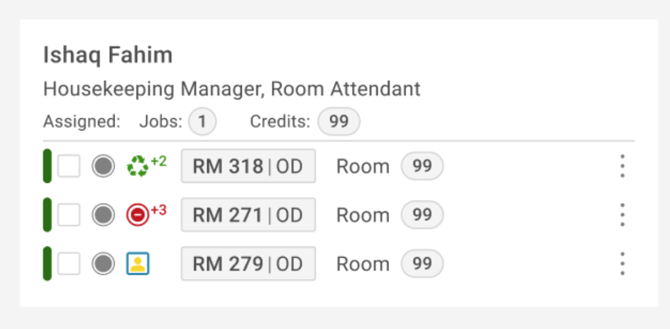
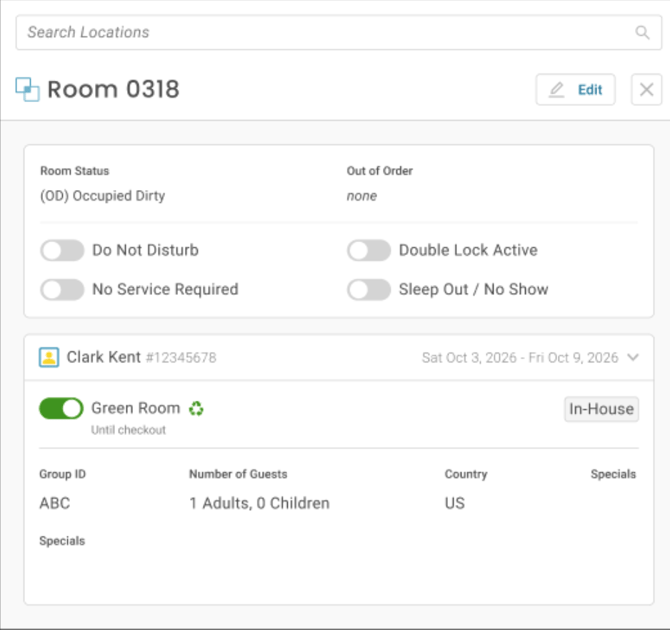
- Mark a checked-in reservation as a Green Room from the Green Room switch in the reservation details, or from the Cleaning Exception menu on the job card (web and mobile)
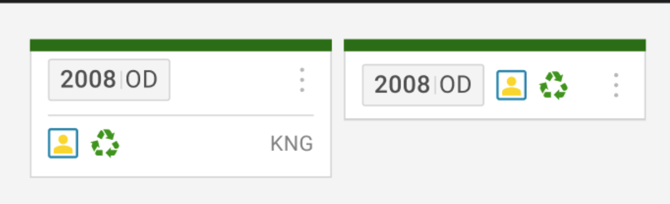
- Every job on the room shows the Green Room indicator while it is on
- Unlike other cleaning exceptions, Green Room does not reset at midnight and stays on when a job is started
- It clears automatically at the start of the Due Out day or at checkout, and follows changes to the departure date
- If the reservation moves rooms, Green Room moves with it
- Green Room is a reminder only — job creation, assignment, and credits are unchanged

Why it matters
- Honour guests' sustainability preferences consistently, from check-in to check-out
- Room attendants see the request on every job, on web and mobile
- No more re-marking the room every day
How it works
- Mark a checked-in reservation as a Green Room in either of two places:
- The Green Room switch in the reservation details
- The Cleaning Exception menu on the job card, on web and mobile
- Every job on the room shows the Green Room indicator while it is on.
- Unlike other cleaning exceptions, Green Room does not reset at midnight and stays on when a job is started.
- It clears automatically at the start of the Due Out day or at checkout, and follows any change to the departure date.
- If the reservation moves rooms, Green Room moves with it.
Good to know: Green Room is a reminder for your team. Job creation, assignment and credits stay the same.
My Section View
Housemen support the room attendants on their floors, but until now Optii only showed them their own linen strip jobs. My Section shows them who is working their floors and what each person is carrying, so they can plan for the linen and trash heading their way.
Functionality
- My Section is available in the View dropdown, directly below My Jobs, on web and mobile
- Shown to users whose role has the My Section permission and who have at least one section or location assigned
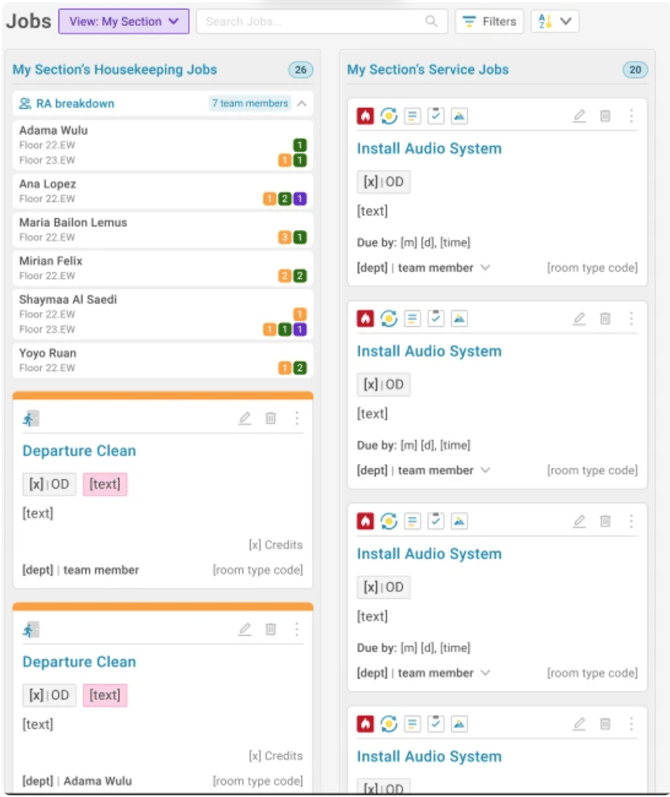
- A room attendant breakdown shows each room attendant on the user’s floors and their assigned Departure, Stayover, and Turndown jobs
- A Service Jobs column lists service jobs in the user’s section that are assigned to them or unassigned
Why it matters
- Housemen can anticipate the workload instead of reacting to it
- Room attendants get better support during the busiest part of the shift
How it works
- Open the View dropdown and select My Section, directly below My Jobs, on web and mobile.
- A room attendant breakdown shows each room attendant on your floors and their assigned Departure, Stayover and Turndown jobs.
- A Service Jobs column lists service jobs in your section that are assigned to you or unassigned.
Good to know: My Section appears for users whose role has the My Section permission and who are assigned at least one section or location.
Inspections
Pass / Fail for Check Jobs
Supervisors can now pass or fail any check job, whether it was created manually, by Optii automation, or as part of an inspection workflow. They can decide whether a room is ready or needs more cleaning.
Functionality
- Once a check job is started, the completion actions are Pass, Fail, and Cancel Job (for users with permission to cancel)
- Pass flips the room to Inspected (VI or OI, based on occupancy)
- Fail flips the room to Dirty and offers to create a Departure or Touch Up job, either assigned to someone on the timeline or left unassigned
- Available to properties using Pick Up Handling with a PMS integration
Why it matters
- Supervisors can confirm a room is ready without a full inspection
- Follow-up cleaning is created deliberately and stays on record
How it works
- Once a check job is started, the completion options are Pass, Fail and Cancel Job. Cancel Job only appears for users with permission to cancel.
- Pass changes the room to Inspected (Vacant Inspected or Occupied Inspected, depending on occupancy).
- Fail changes the room to Dirty and offers to create a Departure or Touch Up job. The job can be assigned to someone on the timeline or left unassigned.
Good to know: this is available to properties using Pick Up Handling with a PMS integration.
Prevent Inspected Status on Occupied Rooms
At some properties, the front office reads Occupied Inspected as a room that has been verified and released. This new setting stops inspections and checks from upgrading occupied rooms to Inspected, so Optii matches how your property operates.
Why it matters
- Room status that matches how your property works
- Fewer status mismatches between Optii and your PMS
How it works
- Go to Settings → Job Settings → Job Scheduling → General and turn on Prevent Inspected status upgrade on occupied rooms. It is off by default.
- When it's on, completing or skipping an inspection or check on an occupied room does two things:
- The room is left Clean, or moved from Dirty to Clean, instead of becoming Inspected.
- No Inspected status is sent to the PMS.
- The setting applies to individual skips, bulk skips and self-inspections.
Good to know: vacant rooms, cleaning job status changes, failed inspections, and inspection scoring and reporting are not affected.
Inspection Source in All Views
Inspection jobs now show which cleaning job they came from in every housekeeping view. Supervisors can read the inspection workload without opening each job.
Functionality
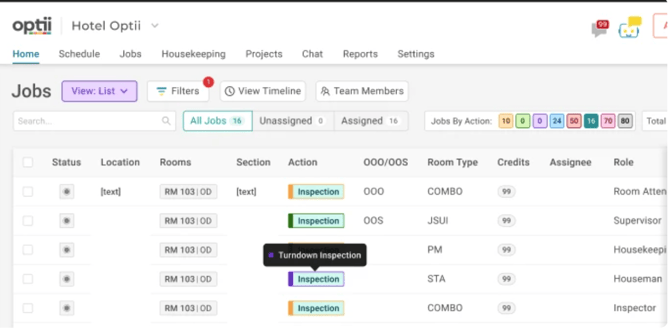
- Colour-coded inspection chips in List View, Timeline, Supervisor View, and My Jobs: Departure (orange), Stayover (green), Turndown (purple), Touch Up (blue), and manual inspections (teal, as today)
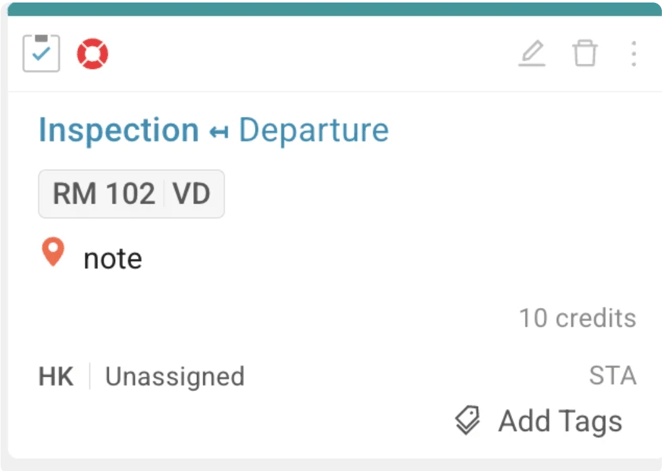
- The job card header shows the source, for example, Inspection ↔ Departure, on web and mobile
- On web, hovering over an inspection chip shows its type, for example, Stayover Inspection
- Display only — how inspections are created and assigned is unchanged

Why it matters
- Understand your inspection mix at a glance
- Prioritise departure inspections ahead of arrivals more easily
How it works
- Inspection chips are colour-coded in List View, Timeline, Supervisor View and My Jobs:
| Source | Colour |
|---|---|
| Departure | Orange |
| Stayover | Green |
| Turndown | Purple |
| Touch Up | Blue |
| Manual inspection | Teal (as today) |
- The job card header shows the source, for example Inspection ↔ Departure, on web and mobile.
- On web, hover over an inspection chip to see its type, for example Stayover Inspection.
Good to know: this changes how inspections are displayed only. How inspections are created and assigned is unchanged
Reports
Checklist Quality Report (new)
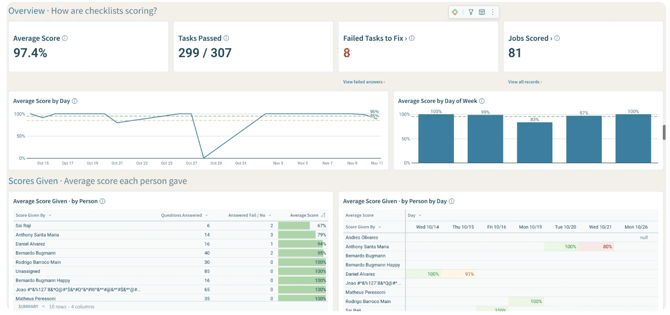
The Checklist Quality Report turns inspection and scoring checklist answers into a quality score. Managers can find failed work quickly, coach the right people, and track whether quality is improving.
Functionality
- Found under Reports → Checklist Quality Report
- Average Score = questions passed ÷ questions answered
- Scores broken down by person, day, location and task, separating Score Given By from Score Received By
- Filter by date completed (last 7 days by default), person, department, checklist, location and task, and click any bar or name to drill into the underlying answers
- Checklist Records opens on failed answers, with a switch to show all tasks
Why it matters
- Your overall quality score and its trend, in one place
- See which rooms and checklist questions fail most often
- Go from a low score straight to the job, question and note behind it
How it works
- Go to Reports → Checklist Quality Report.
- Average Score = questions passed ÷ questions answered.
- Scores are broken down by person, day, location and task. The report separates Score Given By, the person who completed the checklist, from Score Received By, the person whose work was checked.
- Filter by date completed (last 7 days by default), person, department, checklist, location and task.
- Click any bar or name to drill into the answers behind it.
- Checklist Records opens on failed answers, with a switch to show all tasks.
How scores are calculated
- Jobs included: only completed jobs that have a checklist. Open and cancelled jobs are left out.
- Questions scored: only Yes/No and Pass/Fail questions. Yes or Pass counts as passed; No or Fail counts as failed.
- Not scored: questions answered N/A, unanswered questions, and other question types (text, number, on/off). These still appear in the records when you choose All tasks.
- Who receives the score:
- For an inspection of a clean, it's the person who did that clean.
- For a clean, it's the cleaner.
- For any other job, it's whoever did the most recent Departure, Stayover or Turndown clean of that location in the previous 30 days.
- If there's no such clean, the report shows No clean found.
- Score colours: green is 95% or higher, amber is 85% to 94%, and red is below 85%.
Squad Performance Report (new)
The Squad Performance Report brings squad cleaning duration, travel time, corrections, credits and inspection scores together for Departure, Stayover and Turndown jobs.
Functionality
- Found under Reports, filterable by date added, squad, and room type
- Includes jobs assigned to the squad, not jobs assigned to individual squad members
- Travel time is reported for the squad as a whole; credits are shared equally between squad members
- Squads that have since been deleted still appear in historical reporting under their original name
Why it matters
- Assess squad workload and quality without piecing together individual data
- Compare squads fairly on duration, travel time and corrections
How it works
- Go to Reports → Squad Performance Report.
- Filter by date added, squad and room type.
- The report includes jobs assigned to the squad, not jobs assigned to individual squad members.
- Travel time is reported for the squad as a whole, and credits are shared equally between squad members.
- Squads that have since been deleted still appear in historical reporting under their original name.
Access: both new reports have their own permission and are off by default. Admins can turn them on under Settings → Roles & Permissions → Reports.
Additional enhancements
-
Inspector Performance Report: Inspection Source filter. You can now filter by the cleaning job type that triggered the inspection. The filter applies to:
-
- The Reporting Records table
- The Skipped Inspections table
- The Inspection Status by Team Member chart
- Above Property Job Items: assignments by property. The Edit Job Item drawer now shows each selected property's assignments in a table. This includes properties with no assignments, and properties whose departments or roles can't be matched.
- Above Property Job Items: Make Above Property. Convert an existing property-level job item into an Above Property job item for central management, without recreating it. This change is permanent, and you'll be asked to confirm before saving.
- Room type inspection cadence. When a room's room type changes, its inspection counts now carry over and are checked against the new room type's cadence. Any inspection on a room resets all of that room's counts. This prevents extra inspections caused by out-of-date counts.
Bug fixes
Housekeeping
- Housekeeping jobs no longer show a "Due By" time in location details.
- The Save button no longer stays disabled when you edit a job whose Due By time was saved earlier than its start time.
Inspections
- Role-based inspection cadence is applied correctly again. Completions by self-inspecting room attendants now move rooms straight to Inspected instead of creating an inspection.
- A completed inspection is no longer cancelled when the guest checks in minutes afterwards.
Job creation and PMS integrations
- Jobs on newly added room types are no longer created with blank credits and duration.
- Departure jobs are no longer created for rooms whose guests are staying over.
- Room occupancy now updates correctly after a PMS integration is enabled, so Daily Job Creation creates the right job type.
- Virtual and component rooms:
- Child rooms now show the arrival icon and ETA when a departure is the same day.
- Child rooms no longer stay Occupied after a room move off the parent room.
- Parent room status is now sent to Mews after inspection.
Reports
- The Checklist Export report no longer times out.
Schedule and labor
- The Schedule Draft now shows a team member under each role they are scheduled for.
- Labor costs are now calculated when an hourly rate is configured.
Settings and general
- Newly created departments now appear in the Department dropdown when you map Job Item Assignments.
- Changing the language from the Languages button now translates the interface correctly, including the Housekeeping (HK) abbreviation.
- Job types now display in the selected language on the job detail panel, on web and mobile.
Coming in 3.33
Here's a preview of two larger updates planned for the next release.
New navigation
On web, the top navigation bar will be replaced by a collapsible left sidebar and a persistent header, so you can reach any module in fewer clicks.
- Header: every page will show the property switcher, Rooms and Add Job, each one click away.
- Sidebar: every module will be in one sidebar. Sub-modules show inline, or in a hover menu when the sidebar is collapsed.
- My Jobs: this becomes one module showing Housekeeping and Service jobs together.
- Above Property: you'll reach it directly from the sidebar.
Only the navigation changes. Every module, your existing links and bookmarks, and the mobile app will work as they do today.
Team Members roster
The Housekeeping → Team Members view is being redesigned. Building the daily roster will be faster, and you'll see whether the day is covered before jobs go unassigned.
- Three columns:
- Team Members shows who is available.
- On Shift shows who is working.
- Shift Details shows hours and credits for each person.
- Overview: compares the credits and hours you've rostered against the day's housekeeping workload.
Questions?
Contact our team at help@optiisolutions.com