![Optii Logo 3x (2)-3.png]](https://help.optiisolutions.com/hs-fs/hubfs/Optii%20Logo%203x%20(2)-3.png?height=40&name=Optii%20Logo%203x%20(2)-3.png)
There are three types of notes in Optii:
- Job Notes
- Stay Notes
- Location Notes
Each note type serves a different purpose. Understanding when to use each one helps ensure that important information is recorded in the right place and is available when your team needs it.
Job Notes
Use Job Notes to communicate information related to a specific job or task.
Job Notes are useful for sharing instructions, providing additional context, or documenting details that team members should know when completing a job.
Examples include:
- Providing specific instructions for a guest request.
- Sharing additional details about a maintenance issue.
- Communicating special requirements for a task.
- Documenting relevant updates for team members responsible for completing the job.
When to use Job Notes: When the information relates directly to a particular job and is relevant to the team member completing or managing that task.
How to Add Job Notes:
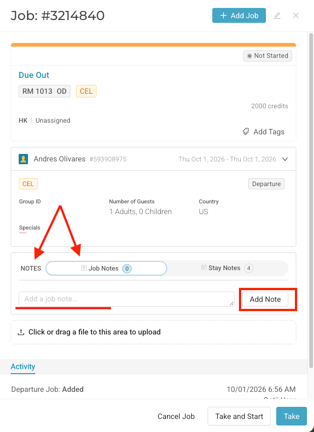
- Within a job, scroll to the Notes section
- Type information into the text box
- Click the "+" or the "Add Note" button to attach the note to the job
Stay Notes
Use Stay Notes to record information associated with a guest's stay.
Stay Notes can help teams communicate guest-related details that may be relevant throughout the guest's stay and support a more informed guest experience.
Examples include:
- Sharing relevant guest preferences.
- Communicating special requests associated with a stay.
- Recording important details that may help the team prepare for or service the guest's room.
When to use Stay Notes: When the information relates to a guest's stay rather than a single job or task.
How to Add Stay Notes:
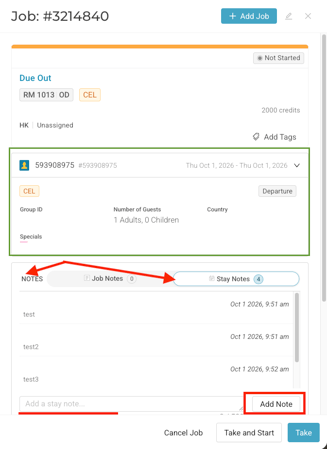
Stay notes can only be added to jobs that have a corresponding reservation attached. A job with no reservation will only allow Job Notes.
- Within a job, Scroll to the Notes Section
- Click the Stay Notes tab
- Type information into text box
- Click the "+" or the "Add Note" button to attach the note to the job
Location Notes
Use Location Notes to share information associated with a specific location.
Location Notes can help teams communicate details about a room, public area, or other configured location within the property.
Examples include:
- Sharing relevant information about a room or area.
- Communicating location-specific considerations.
- Recording details that team members may need to know when working in that location.
When to use Location Notes: When the information is specific to a location and may be useful beyond a single job or guest stay.
How to Add Location Notes:
-
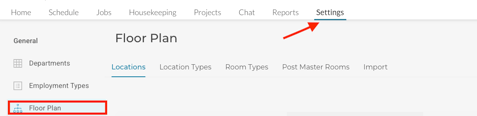
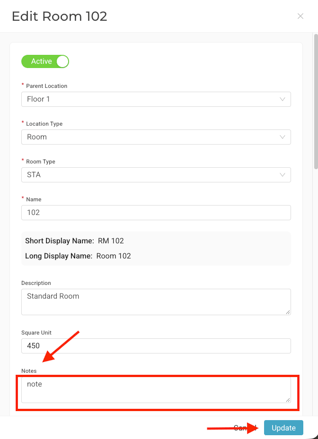
Navigate to the Settings > Floor Plan page
- Find the location you would like to add the Location Note to, and click the edit icon on the left side
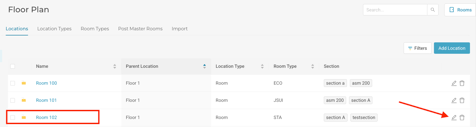
- In the "Notes" section, type the information into the text box. Select Update when finished.
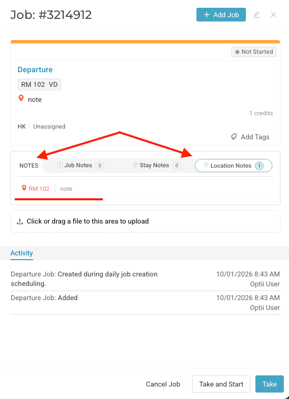
- The Location Note will now appear on all jobs created for the selected location.
Notes help your team keep important information organized and accessible in Optii. By choosing the right note type—Job, Stay, Location, or PMS—you can help ensure that relevant details are available in the appropriate operational context.
💡 Choosing the Right Note Type
Not sure which type of note to use? Consider what the information relates to.
| Note Type | Best Used For |
|---|---|
| Job Notes | Information related to a specific job or task |
| Stay Notes | Information associated with a guest's stay |
| Location Notes | Information specific to a room or property location |
💡Tip: Feel free to share this valuable resource with your colleagues to explore Optii.
Would you like to learn more?
If you would like to learn more about Optii, please check out our Optii learning centre today at help.optiisolutions.com
Have questions or need help?
Do you have any questions about Optii? Please contact your success manager today at help@optiisolutions.com