![Optii Logo 3x (2)-3.png]](https://help.optiisolutions.com/hs-fs/hubfs/Optii%20Logo%203x%20(2)-3.png?height=40&name=Optii%20Logo%203x%20(2)-3.png)
Q: Why is the option to add or modify schedules missing from my access (or specific manager/admin accounts)?
A: Access to scheduling features is strictly tied to specific role permissions within Optii. If you or a team member cannot see the scheduling options, your user profile may be missing the required permissions, even if your overall role is administrative.
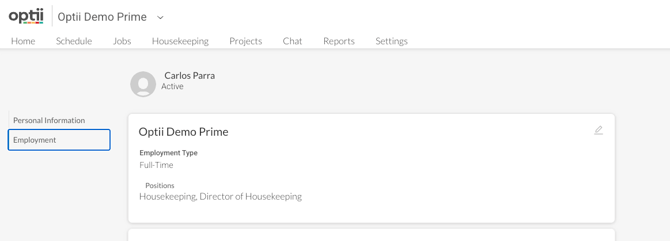
Next Steps: Please reach out to your property's designated Optii Champion. They have the administrative tools to review your specific user account and ensure the correct scheduling permissions are enabled for your role.
Q: We want our Front Desk agents to be able to tag a room as a "Rush" job. Can we add just a "Rush" button to their view?
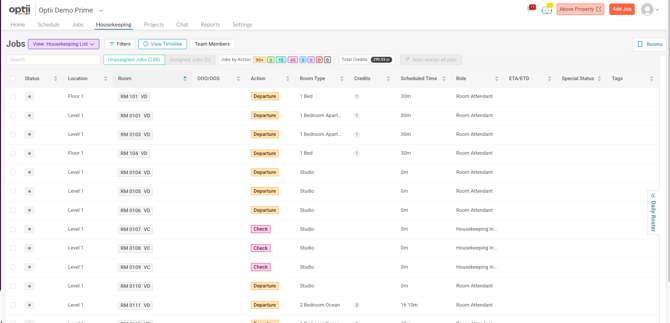
A: Because Optii manages tasks through a unified system, granting Front Desk agents the ability to tag rooms as a "Rush" requires giving them access to the Housekeeping Module. There is not a standalone button that can be deployed outside of this module.
Next Steps: If you are comfortable granting your Front Desk team access to the Housekeeping interface so they can flag priorities, notify your Optii Champion. They can adjust the profile settings to grant the team entry to this module.
Q: Can we allow Front Desk agents to assign, unassign, or reassign rooms to room attendants without giving them full Administrative/Settings access?
A: Yes, absolutely. Optii features granular role permissions. Your Optii Champion can configure a tailored user role specifically for your Front Desk agents that grants them operational access to the Timeline and Housekeeping List View.
- What they CAN do: Assign, unassign, and reassign rooms to attendants.
- What they CANNOT do: Access system settings, change global configurations, or modify property defaults.
🛑 Operational Best Practice vs. Optii Capability
Before adjusting user roles, it is important to distinguish between what the software can do and what is considered an industry best practice.
⚠️ Operational Best Practice Note: > In standard hotel operations, the management of room assignments, attendant workloads, and real-time cleaning updates should remain strictly within the domain of the Housekeeping Department. Allowing departments outside of Housekeeping to alter assignments or workflows can disrupt carefully balanced room credits, interfere with optimized floor routing, and cause miscommunication on the floors.
However, from a technical and software perspective, Optii is flexible enough to accommodate these cross-departmental permissions if your property's specific operating model requires it.
Interface & Room Status Tools
Q: Where can we find a guide to the system's "Color Map" to understand what each room color represents?
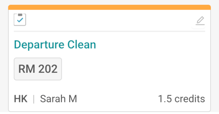
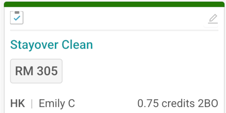
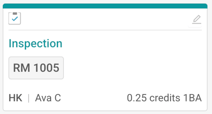
A: The colors you see throughout Optii primarily signify live room and reservation statuses—such as Departures, Stayovers, Inspections, and Clean vacant rooms.
To help your team easily identify and master these color codes, please refer to our comprehensive Optii Room Status & Color Mapping Guide.
Our Color DNA — A Universal Standard: > Please note that Optii does not alter or customize the core colors used for job actions and room statuses. This standard color mapping is part of Optii’s "secret sauce" and core identity. By keeping these visual indicators uniform across our entire global network, any user at any hotel using Optii can walk into a new property and instantly identify room statuses without retraining. It is a fundamental part of our platform's DNA to ensure seamless operational continuity.
If you need a quick reminder or a refresher on these unchangeable color standards, check in with your Optii Champion to review the documentation for your hotel's specific layout.
Q: For supervisors, is it possible to have "Vacant Clean" rooms automatically disappear from their list so they only see rooms requiring inspection?
A: Currently, completed or "Vacant Clean" rooms do not completely vanish from the active list; instead, they automatically move to the bottom of the supervisor's view and are marked with a green checkmark. This ensures a clear audit trail of the day's progress.
Product Roadmap Update: Our Product Team is actively developing advanced view filters. Future updates will introduce separate tabs, allowing completed jobs to automatically move completely out of the primary workflow view.
Supervisor & Room Attendant Checklists
Q: Is there a "Select All" checkbox available so staff can check everything at once and simply uncheck what wasn't done?
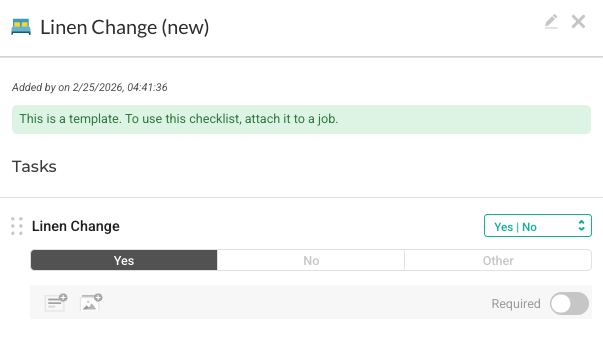
A: Yes, we do support this workflow! While Optii does not feature a literal "Select All" clickable button on the live checklist interface, the software completely supports this exact time-saving methodology through our template configurations.
Instead of forcing your staff to manually tap a "Select All" button on every single room they service, Optii allows you to configure your checklists to Pass, Yes, etc by Default.
- How it works: When a Room Attendant, Supervisor, Engineer opens their checklist, the system automatically marks every single item as "Passed", or "Yes" from the start. Your team can then work backward—simply unchecking only the specific items that did not meet standard operational requirements.
- How to enable it: Because we support this functionality at the backend template level, you can implement it today. Reach out to your Optii Champion to update your checklist settings to this "Pass by Default" model.
Q: How can we configure checklists to default to "All Checked"?
A: Same as above. Your system settings can be adjusted so that both Room Attendant and Supervisor inspection checklists automatically load with all items pre-checked.
Under this workflow, your staff only need to manually uncheck the items that failed to meet inspection standards or require attention. If you would like to toggle this feature on for your property, contact your Optii Champion, who can enable this setting for your property's templates.
🛠️ How to Proceed
If your property decides that granting these permissions aligns with your operational goals, please contact your on-site Optii Champion. They can modify your team's user groups and permissions profiles directly within the platform.
Would you like to learn more?
Have questions or need help?
Do you have any questions about Optii? Please contact your success manager today at help@optiisolutions.com