![Optii Logo 3x (2)-3.png]](https://help.optiisolutions.com/hs-fs/hubfs/Optii%20Logo%203x%20(2)-3.png?height=40&name=Optii%20Logo%203x%20(2)-3.png)
While standard room attendants operate as self-checkers (where completing a departure clean automatically sets the room status to Vacant Inspected), VIP arrivals are the critical exception. VIP arrival rooms require a physical inspection by a senior supervisor before they can be released to arriving guests.
This training guide details the step-by-step configuration, supervisor rostering, automated job assignment, and inspection execution in Optii.
End-to-End Inspection Workflow
- Identify VIP Arrivals: VIP arrival rooms are identified based on reservation codes in the PMS and flagged in Optii.
- Departure Clean Completed: The Room Attendant completes the departure clean.
- Auto-Assignment: Optii creates an inspection job automatically and assigns it to an available supervisor.
- Physical Inspection: The designated supervisor conducts the inspection using the Optii mobile app.
- Room Release: Upon pressing Pass & Complete, the room is released as Vacant Inspected (VI) in both Optii and the PMS, ready for guest check-in.
Module 1: System Settings & Configuration
Before Optii can automatically create inspection jobs for VIP arrivals, the system must be configured to recognize which VIP and Special reservation codes should trigger them.
Step-by-Step Configuration:
- Navigate to Settings / Job Scheduling.
- Select Job Settings.
- Choose Inspections from the menu.
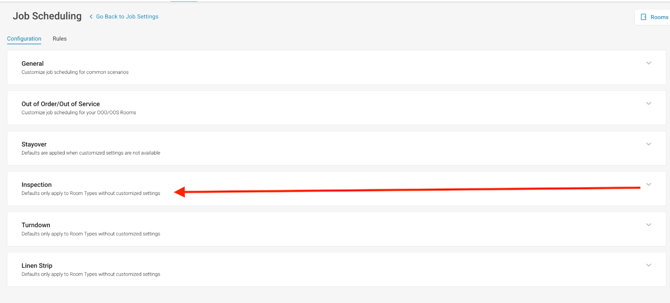
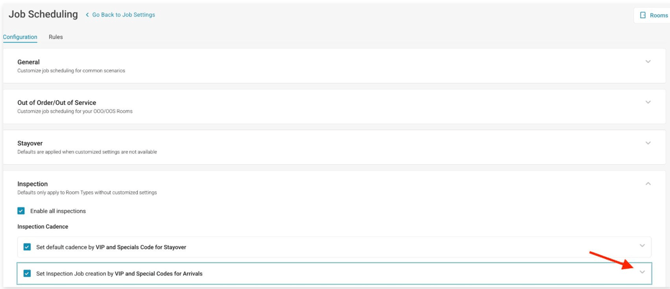
- Click the expandable arrow next to "Set Inspection Job Creation by VIP and Special Codes for Arrivals".
- Check all VIP and Special reservation codes that require supervisor inspection prior to arrival.
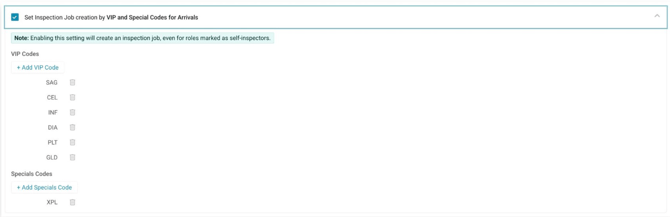
- Click Save.
Module 2: Scheduling & Rostering Supervisors
Supervisors must be properly scheduled on the daily roster so Optii knows who is available to receive automated inspection tasks.
Daily Roster Setup:
- Click Team Members from the Housekeeping List View or Timeline View
- Locate the supervisor under "All Team Members" or "Not on Timeline" and switch their status to Yes.
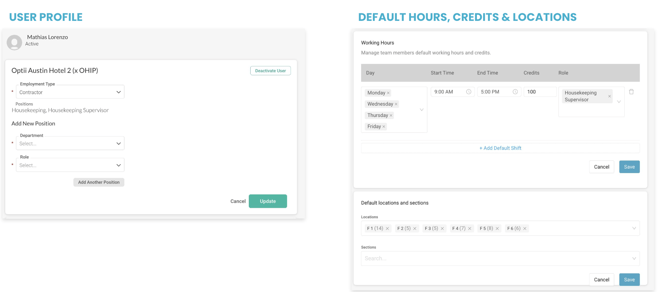
- Enter their shift start/end times, daily credit quota (maximum inspections for the day), and assigned floor locations/sections.
- Click Update Team Members to apply the schedule.
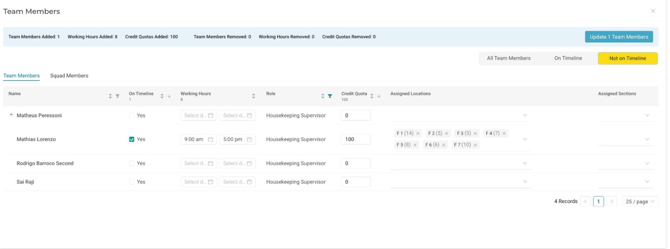
Pro Tip (Default User Profile): To save time during daily setup, enter the supervisor’s standard working hours, credit quota, and default locations directly within their User Profile. Optii will automatically populate these settings each day, requiring only minor daily roster adjustments.
Module 3: Automated Job Hand-Off
Once VIP codes and supervisor schedules are active, Optii handles the job creation process automatically:
-
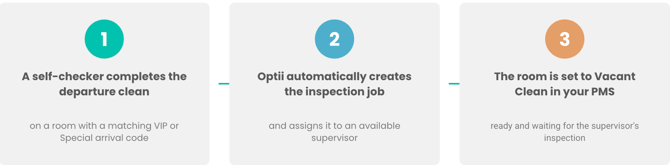
A self-checking room attendant completes a departure clean on a room associated with an arrival VIP code.
- Optii automatically creates an inspection job and routes it to an active, scheduled supervisor based on location and available credit capacity.
- The room status changes to Vacant Clean (VC) in the PMS while awaiting inspection.
Operational Definitions:
- Vacant Clean (VC): Room has been cleaned by an attendant and is awaiting supervisor inspection.
- Vacant Inspected (VI): Room has been physically inspected, verified, and released as ready for check-in.
Module 4: The Mobile App View
Supervisors do not need complex manual setup on their mobile devices—inspection jobs appear automatically in their workflow.
-
The supervisor logs into the Optii Mobile App using their credentials.
- Navigating to View: My Jobs displays all active VIP arrival inspection jobs scheduled for the shift.
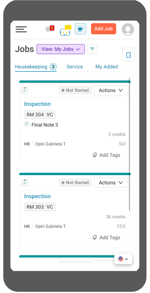
- Each job card prominently displays the room number, floor location, and assigned credit weight.
Module 5: Conducting and Releasing an Inspection
When conducting a physical inspection on the floor:
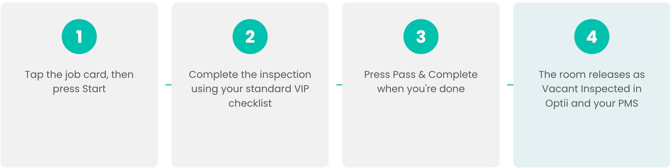
- Tap the designated job card on the mobile app and select Start
- Perform the physical room inspection following property quality standards.
- Upon successfully passing the room, select Pass & Complete on the job card.
- The room status instantly updates to Vacant Inspected (VI) across both Optii and the property PMS.
REMEMBER Use the same standard inspection process your team already follows for inspections.
Module 5: Conducting and Releasing an Inspection
When conducting a physical inspection on floor:
- Tap the designated job card on the mobile app and select Start.
- Perform the physical room inspection following property quality standards.
- Upon successfully passing the room, select Pass & Complete on the job card.
- The room status instantly updates to Vacant Inspected (VI) across both Optii and the property PMS.
Module 6: Live Tracking & Reporting Analytics
Managers and coordinators can track inspection activity in real time or conduct post-shift performance analysis.
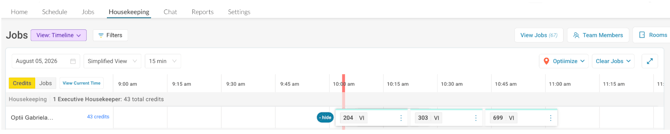
- Real-Time Monitoring (Timeline View): View completed inspection time blocks across all supervisor timelines throughout the day.
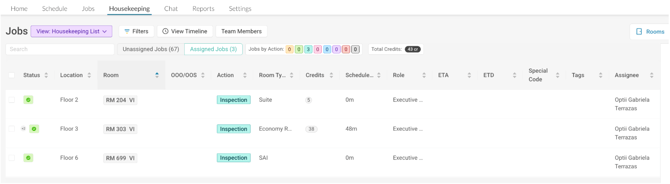
- Housekeeping List View: Review current status, assigned supervisors, location details, and active room credit totals.
Quick Reference Cheat Sheet
| Step | Focus Area | Action in Optii |
| 1 | Settings |
Go to |
| 2 | Scheduling |
Add supervisor to |
| 3 | Auto-Assign |
Attendant finishes clean > Optii automatically triggers inspection task. |
| 4 | Mobile App |
Supervisor opens |
| 5 | Execution |
Tap |
| 6 | Live Tracking |
Monitor live on |
💡Tip: Feel free to share this valuable resource with your colleagues to explore Optii.
Would you like to learn more?
If you would like to learn more about Optii, please check out our Optii learning centre today at help.optiisolutions.com
Have questions or need help?
Do you have any questions about Optii? Please contact your success manager today at help@optiisolutions.com