![Optii Logo 3x (2)-3.png]](https://help.optiisolutions.com/hs-fs/hubfs/Optii%20Logo%203x%20(2)-3.png?height=40&name=Optii%20Logo%203x%20(2)-3.png)
How do I change my Preferred Language?
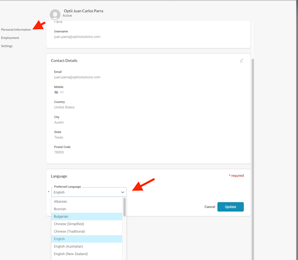
Updating your language settings is quick and easy. To change the language of your app interface (menus, buttons, and navigation), follow these steps:
-
Open your Profile Menu: Click on your profile icon or name located in the top right-hand corner of the screen.
-
Access Personal Info: Select Personal Information from the dropdown menu.
-
Find the Language Section: Scroll to the bottom of the page to find the "Language" section.
-
Edit your Choice: Click the Edit button (or click directly into the dropdown) to open the list of supported languages.
-
Save your Settings: Select your desired language and click Save when finished.
The app will instantly refresh to display your chosen language.\
What languages are supported in the software?
We offer a wide range of languages for our interface, including regional variations to make you feel right at home:
-
English: Standard, Australian, British, New Zealand, and Canadian.
-
Spanish: European (Spain) and Latin American (Mexico).
-
Chinese: Both Simplified and Traditional characters.
-
Global & European: Albanian, Bosnian, Bulgarian, Estonian, French, German, Greek, Haitian Creole, Italian, Japanese, Mongolian, Polish, Punjabi, Romanian, Russian, Tagalog, Turkish, Ukrainian.
Can I translate my notes and checklists?
Yes! In addition to the main interface settings, we provide a Multi-Lingual Translation Widget (located via the flag icon at the bottom of your screen).
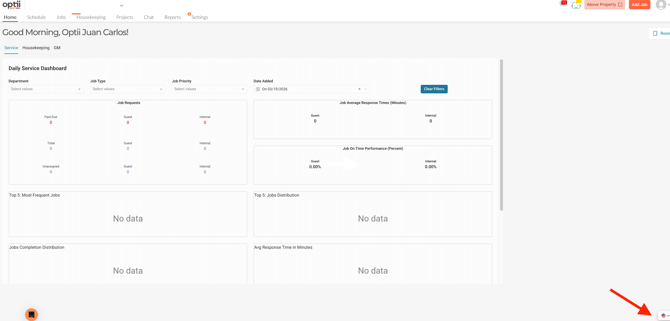
While your interface stays in your "Preferred Language," you can use this widget to instantly translate:
-
Job Notes
-
Checklists & Tasks
-
Asian: Bengali, Chinese Simplified, Chinese Traditional, Hindi, Korean, Nepali, Persian, Thai, Vietnamese.
-
Europe & Other Regions: Albanian, Bosnian, Bulgarian, Dutch, Estonian, French, German, Italian, Norwegian, Polish, Portuguese, Romanian, Russian, Swedish, Turkish, Ukrainian
-
Indigenous & Regional: Haitian Creole, Hawaiian, Zulu
Why is my content still in English after I changed my settings?
Your Preferred Language settings change the "frame" of the app (the menus and buttons). However, if a note or checklist was originally written in English, it will remain in English until you use the Translation Widget to convert that specific content.
Pro Tip: If you are a bi-lingual user, you can keep your interface in your primary language while using the widget to quickly check the meaning of notes in a second language!
💡Tip: Feel free to share this valuable resource with your colleagues to explore Optii.