![Optii Logo 3x (2)-3.png]](https://help.optiisolutions.com/hs-fs/hubfs/Optii%20Logo%203x%20(2)-3.png?height=40&name=Optii%20Logo%203x%20(2)-3.png)
The Activity Logs report records every action and event within the housekeeping system, giving managers a detailed audit trail to track performance, identify trends, and ensure accountability. Use it to filter activity by date, location, user, or event type, and export the results for further analysis.
The following are common ways managers use the Activity Logs report:
- Process Improvement: Analyze event types and job sources to identify bottlenecks or inefficiencies in the workflow. Are certain tasks consistently taking longer than expected? Are there delays in job assignments?
- Accountability: The report provides a clear audit trail of all actions, ensuring accountability and transparency. This can be helpful in resolving disputes or investigating incidents.
- Resource Management: Analyze activity levels in different locations to optimize staffing and resource allocation. Are certain areas consistently busier than others?
- Trend Analysis: Identify trends in activity over time to anticipate future needs and plan accordingly. Are there seasonal variations in cleaning activity?
- Problem Solving: Use the report to investigate specific incidents or issues. For example, if a room was not cleaned to standard, the Activity Logs can help determine where the breakdown occurred.
This article will break down the Activity Logs report, explaining each section and how it can be used effectively.
Filters: refining your search
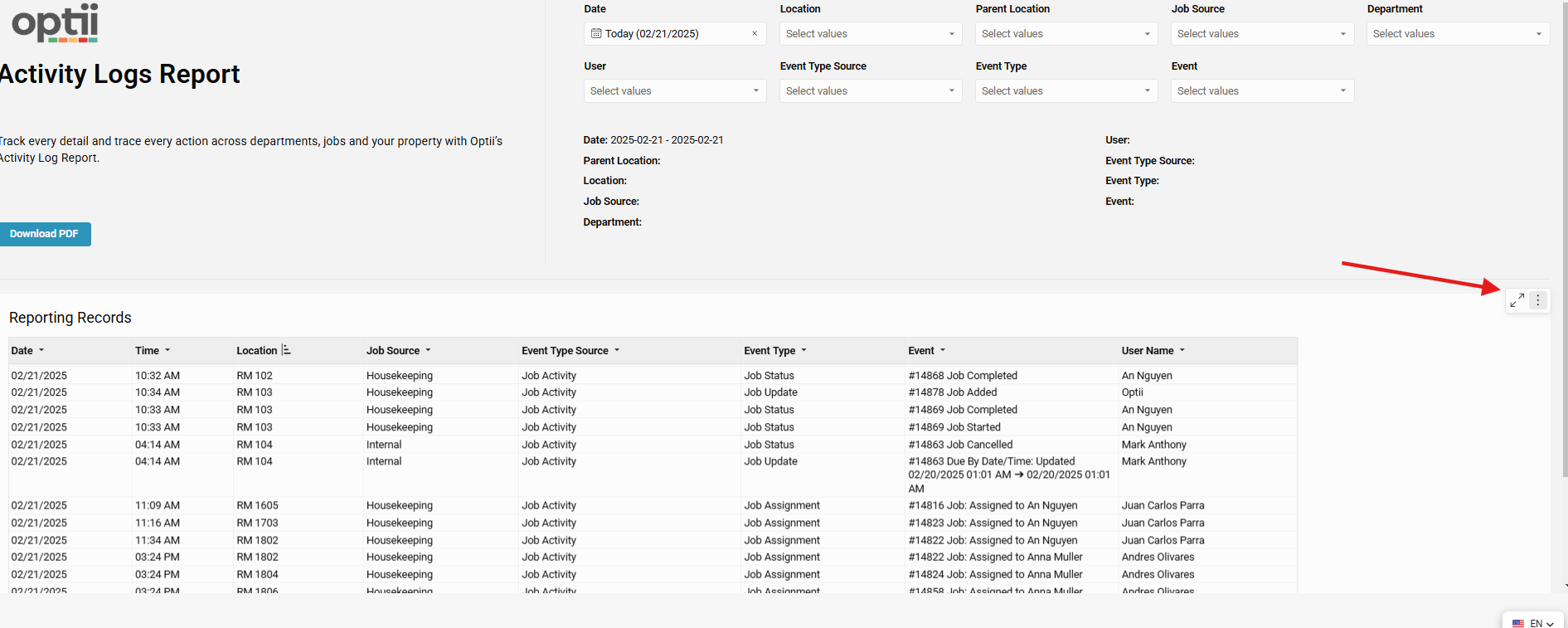
The first section of the report consists of filters, which allow you to narrow down the data and focus on specific areas of interest. These filters act like a magnifying glass, helping you pinpoint the exact information you need.

The available filters include:
- Date: Specify a date range to view activities within a particular timeframe. This is essential for tracking daily, weekly, or monthly activity.
- Location: Filter by specific locations, such as individual rooms, floors, or common areas. This allows you to analyze activity in different parts of the property.
- Parent Location: This filter allows you to group locations. For example, you can select a building and see all activity within that building.
- Job Source: Filter by the source of the job, such as manual entry, automated scheduling, or guest request. This helps understand how jobs are being generated.
- Department: Filter by the department responsible for the activity, which might include housekeeping, maintenance, or others.
- User: Filter by specific users to track individual performance and identify any potential issues.
- Event Type Source: This filter allows you to select the source of the event, like the system, user, or integration.
- Event Type: Filter by the type of event, such as job assignment, job completion, inspection, or supply usage. This allows you to focus on specific actions.
- Event: This is a more granular filter that allows you to select a specific event, such as "Room Cleaned," "Inspection Passed," or "Supply Restocked."
2. Activity Logs Table: The Detailed Record
The heart of the report is the Activity Logs table, which displays a comprehensive record of all events based on the applied filters.

Each row in the table represents a specific event and includes the following information:
- Date: The date the event occurred.
- Time: The time the event occurred.
- Location: The location where the event took place.
- Job Source: The source of the job related to the event.
- Event Type Source: The source of the event.
- Event Type: The type of event that occurred.
- Event: A detailed description of the event.
- Username: The username of the person who performed the action or triggered the event.
Exporting the data
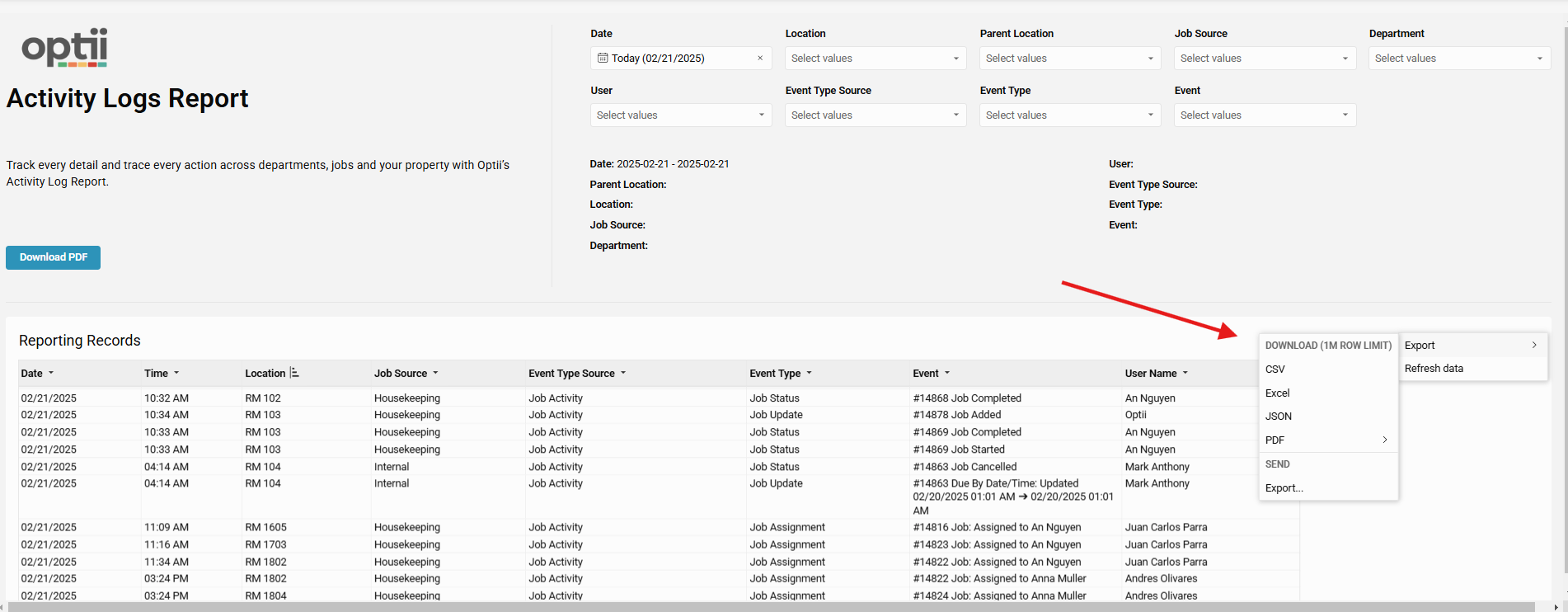
You can export the Activity Logs report in PDF, CSV, or Excel format. To export the data:
- Apply your desired filters to the Activity Logs report.
- Locate the Export button at the top of the Activity Logs table.
- Select your preferred format: PDF, CSV, or Excel.
- The file will download to your device, ready for further analysis or sharing with stakeholders.
By understanding and utilizing the Activity Logs report effectively, managers can gain valuable insights into their housekeeping operations, improve efficiency, and ensure a high level of service. This report is an essential tool for data-driven decision-making and continuous improvement in housekeeping management.
💡Tip: Feel free to share this valuable resource with your colleagues to explore Optii.