![Optii Logo 3x (2)-3.png]](https://help.optiisolutions.com/hs-fs/hubfs/Optii%20Logo%203x%20(2)-3.png?height=40&name=Optii%20Logo%203x%20(2)-3.png)
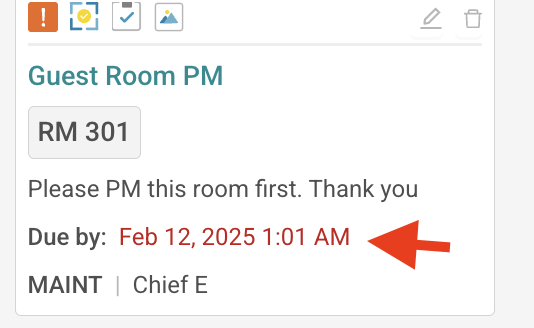
💡 Important Tip: Optii is constantly evolving to provide you with the best experience. This means that the appearance of some icons may change over time, and we may also add new features and elements to the Job Cards.
We will do our best to keep this documentation updated, but if you encounter something you're unsure about, please don't hesitate to contact support for assistance.
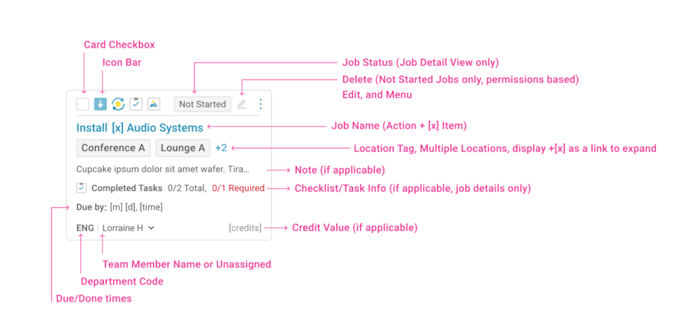
An Optii Job Card is a digital task record in the Optii platform that displays all key information about a job — including its status, assigned team member, location, due date, and more. Each component of a Job Card is described below.
Here's a breakdown of each component:Card Checkbox: This allows you to select one or multiple Job Cards for bulk actions, such as marking multiple jobs as complete or assigning them to a team member.
Icon Bar: This area displays icons representing quick actions or information related to the job, such as attachments, priority level, or assigned team members. Hovering over the icon often provides more detail.

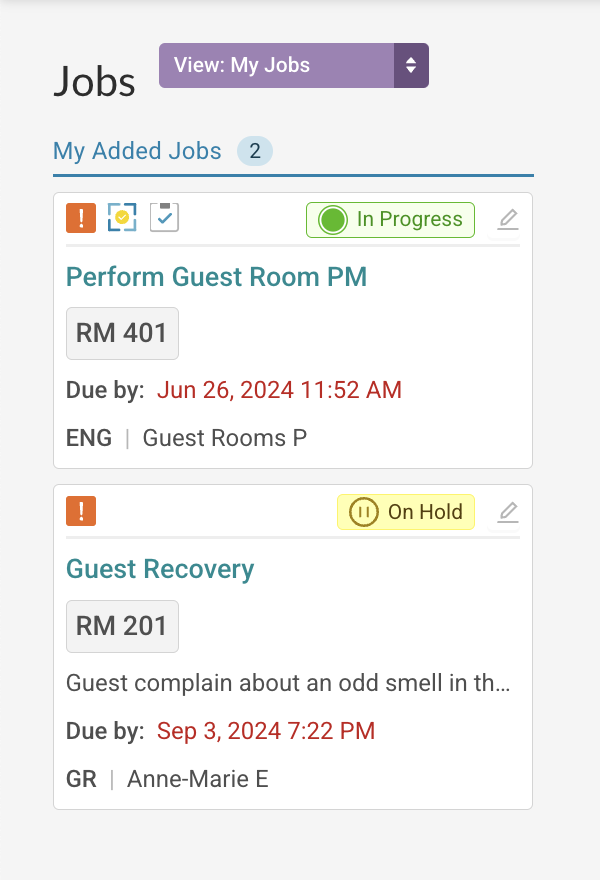
Job Status: This indicates the current stage of the job, such as "Not Started," "In Progress," "Completed," or "On Hold." It provides a quick overview of the job's progress.
Delete: Permanently removes the Job Card. ⚠️ This action cannot be undone.
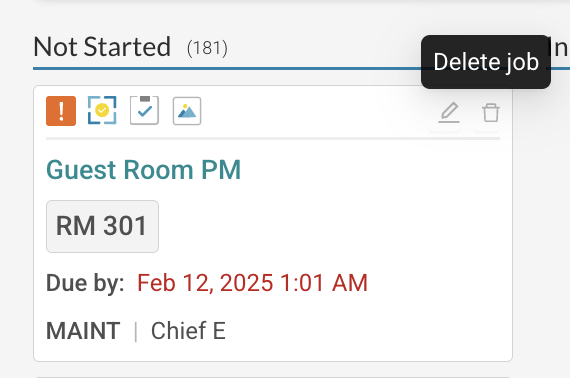
Edit: This button allows you to modify the details of the Job Card, such as the Job Name, Location, Notes, Due Date, etc.

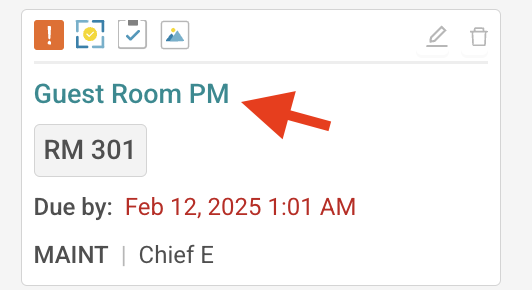
Job Name: This is the title or brief description of the job. It should clearly indicate the task at hand.
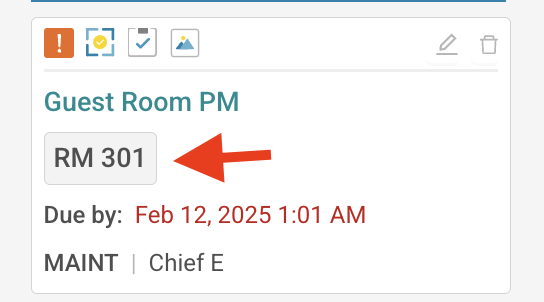
Location: The physical or virtual location where the job is to be performed, such as a specific room, floor, or building.
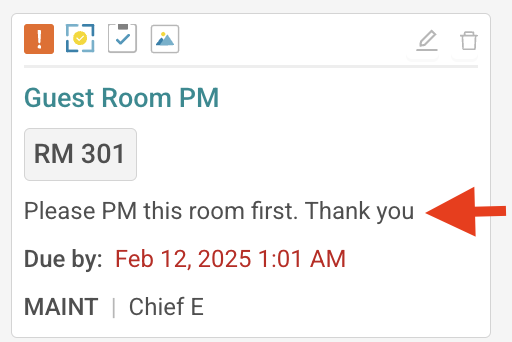
Note: Add relevant notes or special instructions for the job, such as guest preferences, access codes, or other important context.
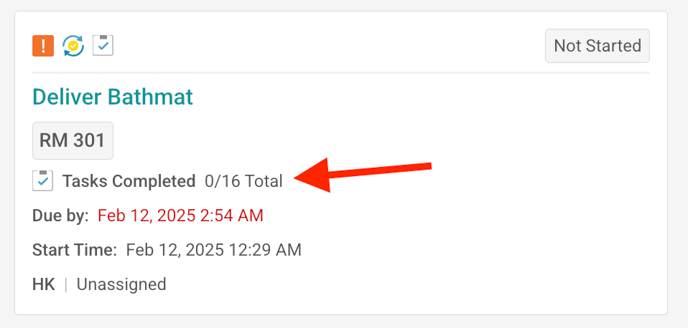
Checklist Task Progress: This shows the progress of tasks within the job using a visual representation (e.g., a progress bar or percentage). It helps you track how much of the job has been completed.
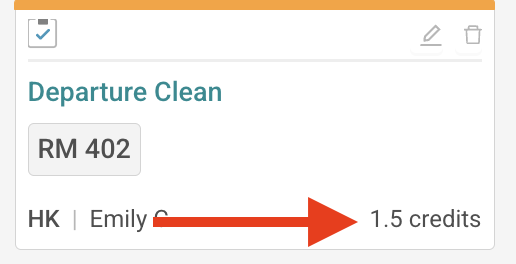
Credit Value: The points or value assigned to the job upon completion. This may be used for staff performance tracking, rewards programmes, or other internal incentive systems configured by your property.
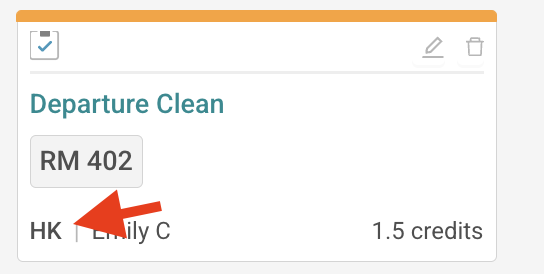
Department Code: This identifies the department or team responsible for the job. It helps categorize and organize jobs.
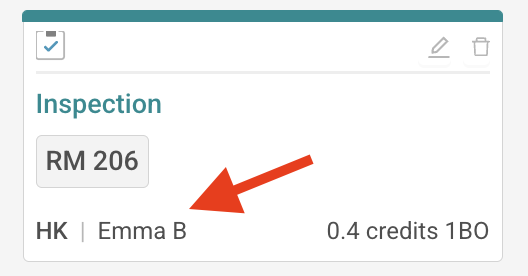
Team Member: This displays the name(s) of the individual(s) assigned to the job. It clarifies who is responsible for completing the task.
Due/Done Times: "Due" indicates the deadline for completing the job. "Done" indicates the date and time the job was marked as completed. These timestamps help track job completion and timeliness.